

Interactive digital displays transform passive screen time into an active, spatial learning experience by bridging physical movement and cognitive retention. Integrating an interactive whiteboard into a home study routine requires a structured approach to ergonomics, visual organization, and sensory interaction.
The Cognitive Science of Spatial and Tactile Learning
Using a large-format digital display engages different cognitive pathways than typing on a laptop or reading from a tablet. When you write or sketch on an interactive board, you activate fine and gross motor skills simultaneously. This physical engagement stimulates the motor cortex, creating stronger neural pathways associated with the concepts being visualized—a phenomenon known as kinesthetic encoding. The spatial scale of a whiteboard allows for the physical arrangement of complex ideas. Unlike small screens that force linear scrolling, a wide digital canvas utilizes your spatial memory. You remember where a piece of information is located in physical space, making recall significantly more efficient during assessments.
Ergonomic Positioning and Light Management
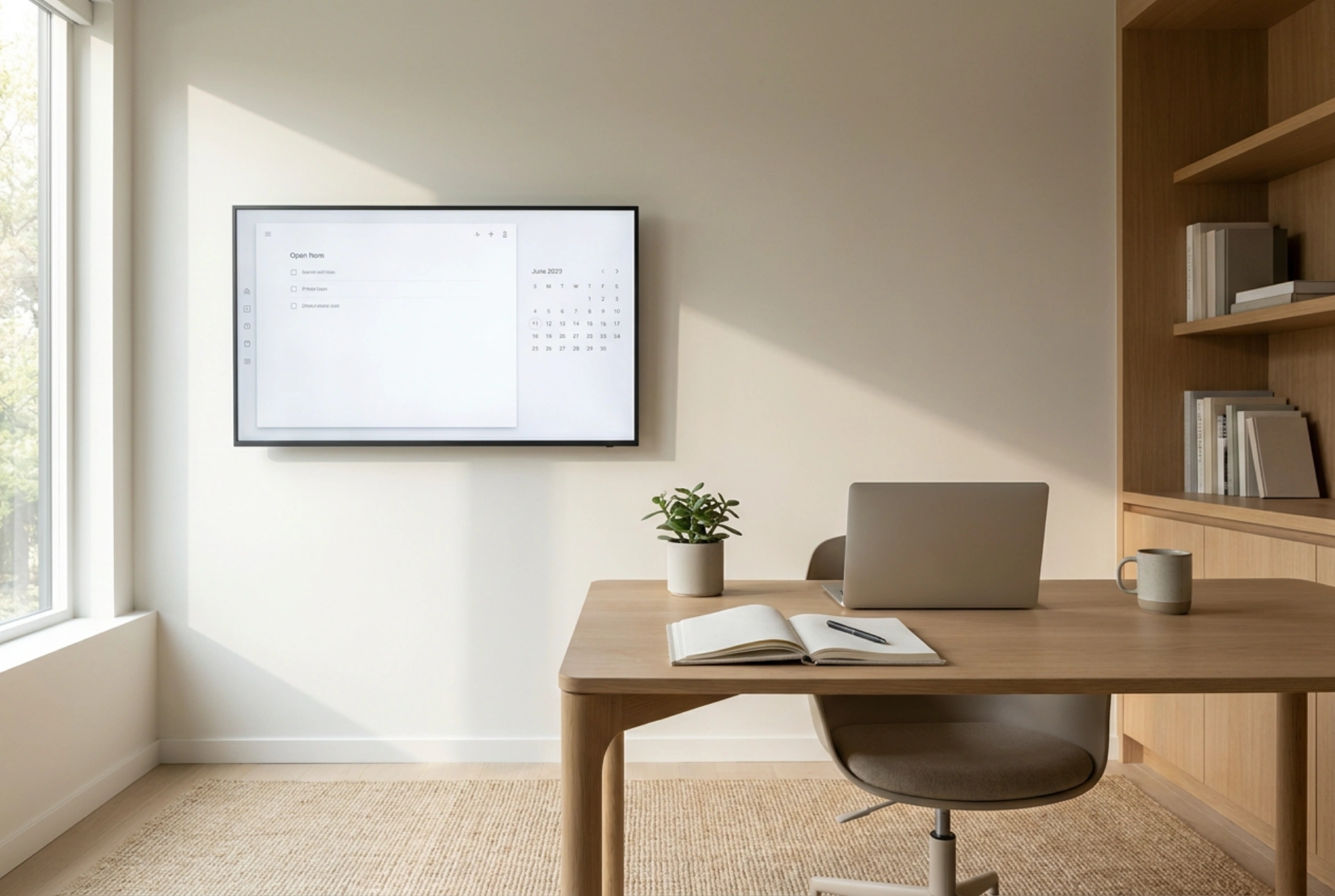
To prevent fatigue during extended study sessions, the physical installation of the display must adhere to ergonomic principles. Place the board at a height where the top third of the screen is at eye level when standing, allowing you to write naturally without straining your shoulders or bending your neck excessively. If the board is used in a hybrid sitting-and-standing routine, a height-adjustable mount is ideal. Light management is equally critical to prevent eye strain. Position the display perpendicular to windows to avoid direct glare from incoming sunlight. Since interactive screens use optical bonding or anti-glare glass layers, minimizing direct reflections preserves contrast levels, reducing the accommodative microfluctuations of the eye muscles that lead to visual fatigue.
Designing a Structured Visual Canvas
An infinite digital canvas can easily become cluttered, defeating its cognitive utility. To maximize efficiency, divide your workspace into functional zones. Establish a dedicated theory zone on the left for key formulas, concepts, or raw text, and a practice zone on the right for active problem-solving or diagramming. Use color-coding strictly as a functional tool rather than decoration. Utilize high-contrast primary colors for core concepts and secondary colors for annotations or cross-references. Limit your palette to three colors to avoid cognitive overload. This structured approach helps the brain categorize information instantly, turning the whiteboard into a structured mental map rather than a chaotic digital scratchpad.
Active Retrieval Workflows
The true power of an interactive display lies in active learning techniques, particularly active recall and spaced repetition. Instead of passively reading notes, use the board for self-explanation sessions. Recreate complex diagrams or mind maps from memory, using the digital pen to map out relationships between concepts. Once finished, overlay your digital notes in a contrasting color to instantly identify gaps in your knowledge. Additionally, the digital nature of the board allows you to save these sessions as layered vector graphics. You can hide or reveal specific layers to test yourself on key terms, creating a reusable, highly interactive testing suite tailored to your study curriculum.
Surface Maintenance and Material Care
The interactive surface is engineered with sophisticated optical and touch-sensitive coatings that require proper care to maintain precision tracking. Dust, oils from skin contact, and static charge can interfere with infrared sensors or capacitive touch grids. Clean the glass surface weekly using a dry, high-density microfiber cloth. For stubborn smudges, use a solution of 70% isopropyl alcohol and 30% distilled water sprayed directly onto the cloth, never onto the screen itself. Avoid any abrasive cleaners or ammonia-based solvents, as these strip away the oleophobic coatings that reduce fingerprint smudges and allow the stylus to glide smoothly over the glass.