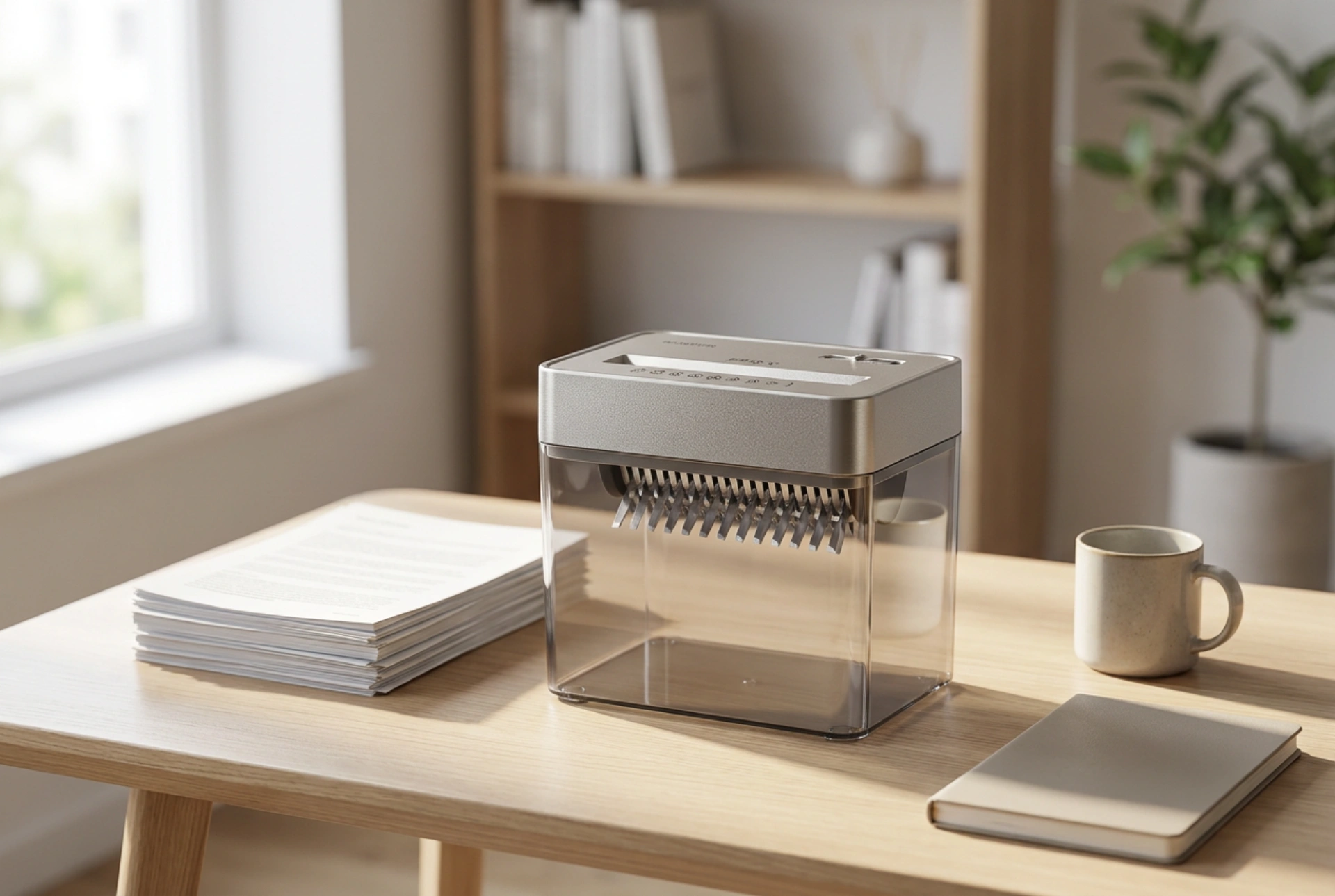


A small paper shredder is a vital tool for document security, but mechanical overload and dust accumulation frequently cause frustrating paper jams. Maintaining its cutting blades through correct loading, regular lubrication, and dust removal ensures consistent performance and extends the motor's lifespan.
The physics of paper shredding and the cause of jams
To prevent malfunctions, it is essential to understand how a shredder works. The core mechanism consists of two counter-rotating steel shafts fitted with sharp, interlocking cutting discs. When paper passes through, these discs shear the fibers using mechanical force. However, paper is highly abrasive and releases microscopic cellulose dust during this process. Over time, this dust mixes with residual moisture in the air, forming a sticky paste that settles between the cutting blades. This accumulation increases friction, forcing the electric motor to draw more current and work harder, which eventually leads to thermal overload and sudden jams.
The correct loading technique
Preventing jams starts with how you feed the paper into the machine. Most small shredders are designed for light duty, meaning their motors have limited torque. To keep them running smoothly, follow these physical rules:
- Respect the sheet capacity: If your shredder is rated for six sheets, only feed four or five at a time. The manufacturer's maximum rating usually refers to thin paper, whereas standard office paper is much thicker and heavier.
- Avoid folding sheets: Folding a single sheet of paper doubles its thickness. Inserting a folded sheet means the blades must cut through multiple layers simultaneously, easily exceeding the motor's mechanical limit.
- Align the paper straight: Insert documents perfectly perpendicular to the feed slot. Crumpled or angled sheets can bunch up on one side of the shafts, creating a localized overload that stalls the blades.
- Remove metal binders: Always remove staples and paper clips before shredding, unless your device is specifically rated for them. Metal causes micro-fractures on the steel blades, dulling the cutting edges and increasing friction.
The chemistry of lubrication
Just like any metal-on-metal mechanism, shredder blades require regular lubrication to reduce friction and heat buildup. Without proper oiling, the cutting shafts rub against each other, causing the motor to overheat and the blades to dull quickly. You should lubricate your shredder after every 30 minutes of cumulative operation or at least twice a month.
Use specialized shredder oil, which is typically a low-viscosity, non-aerosol vegetable-based lubricant. Never use standard penetrating oils, household cooking oils, or aerosol lubricants. Aerosol sprays can propel flammable propellants into the motor housing, creating a serious fire hazard when mixed with electrical sparks from the motor brushes. To apply the oil correctly, squeeze a zig-zag pattern of lubricant across a clean sheet of paper, let it absorb slightly, and feed the sheet through the shredder. Afterward, run the machine in reverse for ten seconds to distribute the oil evenly across the entire length of the rotating shafts.
Clearing micro-dust and residue
Cellulose dust buildup can eventually block the optical sensors that automatically trigger the shredder when paper is inserted. To keep these sensors clean and prevent the blades from binding, unplug the device and lift the shredder head off the waste bin. Use a dry, lint-free microfiber cloth to wipe the underside of the cutting head. For stubborn paper fragments lodged between the blades, use a pair of plastic tweezers to gently pull them out, moving in the direction of the blade rotation. Avoid using metal tools, which can scratch the precision-ground edges of the cutting discs.





