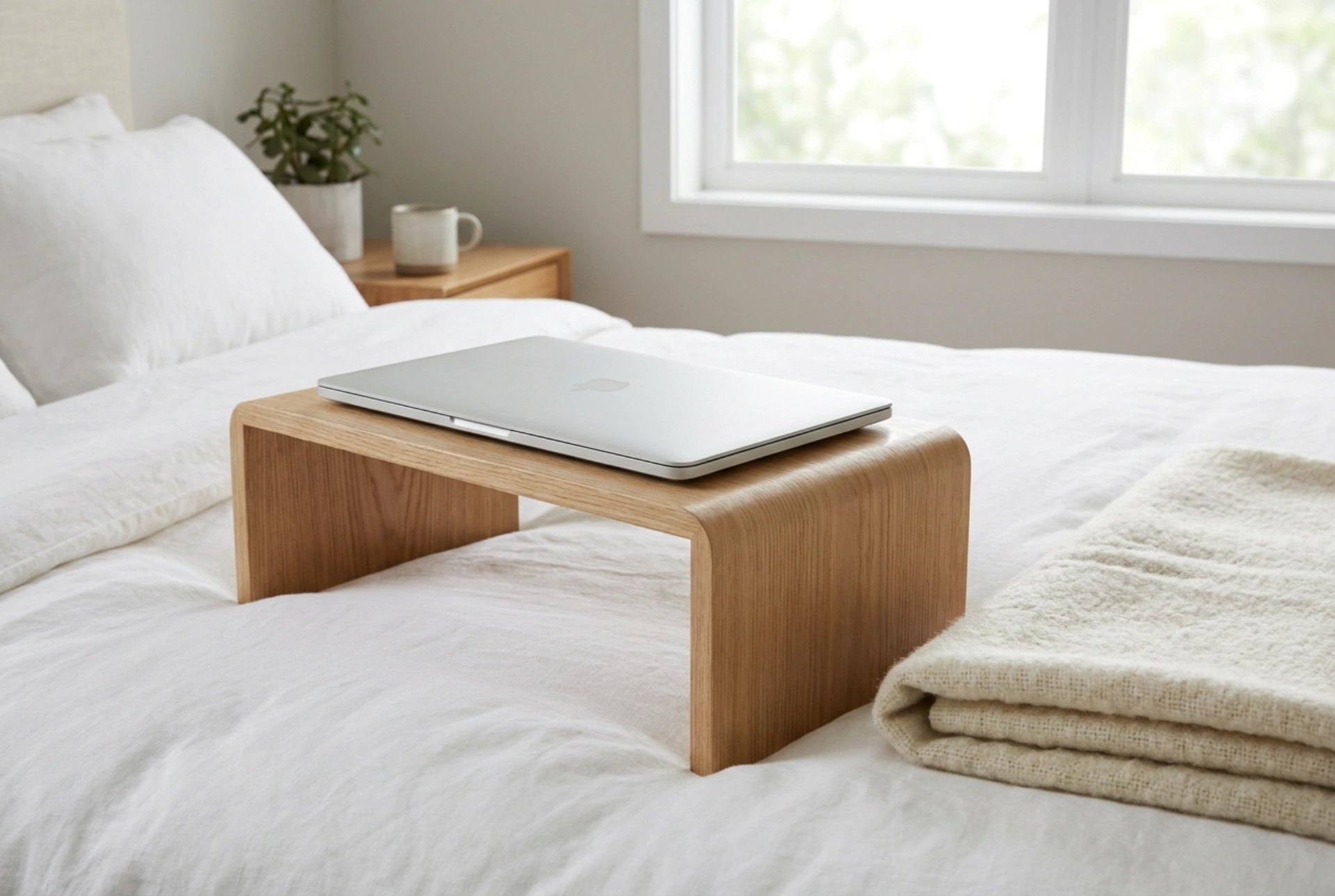


Using a laptop on a bed risks restricting airflow and causing critical internal components to overheat. By understanding the thermodynamic principles of convective cooling and selecting the correct physical barrier, you can safely work or stream from the comfort of your bed.
The Physics of Laptop Heat Dissipation
Laptops rely heavily on forced convection to maintain safe operating temperatures. Internal fans draw cool air through intake vents—typically located on the underside or sides of the chassis—and push it across copper heat pipes to expel thermal energy through exhaust vents. When a laptop is placed directly on soft bedding, such as a duvet or blanket, the fabric conforms to the shape of the device. This physical obstruction seals the intake vents, causing the internal fans to spin at maximum speed while merely recycling trapped, stagnant hot air. Over time, this leads to thermal throttling, where the processor drops its performance to prevent permanent silicon degradation.
Material Science: Aluminium vs. Wood Stands
The material of your laptop stand directly influences how heat is transferred away from the device. Aluminum stands are highly effective due to the material's high thermal conductivity (approximately 205 W/m·K). An aluminium tray acts as an auxiliary passive heatsink, absorbing excess heat from the laptop’s lower chassis through conduction and dissipating it into the surrounding air. Wooden stands, while aesthetically pleasing and stable, have low thermal conductivity and act as thermal insulators. If using a wooden stand, it must feature active ventilation cutouts or elevated slats to facilitate air movement, relying purely on clearance rather than material conduction to keep temperatures low.
Correct Placement and the Chimney Effect
To maximise convective airflow, the laptop stand must be positioned to exploit natural thermal buoyancy—commonly known as the chimney effect. Hot air naturally rises, creating a low-pressure zone that draws cooler air in from below. Elevating the rear of the laptop at an angle of 15 to 30 degrees creates a wedge-shaped pocket of air beneath the chassis. This clearance ensures that even if the stand is resting on a soft mattress, the intake vents remain entirely unobstructed. Additionally, you must ensure that loose blankets or duvets do not drape over the edges of the stand, which would block the lateral escape paths of the exhaust air.
Structural Stability and Soft Surface Management
A major risk when using a laptop stand in bed is the instability of the mattress surface. When a mattress compresses under body weight, a simple flat board can tilt, shifting the laptop's internal gravity centre and potentially blocking side vents against pillows. Opt for a stand with wide, rigid legs or a solid, flat base that spans a larger surface area to distribute weight evenly. This prevents the stand from sinking into soft memory foam or down toppers. Before placing the stand, smooth out the sheets to eliminate any micro-folds of fabric that could creep upward into the airflow path of the laptop's lower intake grills.
Optimising Device Settings for Reduced Thermal Load
Physical elevation is only half the solution; reducing the heat generation at the source completes the process. Operating a laptop on high-performance power profiles while on a bed increases the thermal envelope significantly. Switching the operating system to an energy-efficiency or "quiet" mode limits the peak voltage supplied to the CPU and GPU, reducing heat output exponentially. Furthermore, keeping the chassis vents free of household dust by periodic clearing with compressed air ensures that the boundary layer of air inside the heat exchangers remains thin, allowing for optimal heat transfer efficiency.