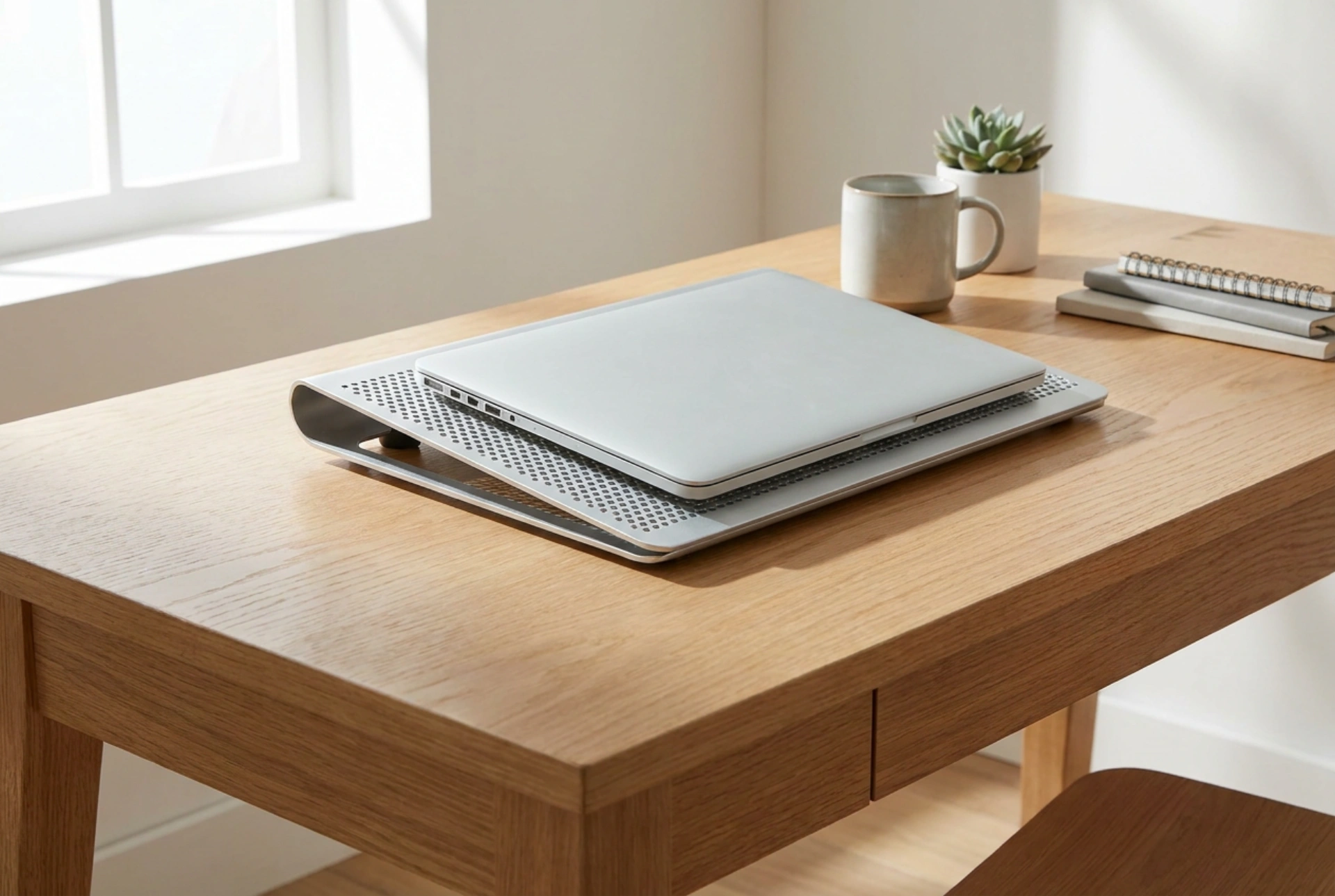


Positioning an active laptop cooling pad correctly involves more than simply placing it under the chassis; it requires aligning air currents with your device's internal thermal architecture. By understanding the physics of heat transfer and convective cooling, you can significantly lower operating temperatures and prevent performance-throttling heat build-up.
The Thermodynamics of Laptop Heat Dissipation
Laptops rely on a combination of conductive and convective cooling. Internal heat-generating components, primarily the central processing unit (CPU) and graphics processing unit (GPU), transfer heat via copper heat pipes to metal heatsinks. Internal miniature blower fans then draw cooler air from outside the chassis, force it through the heatsink fins, and expel the heated air through exhaust vents. This process is highly dependent on unobstructed airflow pathing.
An external cooling pad acts as an auxiliary convective system. However, if the external fans blow air directly against the laptop's exhaust vents, they create static pressure resistance. This counter-airflow traps thermal energy inside the chassis, causing the internal fans to work harder and temperatures to rise. To prevent this, you must match the cooling pad’s airflow direction with the laptop's natural intake vectors.
Identifying Vents and Aligning Air Currents
Before placing your laptop on the cooling pad, you must map its thermal layout using a simple diagnostic technique. Start your laptop and run a demanding application to initiate the internal cooling cycle. Take a thin, lightweight strip of tissue paper and hold it near the vents located on the bottom, sides, and rear of the chassis. Observe the movement of the paper:
- Intake Vents: The tissue paper will be drawn toward the grille. These are typically located on the underside of the laptop.
- Exhaust Vents: The tissue paper will be blown away from the grille. These are usually located along the hinge line or the side panels.
Once identified, align the active fans of your cooling pad directly beneath the laptop's intake vents. If your cooling pad features adjustable or moveable fans, physically slide them to align perfectly with these intake grilles. This alignment ensures that the high-velocity cool air from the pad directly feeds the internal fans, maximizing heat transfer efficiency across the heatsinks.
The Role of Elevation and Surface Materials
The physical angle of your cooling pad plays a crucial role in preventing hot air recirculation. When a laptop sits flat on a desk, a pocket of stagnant, heated air quickly develops underneath the chassis. Elevating the rear of the cooling pad by even a few degrees creates an escape path for this thermal pocket, allowing buoyant warm air to rise and dissipate outward rather than being sucked back into the intake vents.
Furthermore, the material of your workspace affects thermal performance. Always place the cooling pad on a hard, non-porous surface such as wood, metal, or glass. Soft surfaces like tablecloths, beds, or carpets absorb heat, obstruct the intake clearance of the cooling pad itself, and introduce micro-fibres and dust into the cooling loop. A hard surface ensures laminar airflow—smooth, uninterrupted paths of air moving under and around the system.
Managing Fan Speed and Turbulence
More airflow is not always better. Operating the cooling pad fans at maximum velocity can sometimes generate excessive air turbulence beneath the laptop. This turbulence interferes with the spin dynamics of the smaller, delicate internal laptop fans, reducing their mechanical efficiency and increasing wear. Adjust the cooling pad's speed to a moderate level where a steady, quiet stream of air is delivered without creating audible resonance or vibrating the laptop chassis.
For optimal maintenance, periodically clear the mesh of the cooling pad using compressed air. Forced air systems naturally accelerate dust accumulation due to electrostatic charges generated by moving plastic fan blades. Keeping the intake paths clean maintains the volumetric flow rate required to keep your hardware running at peak thermal efficiency.





