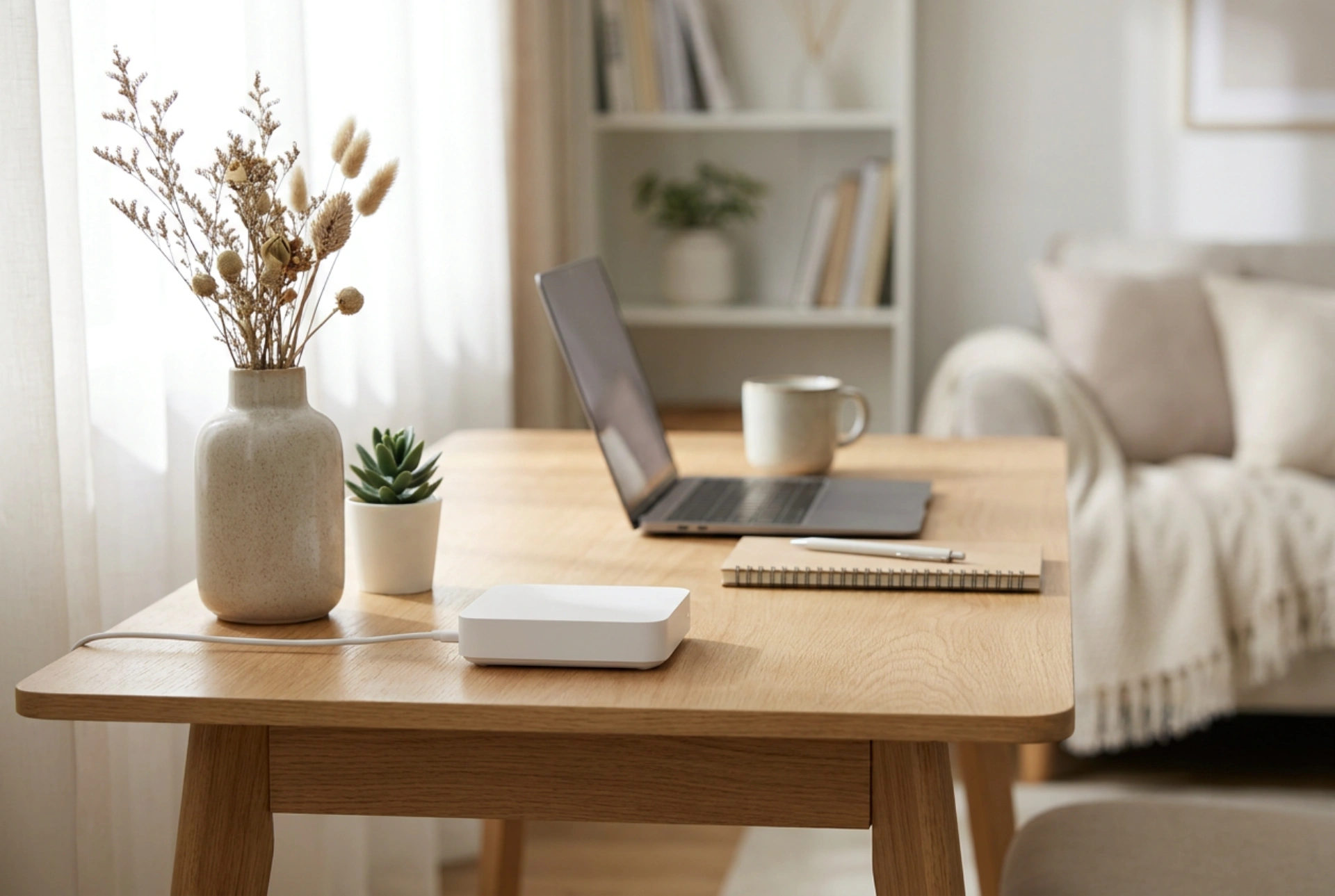


Setting up a SIM card Wi-Fi router in an apartment requires more than just inserting a card and plugging in the power supply. To achieve a stable, high-speed connection with low latency, you must account for cellular radio wave physics, structural material attenuation, and precise internal device configuration.
The Physics of Cellular Signal Penetration
Cellular networks operate on specific microwave radio frequency bands, typically ranging from 800 MHz to 3.5 GHz. Lower frequencies propagate further and penetrate obstacles better, while higher frequencies offer greater bandwidth but struggle with physical barriers. In a modern apartment, building materials act as severe attenuators of these electromagnetic waves.
Reinforced concrete, brick, plasterboard with metal studs, and especially modern energy-efficient windows containing thin metallic oxide coatings (low-emissivity glass) can reduce signal strength by up to 20 to 30 decibels (dB). To minimize path loss, place the router near a window that has a direct, unobstructed line of sight toward the nearest cellular base station. Elevating the router on a shelf or cabinet rather than placing it on the floor reduces ground-level signal scattering and fresnel zone obstruction, ensuring a cleaner RF (radio frequency) environment.
SIM Card Handling and Hardware Preparation
Proper physical handling of the SIM card prevents interface failures and thermal issues. Before inserting the card into the router, temporarily place it in a mobile phone to disable the PIN code lock. Many routers lack an intuitive interface to prompt for a PIN during bootup, which can lead to authentication loops and connection failures.
When handling the SIM card, avoid touching the gold-plated contact pads. Natural skin oils contain salts and acids that can cause micro-corrosion over time under the high thermal load of a continuously operating router. Wipe the contacts with a dry microfibre cloth if necessary. Ensure the card is seated securely in its slot; micro-vibrations or minor thermal expansion of the router's plastic chassis can cause loose cards to momentarily lose connection, dropping the internet link.
Accessing the Gateway and Optimizing APN Settings
Once powered on, connect a computer to the router via an Ethernet cable to perform the initial configuration. Access the local gateway by entering the router’s default IP address (usually 192.168.8.1 or 192.168.1.1) into a web browser. Secure the device immediately by changing the default administrative password to prevent unauthorized local access.
Navigate to the network settings to verify the Access Point Name (APN). While most modern routers auto-detect the carrier, manual configuration ensures optimal routing. Ensure the APN protocol is set to IPv4/IPv6 dual-stack. If your carrier supports public IP addressing for cellular connections, you must enter the specific APN string provided by the ISP to allow inbound traffic, which is critical for online gaming and hosting local servers.
Frequencies, Band Locking, and Carrier Aggregation
Advanced SIM routers support carrier aggregation, a technique that combines multiple frequency bands (such as 800 MHz, 1800 MHz, and 2600 MHz) to increase throughput. However, in densely populated apartment blocks, cellular towers can experience heavy load, causing the router to constantly switch between bands, resulting in high latency and packet loss.
If your router allows manual band locking, run speed and ping tests on individual bands to find the most stable performer. Lock the router to a combination of high-frequency bands (like 1800 MHz and 2600 MHz) for high download speeds if the signal is strong. If you suffer from weak signal penetration deep inside the apartment, lock the device to a lower frequency band like 800 MHz, which trades raw speed for physical stability and penetration power.
Optimizing the Indoor Wi-Fi Environment
Distributing the internet signal throughout the apartment requires proper management of local Wi-Fi frequencies. Always enable dual-band operation (2.4 GHz and 5 GHz). The 2.4 GHz spectrum is highly congested in apartment buildings due to overlapping channels and interference from household devices like microwave ovens and baby monitors. Use the 5 GHz band for all primary devices, as it offers wider, non-overlapping channels and significantly faster throughput over short distances.
For maximum performance, set the 5 GHz channel width to 80 MHz. However, if you detect frequent disconnections due to dense neighboring Wi-Fi networks, reduce the channel width to 40 MHz. This reduction concentrates the signal power into a narrower band, improving the signal-to-noise ratio and stabilizing the connection across walls.





