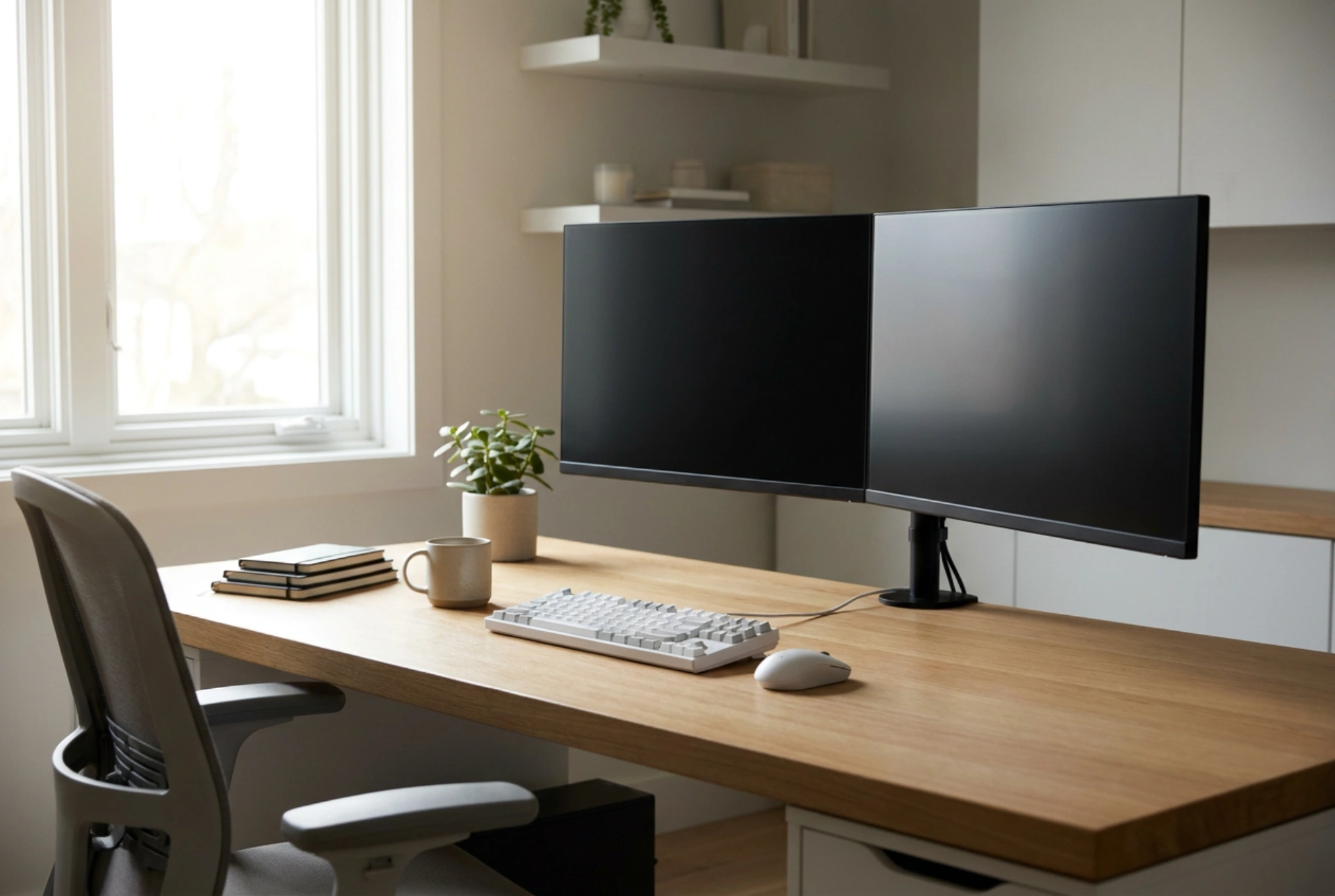


Properly positioning a dual monitor mount is crucial for preventing chronic cervical spine strain, shoulder fatigue, and eye accommodation stress during long working hours. Correct alignment relies on precise biomechanical angles and mechanical physics rather than simple aesthetic preferences.
1. Mechanical Physics of Desk Mounting and Load Distribution
Before adjusting the screens, you must ensure the structural integrity of the mounting point. A dual monitor arm acts as a lever, exerting significant torque on the edge of your desk. The clamp mechanism concentrates this rotational force onto a very small surface area. If your desk is made of particleboard or honeycomb paper fill, this concentrated compression can crush the desktop material over time.
To prevent structural damage, use a reinforcement plate or a solid wood block between the clamp and the underside of the desk. This increases the surface area, distributing the downward force and rotational torque evenly. Ensure the clamp is tightened sufficiently to prevent slipping, but avoid over-tightening, which can deform metal brackets or crack wooden desktop fibers.
2. Focal Distance and Eye Level Calibration
The human eye experiences the least strain when focusing at a specific distance and downward angle. Set your monitors at a distance of 50 to 70 centimeters from your eyes, which is roughly an arm's length. At this range, the ciliary muscles in your eyes do not have to contract excessively to maintain focus, reducing accommodation fatigue.
Height calibration should be based on your natural, upright seated posture:
- The top edge of the active display area should sit exactly at eye level.
- When looking straight ahead, your gaze should naturally fall on the top third of the screen.
- Tilt both monitors backward by 10 to 20 degrees. This tilt aligns the screen surface perpendicular to your downward gaze, minimizing glare and maintaining uniform focal distance from the top to the bottom of the display.
3. Horizontal Angle and the 30-Degree Ergonomic Arc
In a dual-monitor setup, the configuration depends heavily on how you use the screens. If you use one primary monitor and one secondary reference screen, place the primary monitor directly in front of you. Place the secondary monitor immediately to the left or right, angled inward at about 15 to 30 degrees to create a slight curve.
If you use both screens equally, position the seam where the two screens meet directly in front of your nose. Angle both monitors inward in a gentle V-shape. This configuration ensures that your eyes remain at an equal focal distance when transitioning from the left screen to the right screen. Your neck should never rotate more than 15 to 30 degrees to either side; excessive horizontal rotation strains the sternocleidomastoid and upper trapezius muscles.
4. Adjusting Gas Spring Tension and Friction Joints
Most modern dual monitor mounts use either mechanical counterbalancing springs or pressurized gas cylinders to support the weight of the displays. If the monitors slowly sink, or if they spring upward violently when released, the internal tension is improperly calibrated.
Locate the tension adjustment hex screw on the articulating joints of the arms. Turning the screw clockwise typically compresses the spring (increasing counter-resistance for heavier monitors), while turning it counter-clockwise reduces tension for lighter screens. Adjust the tension until the monitor floats weightlessly, allowing you to reposition it with minimal manual force while remaining completely stationary once released.
5. Cable Routing and Cable Tension Relief
A frequently overlooked aspect of monitor arm setup is cable slack. Standard video and power cables must have sufficient slack at the articulation joints. If cables are pulled too tight, adjusting the monitor arm will strain the input ports on your display, potentially leading to damaged connector pins and internal board damage. Route cables through the integrated channels of the arms, leaving a loop of slack around the joints to allow full rotation without resistance.





