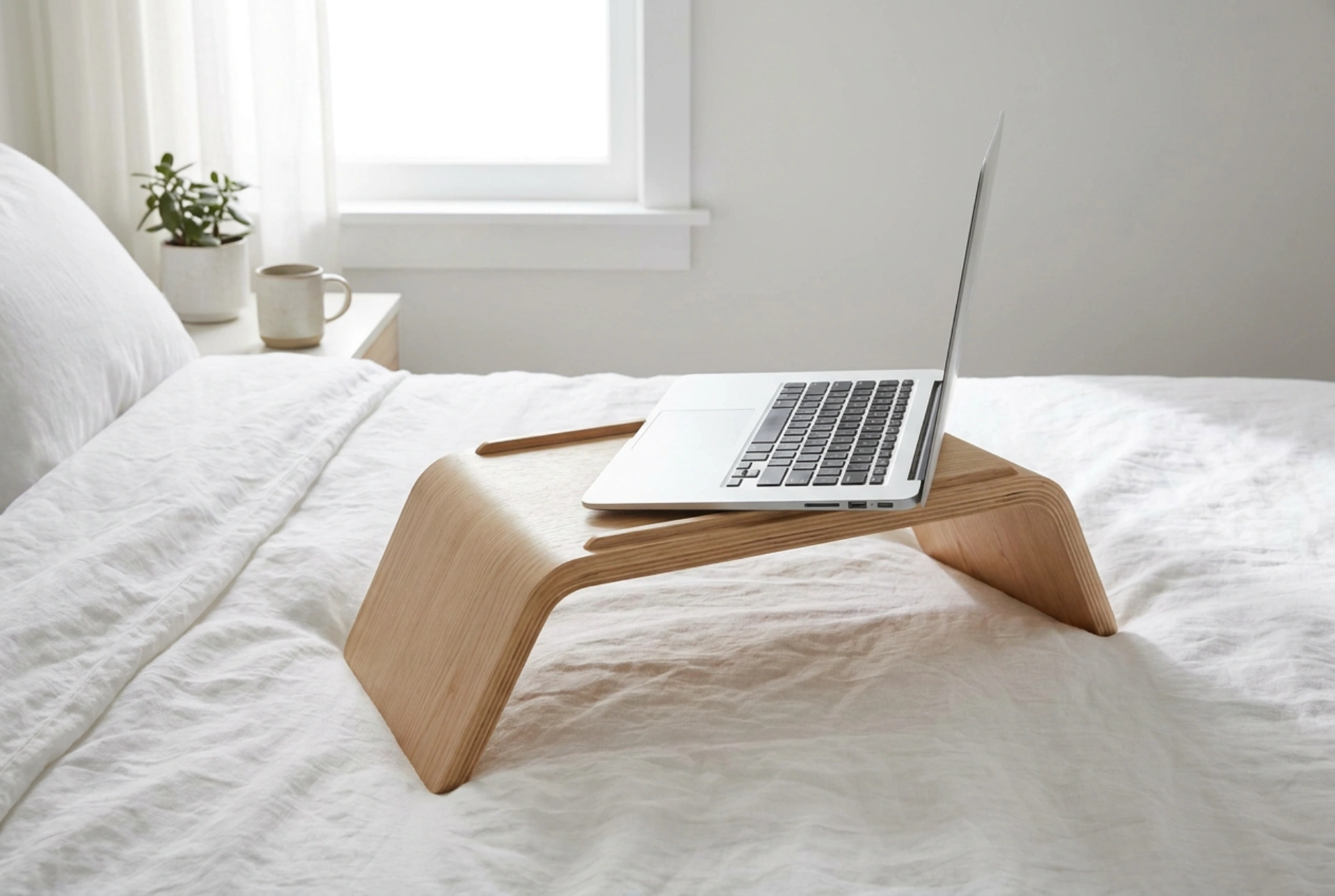


Using a laptop directly on a bed threatens its lifespan due to thermal insulation and restricted airflow. Setting up a dedicated laptop stand correctly ensures your computer maintains its optimal operating temperature while resting on a soft surface.
The Thermodynamics of Under-Chassis Cooling
Laptops rely on active and passive cooling systems to dissipate heat generated by the central processing unit (CPU) and graphics card. Most consumer laptops draw cool air from vents located on the bottom of the chassis and expel hot air through vents near the hinge or sides. When placed directly on a mattress, duvet, or blanket, the soft fabric conforms to the shape of the laptop base. This completely seals the intake vents, creating a closed thermal loop where the internal fan struggles to pull in air, leading to rapid heat accumulation.
A rigid laptop stand acts as a physical barrier that prevents fabric from encroaching on the intake zones. By elevating the device, you create a dedicated air plenum—a chamber of pressurized air beneath the laptop. This allows the internal fans to draw in cooler ambient air efficiently, reducing internal temperatures by up to fifteen degrees Celsius and preventing thermal throttling, which degrades processor performance and shortens battery life.
Optimizing Clearance and Angle for Maximum Airflow
To maximize heat dissipation, the height and angle of the stand must be calibrated. A minimum clearance of three centimeters between the bed surface and the bottom of the laptop is necessary to allow unrestricted airflow. This gap ensures that the air pulled into the device is not pre-heated by the mattress surface, which acts as a thermal reservoir.
An incline angle of fifteen to thirty degrees is ideal for both airflow and structural stability. Angling the laptop slightly upwards utilizes the principle of natural convection: as the air beneath the laptop warms up, it naturally rises and escapes from the elevated rear, pulling cooler air from the lower front edge. This passive movement assists the active fan system, reducing the mechanical strain on the cooling fan and conserving battery power.
Stabilizing the Stand on Soft, Uneven Bedding
Mattresses are dynamic surfaces that shift with weight distribution. A stand must be positioned to prevent tipping, which can cause mechanical shocks to hard drives or damage the screen hinge. Place the stand on a flat section of the bed, ensuring all contact points—whether legs or a flat base—are fully supported. Avoid placing the stand directly on folded blankets or fluffy pillows, which create an uneven, unstable foundation.
If using a stand with legs, spread them to their widest stable setting to lower the center of gravity. Ensure that bedding does not drape over the edges of the stand. Loose sheets can easily block the side or rear exhaust vents of the laptop, even if the bottom intake vents are elevated. Keep a clear zone of at least ten centimeters around the entire perimeter of the stand to allow the expelled hot air to dissipate into the room instead of being trapped near the chassis.
Preventing Dust and Fiber Ingestion
Beds are primary sources of airborne microfibers, dust mites, and lint. When a laptop fan operates on a bed, it acts like a miniature vacuum cleaner, pulling these fibers directly into the internal heatsink. Over time, this debris forms a dense blanket over the copper cooling fins, permanently reducing heat transfer efficiency.
Positioning your laptop stand higher off the bed surface significantly reduces the concentration of fibers drawn into the cooling system. Ensure the surface of the stand itself is kept clean and free of dust before placing your laptop on it. Routinely wiping the stand with a dry microfiber cloth prevents the accumulation of static-charged dust particles that are easily transferred to the laptop intake vents.





