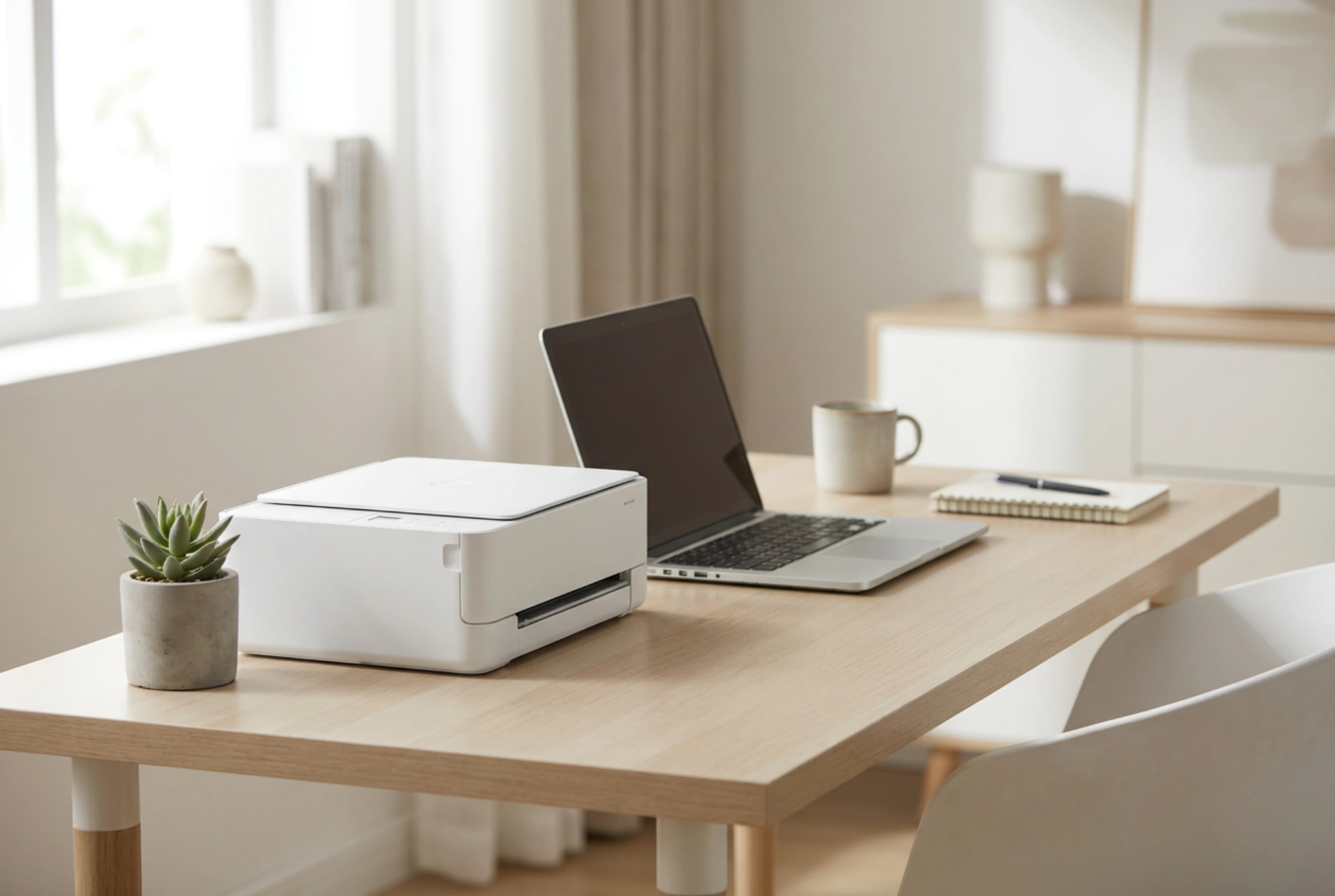


Setting up a compact Wi-Fi laser printer in a home office requires strategic physical placement and proper network configuration to ensure optimal signal strength and mechanical longevity. Understanding the physics of wireless wave propagation and the thermodynamic requirements of laser printing technology prevents common connectivity drops and hardware malfunctions.
Thermodynamics and Physical Placement
Laser printers rely on a thermal process where a fuser unit reaches temperatures between 150°C and 200°C to melt toner powder onto paper fibers. Because of this localized heat generation, adequate ventilation is critical. Positioning a compact printer inside a tightly enclosed cabinet or directly against a wall restricts airflow, leading to heat accumulation that can degrade internal rollers, dry out lubricants, and cause premature component failure.
Maintain a minimum clearance of ten centimetres on all sides of the device. Avoid placing the printer near direct heat sources, such as radiators, or in direct sunlight. Ultraviolet light and heat can degrade the chemical composition of the toner cartridge, leading to clumping, uneven printing, or drum damage. Ensure the surface is perfectly level to prevent uneven wear on the mechanical gears and feed rollers during high-speed paper transit.
Navigating Wireless Signal Propagation
Wi-Fi networks operate on electromagnetic frequencies, typically 2.4 GHz and 5 GHz. These waves are subject to attenuation, absorption, and reflection when passing through various physical barriers. Metal desks, steel-reinforced concrete walls, and large filing cabinets act as shields that severely degrade the wireless signal. Placing a printer directly behind a computer monitor or next to a microwave can introduce electromagnetic interference, causing intermittent packet loss and print queue delays.
- Elevation: Elevate the printer off the floor onto a desk or shelf to clear low-level obstacles and align it closer to the line of sight of the router.
- Distance from Metal: Keep the printer at least one metre away from heavy metallic objects or structural beams to minimize signal reflection.
- Frequency Selection: Use the 2.4 GHz band if the printer is located several rooms away from the router, as its longer wavelength penetrates walls more effectively than 5 GHz. Use 5 GHz for high-speed, close-range connections with minimal interference.
IP Address Stabilization and Network Integration
By default, routers assign IP addresses dynamically using DHCP (Dynamic Host Configuration Protocol). While convenient, a dynamically assigned IP can change whenever the printer enters a deep sleep mode or the router restarts. When this occurs, computers configured with the old IP address will fail to locate the printer, resulting in "Printer Offline" errors.
To resolve this, configure a static IP address or establish a DHCP reservation within the router’s administrative console. Assigning a permanent IP address to the printer's MAC (Media Access Control) address ensures that the network route remains constant. When setting up the printer port on your operating system, choose a standard TCP/IP port and input the static IP, bypassing the need for discovery protocols that frequently fail in mixed-device households.
Optimising Drivers and Protocols
Modern operating systems support driverless printing standards such as IPP (Internet Printing Protocol) and generic raw TCP/IP printing on port 9100. Utilizing these native protocols eliminates the need to install bloated, resource-heavy proprietary management software. Native drivers process the print job efficiently, converting documents into standard page description languages like PCL (Printer Command Language) or PostScript before transmission, which reduces the bandwidth load on your local Wi-Fi network.





