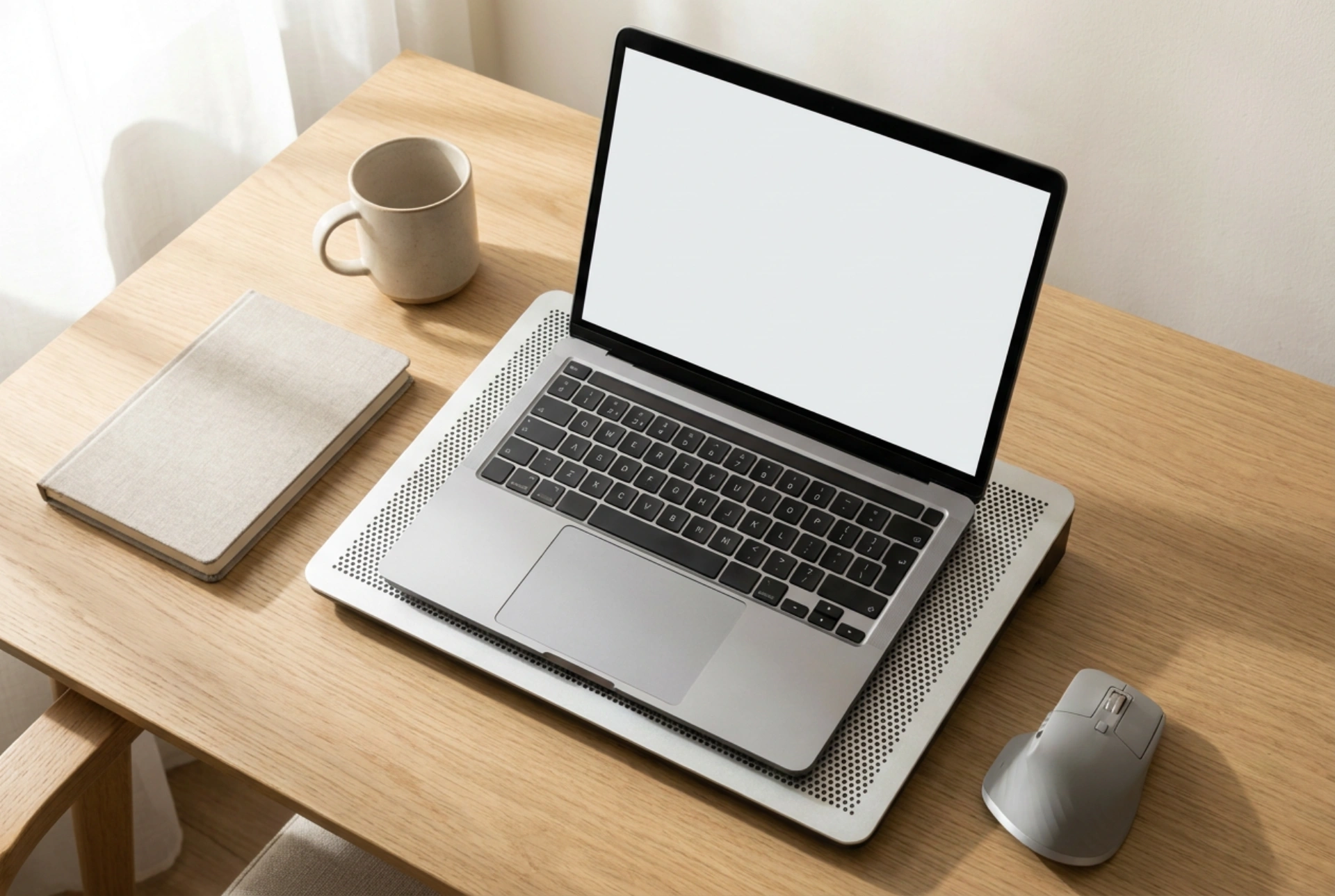


Laptop cooling pads can significantly reduce thermal throttling, but their efficiency depends entirely on understanding the thermodynamics of your device's intake and exhaust systems. Positioning, airflow direction, and surface materials dictate whether an external cooling accessory actually lowers temperatures or merely recirculates hot air.
Mapping Your Laptop’s Airflow Dynamics
Before plugging in a cooling pad, you must identify the exact path air travels through your laptop. Most modern laptops utilise an active cooling system consisting of internal fans, heat pipes, and vents. Typically, cool air is drawn in through vents located on the underside of the chassis, while hot air is expelled through the rear hinge or side vents. However, some ultra-thin models rely on passive cooling through the metal chassis itself, while others reverse this flow.
To determine your laptop's airflow pattern, run a heavy task and hold a thin piece of paper near the vents. If the paper is sucked against the vent, it is an intake; if it is blown away, it is an exhaust. Your cooling pad must work in harmony with this flow. If your laptop draws air from the bottom, the cooling pad fans must blow air upward into those vents. Forcing air in the opposite direction creates aerodynamic resistance, stalling the internal fans and rapidly increasing internal temperatures.
The Physics of Heat Transfer: Conduction and Forced Convection
Cooling pads assist your device through two primary thermodynamic mechanisms: conduction and forced convection. The frame of the cooling pad, often constructed from aluminium or steel mesh, acts as a passive heatsink. Metal has a high thermal conductivity compared to plastic or wood, allowing it to absorb and dissipate heat away from the flat lower casing of the laptop through direct contact.
Active fans introduce forced convection. By accelerating the velocity of the air boundary layer beneath the laptop, the fans sweep away the stagnant pool of warm air that naturally accumulates there. This maintains a steep temperature gradient between the hot laptop chassis and the surrounding air, which maximises the rate of heat dissipation. If the air beneath the laptop remains stagnant, the temperature differential decreases, slowing down heat transfer significantly.
Strategic Alignment and Fan Positioning
Simply placing a laptop randomly on a cooling pad yields suboptimal results. To achieve maximum thermal reduction, the active fans of the cooling pad must align directly with the primary heat sources inside the laptop. The central processing unit (CPU) and graphics processing unit (GPU) generate the vast majority of the heat, typically located near the rear or centre-back of the chassis.
- Targeted Airflow: Adjust the positioning of moveable fans on your cooling pad to sit directly beneath the laptop’s intake grilles.
- Clearing Obstructions: Ensure the rubber feet of your laptop are intact and resting properly on the pad. These feet create a crucial 2-3 millimetre clearance gap that allows air to distribute evenly across the bottom casing.
- Exhaust Clearance: Never position the cooling pad in a way that blocks the side or rear exhaust vents of the laptop, as this will trap superheated air inside the component chamber.
External Power and Surface Dynamics
The method you use to power your cooling pad directly impacts its thermal efficiency. Many users plug the pad's USB cable directly into one of the laptop’s ports. While convenient, this forces the laptop’s internal power delivery subsystems to work harder, generating a small amount of additional internal heat. For absolute thermal efficiency, power the cooling pad using an external wall adapter or a separate power bank. This isolates the electrical load and ensures the laptop components do not generate unnecessary heat.
Furthermore, the cooling pad must always sit on a hard, level surface such as a wooden or glass desk. Operating a cooling pad on a soft surface like a bed, carpet, or your lap defeats its purpose. Soft materials conform to the underside of the cooling pad, blocking its intake vents and suffocating the fans, which can cause the pad’s motors to overheat and transfer even more warmth back to your laptop.
Pre-Cooling Maintenance Checklist
An external cooling pad cannot compensate for blocked internal pathways. Before integrating a pad into your setup, perform these essential maintenance steps:
- Dust Extraction: Use compressed air to blow out dust from the laptop's internal heatsinks and fan blades. Dust acts as an insulator, trapping heat regardless of external airflow.
- Elevate and Inspect: Regularly clean the mesh screen of the cooling pad to prevent dust build-up from being forced into your laptop’s intake vents.





