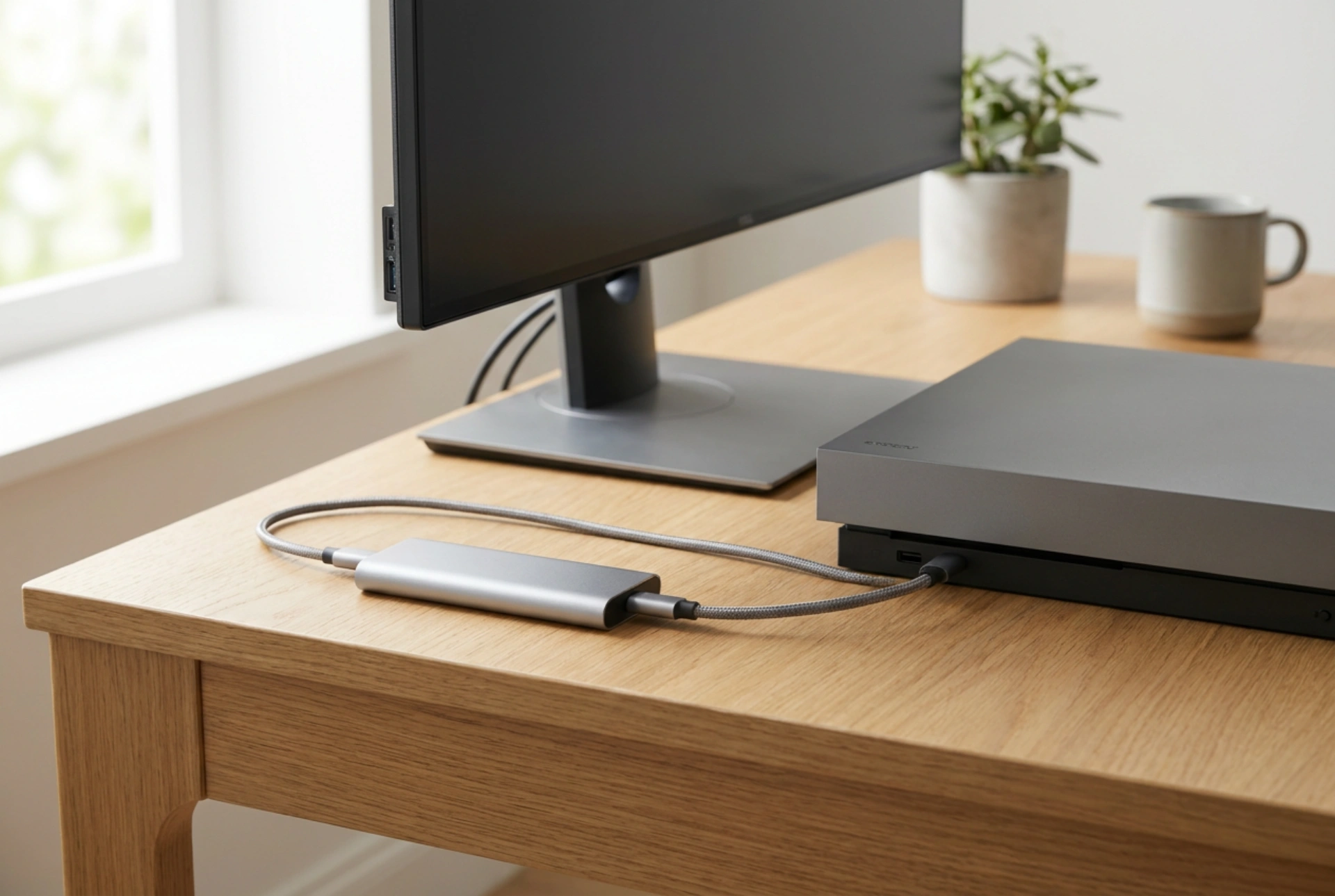


Preparing an external drive for gaming requires more than just plugging it in. To prevent micro-stuttering, slow texture rendering, and long loading screens, you must optimize the drive's file system, communication protocol, and thermal environment.
Understanding Interface Bottlenecks and Protocols
When running modern games from an external drive, data throughput is limited by the physical interface. While internal drives use direct PCIe lanes, external drives must pass data through USB or Thunderbolt controllers. To avoid bottlenecks, always use USB 3.1 Gen 2 or USB4 ports, which offer bandwidths of 10 Gbps and 40 Gbps respectively. Connecting to an older USB 2.0 port chokes bandwidth down to 480 Mbps, which is entirely insufficient for real-time asset loading in modern gaming.
Beyond the physical port, the communication protocol plays a vital role in latency. Ensure your external drive and operating system support USB Attached SCSI Protocol (UASP) rather than the older Bulk-Only Transport (BOT). UASP allows for parallel command queuing, which significantly speeds up random read and write operations—the exact type of data access patterns games use when loading high-resolution assets on the fly.
Selecting and Formatting the File System
The choice of file system dictates how efficiently your operating system indexes files. For Windows-based gaming, NTFS is the standard due to its journaling capabilities and robust file permissions. For cross-platform use between different systems, exFAT is common but lacks journaling, making it slightly more prone to corruption during sudden disconnections.
When formatting, pay close attention to the allocation unit size, also known as cluster size. By default, operating systems format drives with a 4KB cluster size. For modern games, which consist of massive multi-gigabyte archive files, increasing the cluster size to 64KB or even 128KB can reduce the total number of allocation units the system has to track. This minor adjustment lowers CPU overhead during drive access, resulting in smoother data delivery and fewer frame drops during heavy asset streaming.
Thermal Management and Silicon Throttling
External solid-state drives (SSDs) generate substantial heat during sustained read sessions. When controller temperatures exceed safe limits—typically around 70°C—the drive initiates thermal throttling, drastically reducing transfer speeds to prevent permanent silicon degradation. This sudden drop in speed causes dramatic in-game stuttering.
To maintain peak performance, opt for an external enclosure crafted from anodised aluminium rather than plastic. Aluminium acts as a natural heatsink, conducting heat away from the flash memory chips and controller. Inside the enclosure, ensure that high-conductivity silicone thermal pads make direct contact between the drive components and the metallic shell. Additionally, keep the drive flat on a hard, heat-conductive surface, away from console or PC exhaust vents, to maximize ambient heat dissipation.
Maintaining Drive Health: TRIM and Defragmentation
The maintenance routine for your external drive depends entirely on its underlying physical technology. For traditional mechanical hard disk drives (HDDs), regular defragmentation organizes scattered data fragments into contiguous blocks, minimizing physical read-head movement and keeping seek times as low as possible.
However, you must never defragment an SSD, as this causes unnecessary write cycles and accelerates drive wear. Instead, SSDs rely on the TRIM command to wipe blocks of deleted data, keeping write performance high. Ensure your external enclosure's bridge chip supports TRIM over USB. You can manually trigger this in your operating system's drive optimization utility to ensure the SSD controller manages its NAND flash blocks efficiently. Without regular TRIM execution, write performance will progressively degrade, leading to severe stuttering when the game tries to write autosaves or temporary cache files during gameplay.





