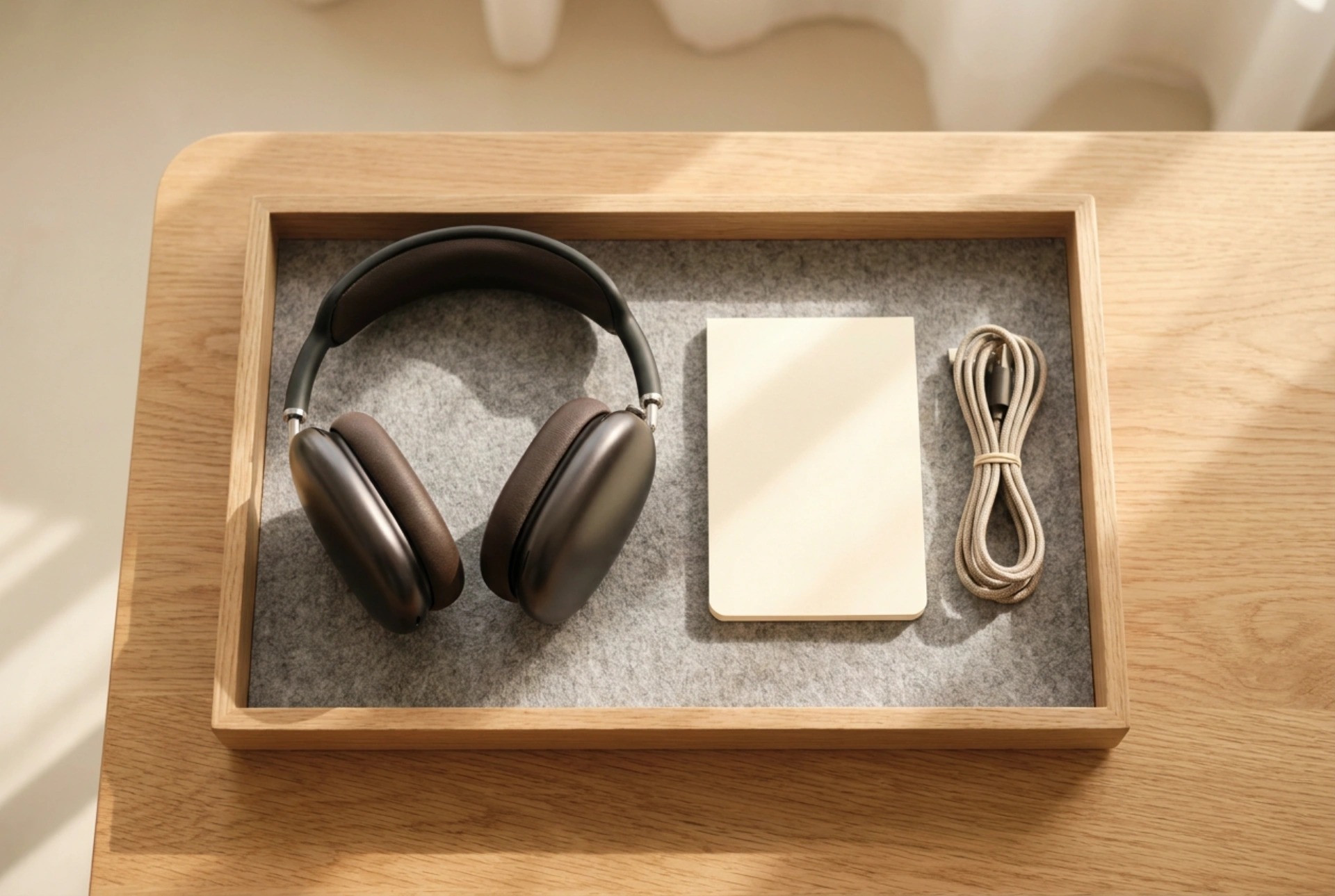


Protecting young ears from acoustic trauma requires a systematic approach to decibel management across software settings and hardware configuration. Here is how to establish strict, tamper-proof volume limits on wireless headphones to prevent long-term hearing damage.
The Physics of Auditory Safety for Children
To understand why volume limitation is critical, we must look at the acoustic properties of a child’s ear. The human ear canal acts as a natural resonator, boosting specific frequencies. Because a child’s ear canal is significantly shorter and narrower than an adult's, its resonant frequency is higher, and sound pressure level (SPL) is naturally amplified. A sound that registers at a safe level for an adult can be up to 9 decibels (dB) louder inside a toddler’s or pre-teen's ear canal.
Sound pressure is measured on a logarithmic scale, meaning that every 3 dB increase doubles the acoustic energy reaching the eardrum. Prolonged exposure to sounds above 85 dB can cause gradual, irreversible damage to the delicate hair cells (cilia) in the cochlea. Wireless headphones, which sit close to or directly inside the ear canal, can easily exceed 100 dB at maximum output. Implementing strict volume ceilings is the only reliable way to prevent acoustic fatigue and noise-induced hearing loss.
Configuring Software-Level Volume Ceilings
The most reliable method to protect young ears is to establish limits directly within the operating system of the transmitting device (smartphone, tablet, or computer). This prevents children from accidentally or intentionally raising the volume past safe limits during use.
Configuring iOS and iPadOS Devices
Apple devices offer built-in acoustic protection features that analyze audio levels in real time. To set up a limit, navigate to the settings menu under sounds and haptics, and locate the headphone safety section. Here, you can enable the option to reduce loud sounds and set a precise decibel ceiling. For younger children, setting this to 75 dB or 80 dB is ideal. To prevent these settings from being altered, utilize the parental control settings (Screen Time) to lock the changes behind a secure passcode.
Configuring Android and ChromeOS Devices
Android devices handle volume control through media volume limits. Under the sound and vibration settings, locate the volume sub-menu. By tapping the advanced options, you can enable a media volume limiter. This feature allows you to drag a slider to a safe threshold and secure it with a PIN. If your specific Android build lacks this native feature, you can utilize third-party volume locker applications that run in the background to enforce a hard ceiling on output gain.
Leveraging Bluetooth Protocols and Absolute Volume
Wireless headphones rely on Bluetooth transmission, which coordinates volume control between the host device and the headphones. Understanding how these systems interact can help you set up an additional layer of safety.
By default, many modern operating systems use a feature called Absolute Volume. This synchronizes the volume slider of the tablet or phone with the physical volume buttons on the headphones. While convenient, a single accidental press can max out the volume on both ends. By entering the developer options on your transmitting device, you can disable Absolute Volume. Once disabled, the device volume and the headphone volume operate independently. This allows you to set the master volume on the tablet to a low level (e.g., 50%) and leave it there, meaning even if the child maxes out the physical volume buttons on the headphones, the actual output remains quiet and safe.
App-Level Auditory Calibration and Maintenance
Even with system-wide limits, different media files have varying dynamic ranges. A movie might have quiet dialogue followed by an incredibly loud explosion. To mitigate these sudden shifts, you should configure audio normalization settings within individual streaming apps.
- Enable Audio Normalization: Most audio and video streaming platforms feature a normalization toggle (often labeled "Normalize Volume" or "Quiet Mode"). This compresses the dynamic range, pulling quiet sounds up and pushing excessively loud peaks down to a uniform, safe level.
- Lower Audio Quality Settings: While high-fidelity audio is desirable for adults, it often carries sharper transients (sudden, sharp high-frequency sounds). Setting streaming quality to normal or standard can naturally smooth out these transients on budget-friendly wireless chips.
- Regular Auditory Calibration: Periodically test the headphones yourself. Put them on, play a piece of media at the maximum allowed setting you configured, and verify that the sound is comfortable and that you can still easily hear ambient conversations around you.





