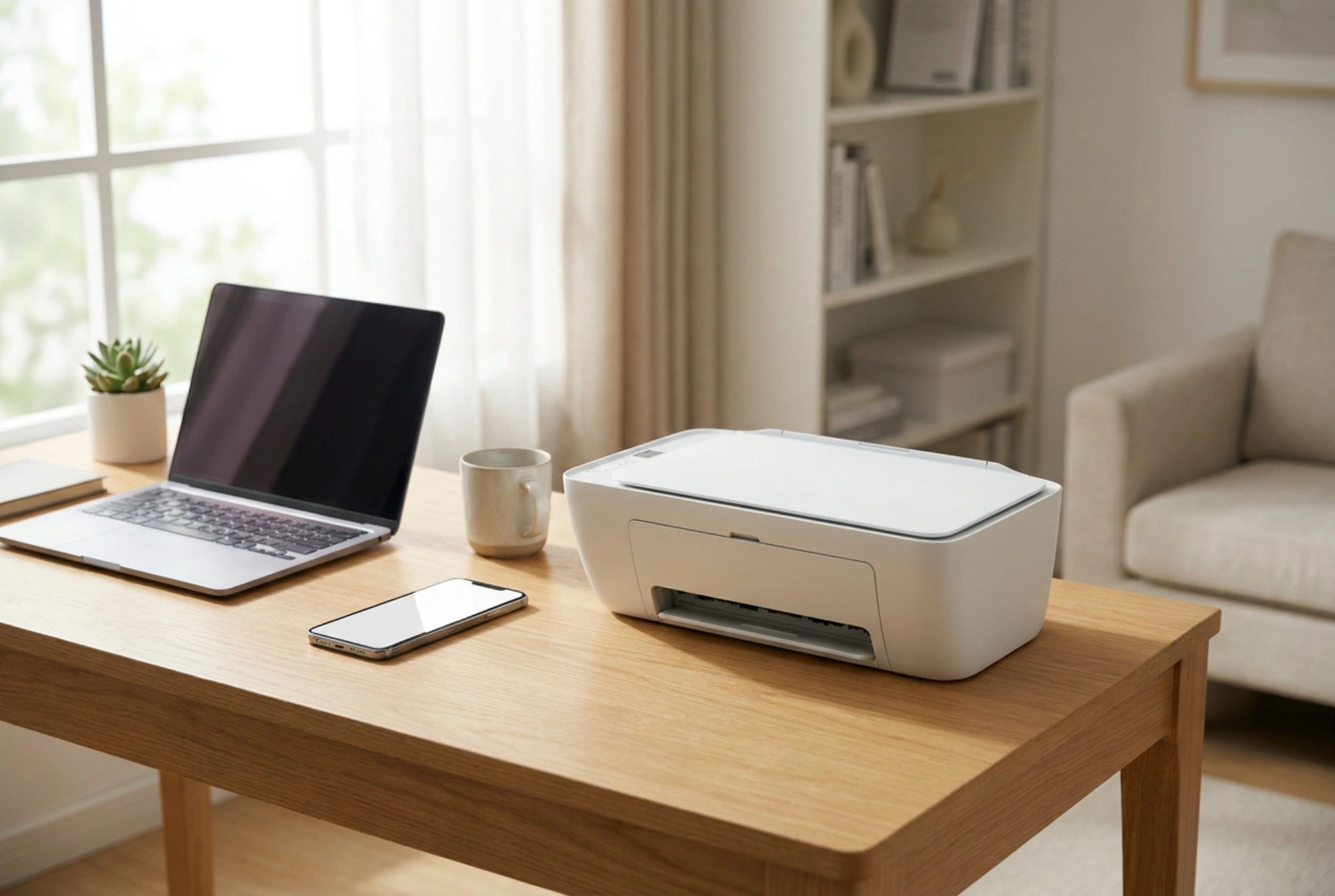


Setting up a compact wireless printer for multi-device home use requires understanding network protocols and physical placement to ensure consistent signal strength and print quality. Properly configuring your printing environment eliminates the common frustrations of offline status errors and interrupted print jobs across various household devices.
The Physics of Wireless Signals and Printer Placement
Wireless printers rely on radio frequency (RF) signals to communicate with your home router and connected devices. Most domestic routers operate on two primary bands: 2.4 GHz and 5 GHz. While the 5 GHz band offers faster data transfer rates, its shorter wavelength makes it highly susceptible to attenuation when passing through solid obstacles. The 2.4 GHz band, with its longer wavelength, penetrates walls and floors much more effectively, making it the preferred choice for a printer located in a different room than the router.
Physical barriers greatly impact signal propagation. Materials like concrete, brick, and plasterboard containing foil insulation absorb radio waves, leading to packet loss and dropped print jobs. Additionally, household appliances such as microwave ovens, baby monitors, and even large bodies of water emit or absorb frequencies that interfere with the 2.4 GHz spectrum. To ensure a stable connection, place the printer elevated on a wooden shelf or desk, away from dense metal structures and electrical interference zones.
Configuring the Network for Stable Multi-Device Access
A common issue with home printers is the sudden offline status error, which usually occurs due to Dynamic Host Configuration Protocol (DHCP) lease expiration. By default, routers assign temporary IP addresses to devices on the network. When this lease expires, the router may assign a new IP address to the printer, breaking the connection path established on your laptops and smartphones.
To resolve this permanently, configure a static IP address or a DHCP reservation for your printer via your router’s administrative console. This ensures the printer always retains the same network address. For multi-device compatibility, ensure your network supports standard communication protocols:
- AirPrint: A driverless technology developed for Apple devices that operates via local network multicast DNS to discover the printer automatically.
- Mopria: A standardized mobile printing protocol for Android devices that facilitates direct communication without requiring brand-specific applications.
- Wi-Fi Direct: A peer-to-peer connection method that allows a device to connect directly to the printer's own wireless access point, bypassing the home router entirely when network signals are weak.
Understanding Print Technologies: Inkjet vs. Laser
Choosing between a compact inkjet or a small monochrome laser printer depends on your usage patterns and the material science behind the consumables. Inkjet printers use liquid ink formulated with pigments or dyes dissolved in a solvent, typically water or glycol. Thermal inkjet heads heat the ink to create a vapor bubble, forcing a droplet through microscopic nozzles. If left unused for weeks, the solvent evaporates at the nozzle tip, causing dry ink blockages. Thus, inkjet technology requires regular use to prevent head clogging.
In contrast, laser printers utilize a dry, fine powder called toner, composed of polyester resins and iron oxide. A laser beam draws an electrostatic image on a photosensitive drum, which attracts the toner particles. A fuser assembly then applies heat (typically between 150°C and 200°C) and pressure to melt the resin, permanently bonding it to the paper fibres. Toner does not dry out, making laser printers ideal for sporadic, low-frequency home use where weeks may pass between print jobs.
Optimization and Maintenance Order of Operations
To maintain peak performance and ensure all devices print smoothly, follow a systematic calibration and maintenance routine. First, execute a printhead alignment or calibration cycle from the printer control panel to ensure vertical and horizontal bi-directional accuracy. Second, verify paper handling by adjusting the input tray guides tightly against the paper stack; loose guides cause skewed paper feeding, resulting in uneven margins and potential paper jams. Finally, perform periodic firmware updates via the printer's web interface to patch security vulnerabilities and improve network protocol compatibility with newer mobile operating systems.





