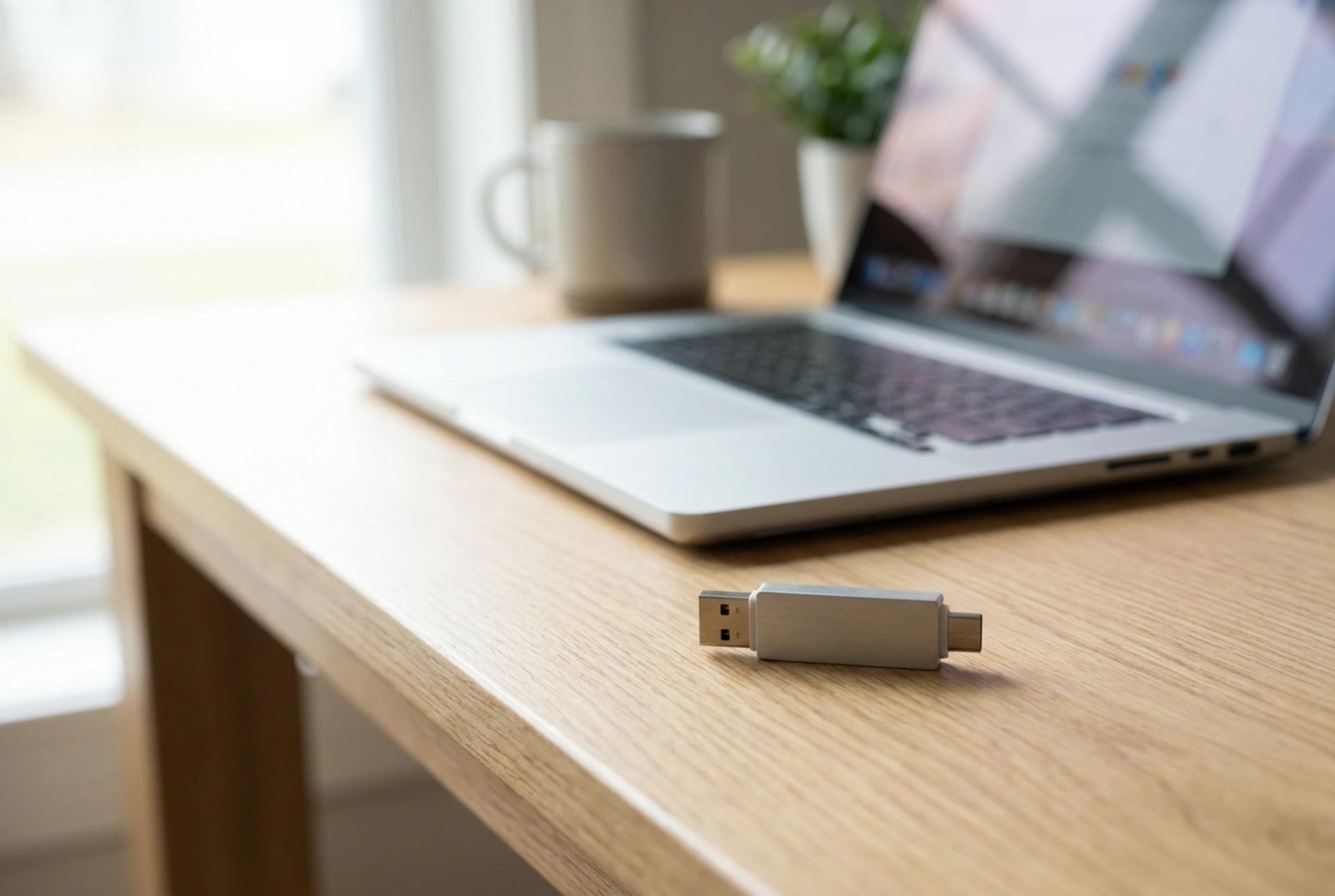


Bridging the technological gap between legacy computer ports and modern mobile devices is simplified by dual-connector flash drives featuring both USB-A and USB-C interfaces. These compact tools eliminate the need for unstable wireless transfers or clunky adapters by offering a direct, physical data highway between different hardware generations.
The Anatomy of Dual Connectors: USB-A vs. USB-C
To understand why a dual-connector drive is so effective, one must look at the physical and electrical design of the two interfaces. USB-A, the rectangular standard that dominated electronics for decades, relies on a four-pin layout and is strictly unidirectional, meaning it can only be inserted one way. Its larger physical size makes it unsuitable for modern, ultra-thin smartphones and laptops.
In contrast, USB-C utilizes a much denser, 24-pin symmetrical layout. This design allows for reversible plugging—there is no upside down. Furthermore, the increased pin count enables USB-C to support not just data, but high-wattage power delivery and video signals. A dual-connector drive houses these two distinct interfaces on a single controller, allowing the same memory chip to interface with older desktop towers and the latest tablets alike. The physical housing often employs a rotating swivel or a sliding mechanism to protect the exposed contacts from dust and physical deformation when not in use.
Understanding Protocols and Transfer Speeds
A common misconception is that the physical shape of the connector dictates the transfer speed. In reality, speed is governed by the underlying USB protocol and the quality of the flash memory controller. A dual drive might feature a physical USB-C plug but operate on the USB 3.0 protocol, offering a theoretical maximum speed of 5 Gbps.
When transferring large volumes of data, such as high-definition video files or large document archives, the drive will automatically operate at the maximum speed supported by the host port. If you plug the USB-A side into an older USB 2.0 port, the transfer rate drops to a maximum of 480 Mbps due to hardware limitations of the host. Knowing the protocol of both your drive and your target device ensures realistic expectations for data synchronization and prevents bottlenecks during heavy workflows.
Choosing the Right File System for Universal Access
For a dual-connector drive to act as a seamless bridge, it must speak a language that all connected operating systems understand. This language is the file system. Formatting the drive correctly determines whether it can be read by both an Android phone and a Windows workstation.
- FAT32: Highly compatible with almost every device, including older smart TVs and car audio systems. However, it suffers from a strict 4 GB individual file size limit, making it impractical for modern media.
- NTFS: The standard for Windows environments. While highly secure, macOS can only read NTFS drives natively, not write to them, and many mobile devices will not recognize them at all.
- exFAT: The optimal choice for dual-connector drives. Created to succeed FAT32, exFAT supports files larger than 4 GB and enjoys native read and write support across Windows, macOS, Android, and iPadOS. Formatting your drive to exFAT ensures uninterrupted cross-platform utility.
Thermal Dynamics in Compact Storage
Users often notice that small dual-connector drives become warm, or even hot, during prolonged data transfers. This is a normal physical reaction. As data is written to or read from the NAND flash memory, electrical current passes through the silicon cells, generating heat. Because these drives are engineered to be extremely compact, they lack internal fans or large surface areas for cooling.
High-quality dual drives use aluminum or zinc alloy casings. These metals act as passive heatsinks, drawing thermal energy away from the internal controller and dissipating it into the surrounding air. While the drive may feel hot to the touch, this indicates that the housing is doing its job to protect the sensitive internal components from thermal degradation. To maximize the lifespan of the drive, avoid leaving it plugged in indefinitely when not actively transferring data, and allow it to cool down before storing it in enclosed spaces.





