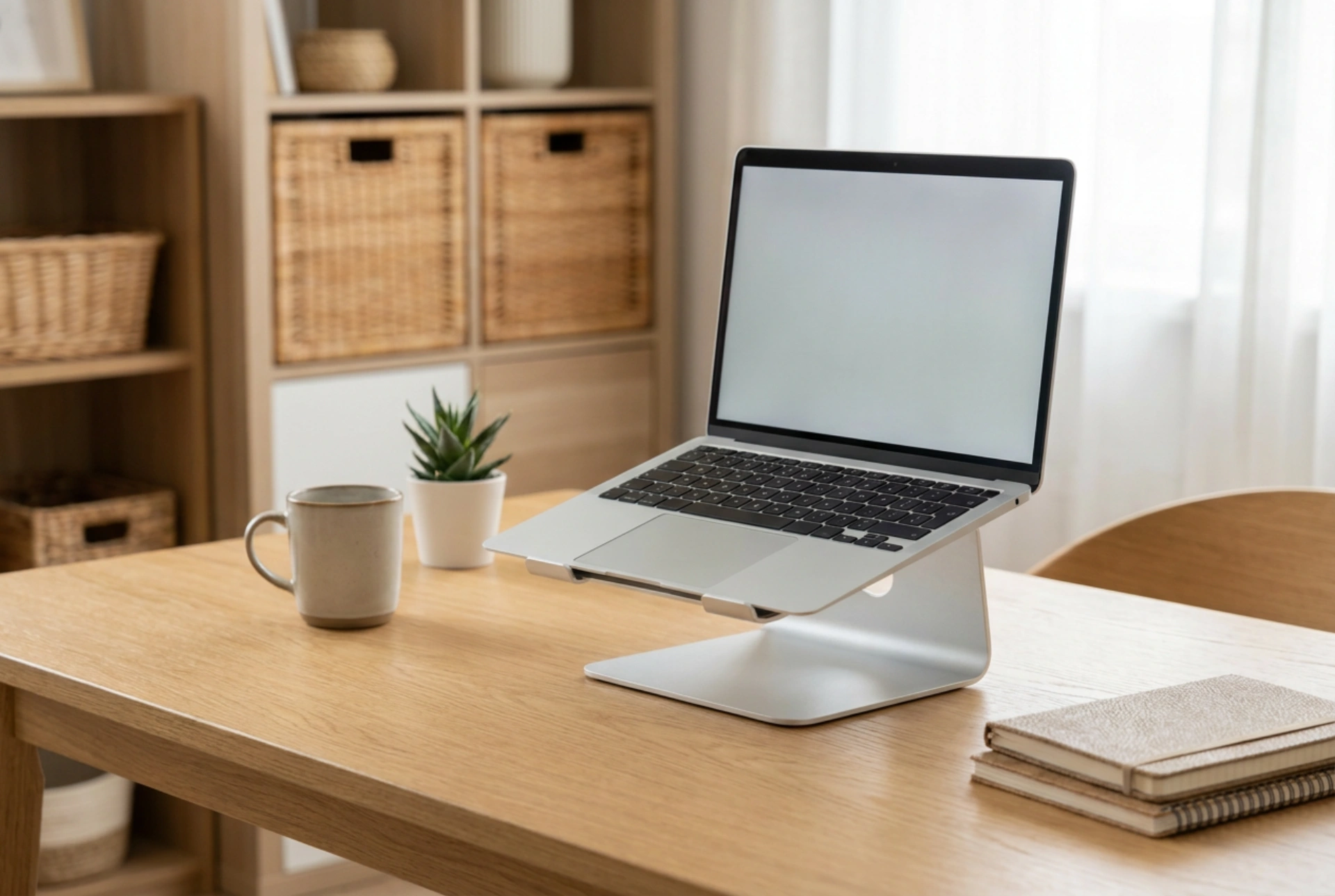


Laptop cooling pads are often marketed as a cure-all for overheating, but their actual thermal efficiency depends entirely on the design of your laptop's chassis and the laws of thermodynamics.
The Physics of Laptop Thermal Management
Modern laptops pack high-performance processors and graphics chips into thin chassis, creating a significant challenge for heat dissipation. Inside the device, heat is transferred from the silicon dies via copper heat pipes to miniature heatsinks. Internal centrifugal fans then force air through these heatsinks to expel thermal energy. However, this system relies on a constant supply of cool air drawn from the surrounding environment, usually through intake vents located on the bottom of the casing.
When a laptop sits flat on a soft surface like a bed or a tablecloth, these intake vents are easily obstructed. This increases static pressure, starving the internal fans of air and forcing the system into thermal throttling—a protective mechanism where the processor slows down its clock speed to prevent permanent damage from excess heat.
How Cooling Pads Interact with Airflow
An active cooling pad uses one or more fans powered by a USB connection to force air upward against the bottom of the laptop. To understand when this actually helps, we must examine the mechanism of heat transfer: convection and conduction.
- Forced Convection: If your laptop has intake vents on the bottom, a cooling pad increases the velocity and volume of cool air entering these vents. This lowers the temperature of the air passing over the internal heatsinks, resulting in a more efficient heat exchange.
- Conduction: Aluminum cooling pads or stands act as passive heat sinks. Since aluminum has a high thermal conductivity, it absorbs radiant and conductive heat from the laptop’s bottom casing and dissipates it into the surrounding air much faster than plastic.
When a Cooling Pad Offers Real Benefits
An active cooling pad is highly effective under specific physical conditions. It provides a measurable drop in internal temperature (usually between 2°C and 8°C) when the laptop features active intake grilles at the bottom that align with the pad's fans. Under heavy computational loads, such as video rendering or compilation, this extra airflow prevents the internal fans from reaching their maximum RPM too quickly, reducing acoustic noise and extending the lifespan of the bearing mechanisms.
Furthermore, simply elevating the laptop on a stand—even a passive one without fans—reduces the restriction of airflow. By raising the chassis 2 to 5 centimeters off the desk surface, you decrease the air resistance near the intake vents, allowing the internal fans to draw in air more efficiently due to lower pressure drop.
When Cooling Pads Are Ineffective
Conversely, cooling pads provide almost no benefit for passively cooled laptops or devices with solid metal bottoms and no bottom intake vents. In these designs, heat is dissipated through the aluminum chassis itself. Blowing air against a solid metal plate only cools the outer skin of the device, which might make it feel cooler to the touch but has a negligible effect on the internal silicon temperature.
Additionally, if a cooling pad’s fan alignment forces air into exhaust vents instead of intake vents, it can disrupt the laptop's engineered internal static pressure, actually trapping hot air inside and worsening thermal performance.
Optimizing Your Workspace for Thermal Efficiency
To maximize heat dissipation without solely relying on active accessories, follow these mechanical principles:
- Keep it elevated: Use a simple, open-frame aluminum stand to maximize the surface area exposed to natural air currents.
- Clear the path: Ensure the exhaust vents, usually located at the hinge or sides, have at least 10 centimeters of clearance from walls or other objects.
- Prevent dust accumulation: Periodically clear the internal copper fins using dry, compressed air, blowing in the opposite direction of the normal airflow to dislodge microparticles.





