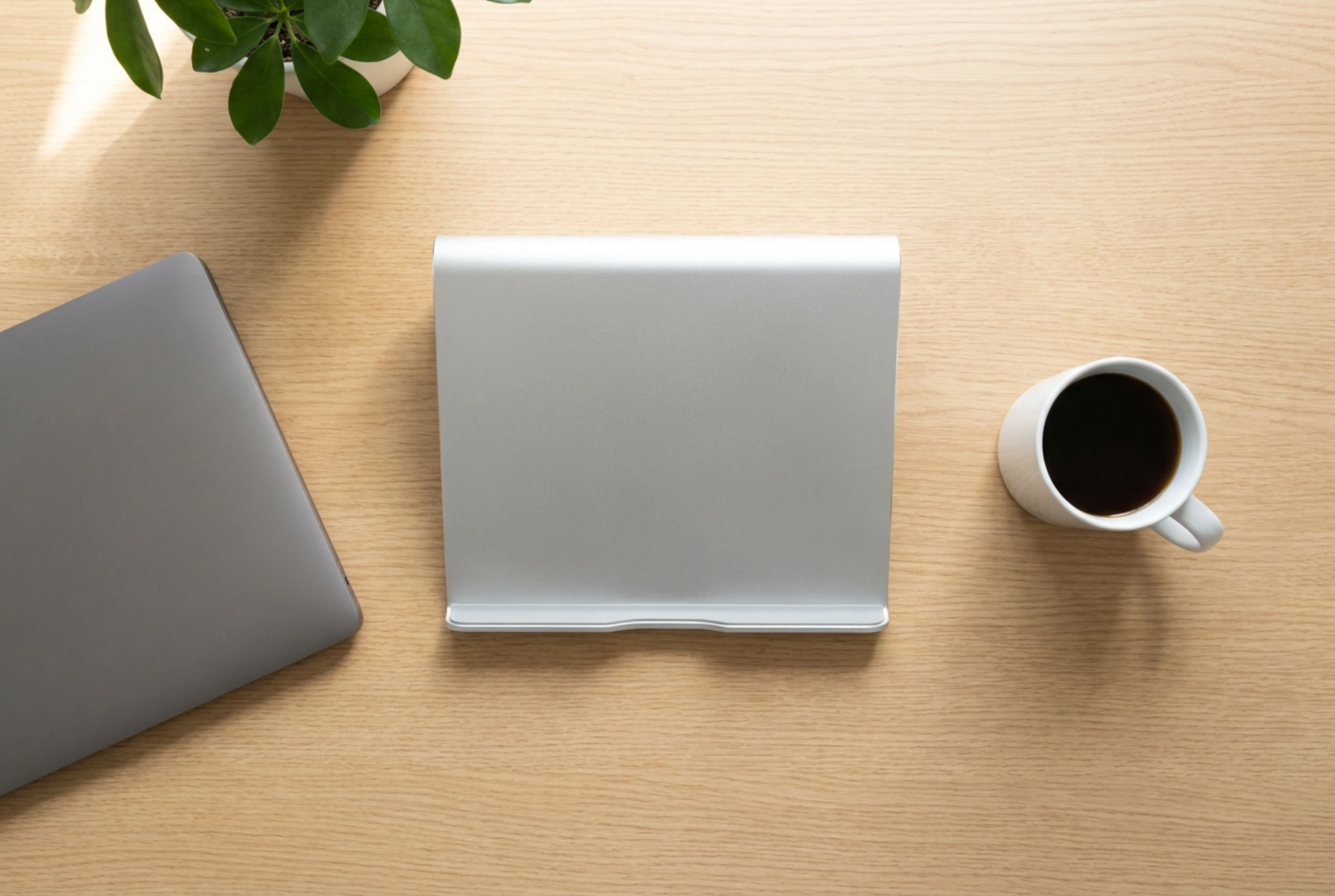


Positioning a laptop cooling pad correctly on your desk optimizes both thermodynamic heat dissipation and ergonomic comfort, protecting internal hardware from thermal throttling. Achieving the perfect setup requires understanding the balance between active airflow mechanisms and the natural alignment of your body.
Understanding the Thermodynamics of Laptop Cooling
Laptops rely on compact internal fans to draw cool air from the underside and expel hot air through side or rear exhaust vents. A cooling pad works by accelerating this convective heat transfer, replacing the static, warm air pocket beneath the chassis with a constant stream of cooler ambient air. To maximize this effect, you must align the cooling pad's active fans directly with your laptop's intake vents. Placing the laptop off-center on the pad can disrupt this airflow pattern, causing turbulence that actually reduces cooling efficiency. Furthermore, check the direction of the pad's fans; they should blow cool air upward into the laptop's intake ports rather than pulling warm air downward, which can fight against the laptop's internal thermal dynamics.
The science of heat dissipation in portable computers relies heavily on conduction and forced convection. The laptop's processors transfer heat to internal copper heat sinks, which are cooled by internal blowers. The chassis itself, often constructed from aluminum or thermal plastics, acts as a passive radiator. By introducing a cooling pad, you introduce forced convection. The metallic mesh surface of the cooling stand acts as an additional heat sink, absorbing radiant heat from the laptop's bottom casing. To maximize this, ensure the laptop's rubber feet are resting properly on the pad's surface. These feet create a necessary gap of a few millimeters, allowing air to circulate uniformly across the entire underplate rather than creating localized hot spots.
Optimizing Ergonomics and Desk Alignment
The physical positioning of the cooling pad directly affects your posture and muscular strain during extended working hours. Most quality cooling pads feature adjustable elevation angles. Elevating the rear of the laptop tilts the keyboard forward, which can reduce wrist extension if set at a mild angle of 10 to 15 degrees. However, if you elevate the laptop higher to bring the screen closer to eye level—which is ideal for reducing neck strain—you should transition to an external keyboard and mouse. Typing directly on a highly elevated laptop keyboard forces the wrists into an unnatural upward bend, risking repetitive strain injuries. Position the cooling pad so that the top third of the laptop screen aligns with your eye level when sitting upright, keeping your spine in a neutral position.
Surface Selection and Clearance Requirements
The desk surface underneath the cooling pad plays a critical role in thermal performance. Always place the cooling pad on a hard, flat, and non-porous surface such as wood, metal, or laminate. Soft surfaces like desk mats, tablecloths, or fabrics can obstruct the lower intake vents of the cooling pad, choking the fans and forcing them to work harder while moving less air. When positioning the stand on your desk, consider the ambient room temperature and air currents. Avoid placing the setup near radiators, in direct sunlight, or in tight corners where heat can build up. Wooden desks absorb and retain heat more than glass or metal desks, making a raised cooling stand even more critical on timber surfaces. The elevation not only aids airflow but also physically separates the conductive heat of the laptop from the desk surface, preventing the desk from acting as a thermal reservoir that radiates heat back toward the device.
Cable Management and Airflow Integrity
Cable routing is a frequently overlooked aspect of laptop cooling setup. Power cables, monitor connections, and USB peripherals should be neatly routed away from both the cooling pad's intake and the laptop's exhaust vents. Dangling or bunched cables can create micro-turbulences and physically block the path of exiting hot air. Use the integrated cable management clips found on many cooling stands, or secure cables to the desk surface behind the setup. Keeping the area behind the laptop clear ensures that hot air can dissipate freely into the wider room environment rather than pooling behind the screen, ensuring a continuous loop of fresh, cool air for the intake system.





