

Setting up a stable home internet connection using a cellular network requires precise physical placement and logical configuration to avoid signal attenuation and latency issues. By understanding how high-frequency radio waves interact with building materials, you can establish a robust domestic network using a SIM-card router.
The Physics of Cellular Signal Propagation in Domestic Environments
Cellular routers rely on radio frequency (RF) signals transmitted from distant base transceiver stations. Unlike copper or fibre-optic cables, these waves must travel through the atmosphere and penetrate building envelopes. Common building materials act as natural attenuators. For example, solid concrete, brick, and plasterboard containing foil insulation backings degrade RF signals significantly. Standard double-glazed windows often feature low-emissivity (low-E) metallic coatings that reflect thermal radiation but also block radio frequencies.
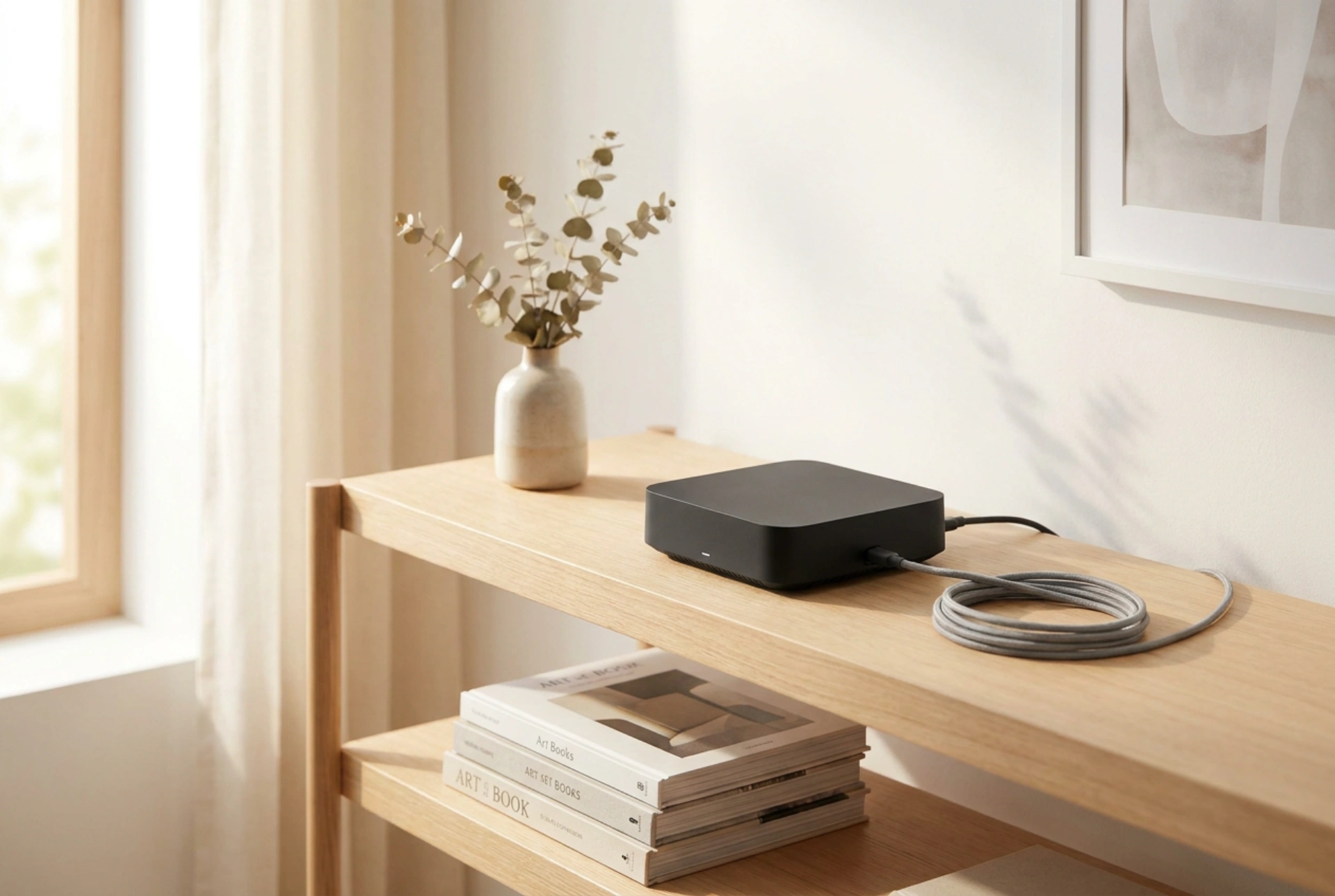
To maximise signal reception, place the cellular gateway near an elevated window that has a direct line of sight to the nearest cell tower, ensuring it is free from low-E coatings. Elevating the device on a shelf or top floor minimizes ground-level obstructions like foliage, vehicles, and neighbouring fences that scatter high-frequency waves.
Optimising Device Placement for Thermal Stability and Range
Electronic components within cellular routers generate heat during heavy data transmission. Placing the device in direct sunlight behind a glass pane can cause thermal throttling, where the router artificially slows down processing speeds to prevent overheating. Position the device in a well-ventilated, shaded area close to the perimeter wall facing the cellular mast.
For internal distribution, place the router away from large metal objects, household mirrors (which reflect WiFi signals due to their silver backing), and kitchen appliances like microwave ovens that operate on the 2.4 GHz spectrum. This prevents signal phase cancellation and wave interference within your living space.
Configuring the Internal Network: Frequency Bands and Bandwidth Allocation
Once the cellular signal is secured, the local wireless network must be configured to distribute bandwidth efficiently. Modern routers broadcast on two primary frequencies: 2.4 GHz and 5 GHz. Each serves a distinct physical purpose:
- The 2.4 GHz Band: Offers longer wavelengths that penetrate solid walls and cover larger physical areas, but at lower speeds and higher susceptibility to interference from neighbouring networks. Use this for low-bandwidth devices like smart home sensors or smart plugs.
- The 5 GHz Band: Utilises shorter wavelengths that transmit vast amounts of data quickly, though they degrade rapidly when passing through physical barriers. Assign high-bandwidth devices, such as work computers and streaming media players, to this frequency.
Access the router's administrator panel via a web browser using its local IP address. Manually split the SSID (network name) into two distinct names (e.g., "HomeNetwork_2G" and "HomeNetwork_5G") rather than using automatic band steering. This manual segmentation forces devices to stay connected to the optimal frequency rather than constantly switching and causing brief drops in connectivity.
Advanced Settings: DNS, APN, and Ethernet Backhauling
To further reduce latency—crucial for real-time applications and video conferencing—manually configure the Domain Name System (DNS) settings within the router panel. Replacing the default cellular carrier DNS with fast, public DNS addresses reduces the time it takes to resolve website domains. Additionally, ensure the Access Point Name (APN) is set precisely to your network operator's specifications to prevent connection drops.
For stationary devices like desktop computers, television sets, and storage drives, bypass the wireless network entirely. Use Category 6 (Cat6) copper ethernet cables to connect these devices directly to the LAN ports of your SIM router. Physical wiring eliminates wireless packet loss, lowers latency, and frees up wireless airspace for mobile devices.





