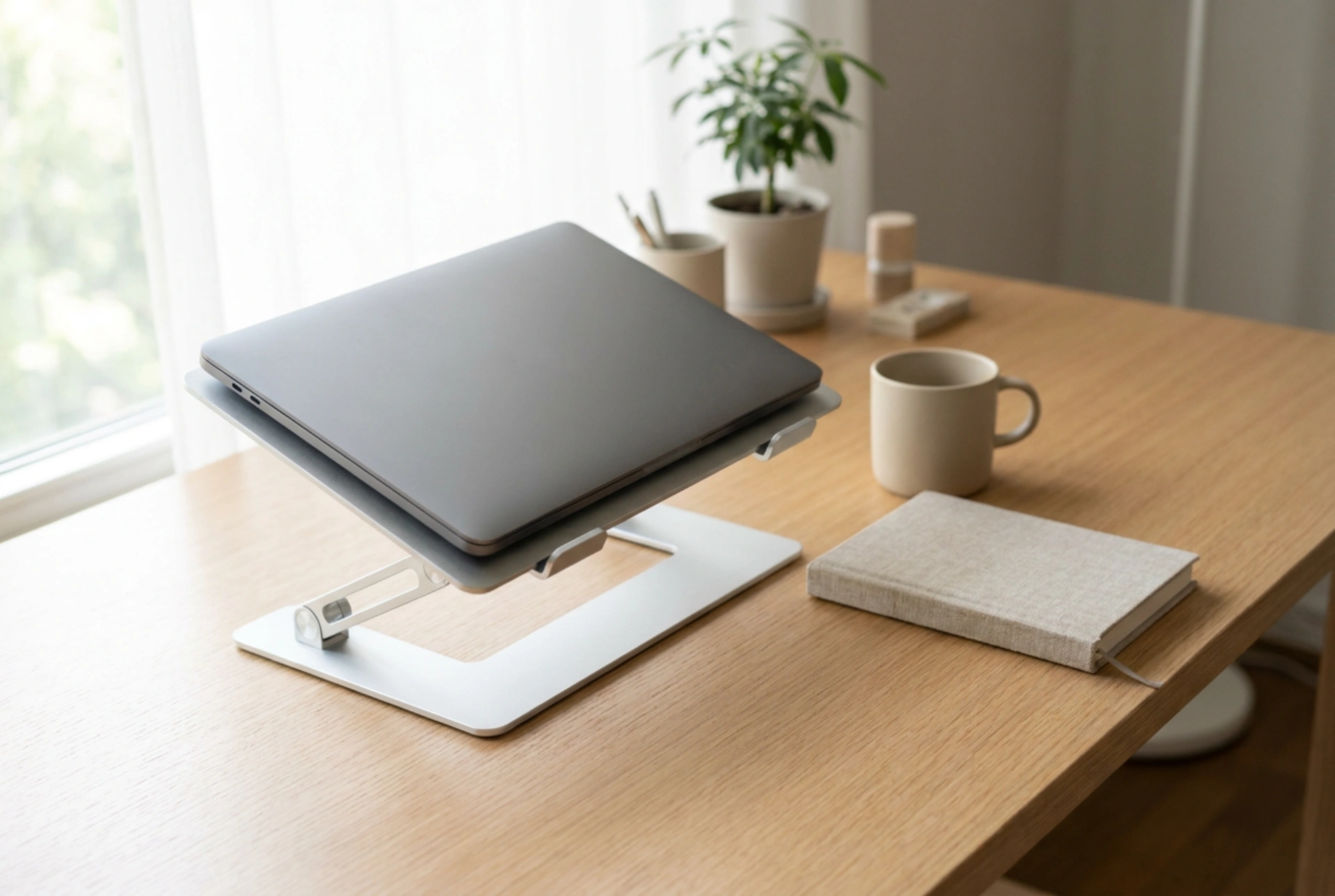


Positioning a laptop screen directly on a desk forces the cervical spine into a continuous forward-bent posture, multiplying the physical load on neck muscles and vertebrae. Elevating the device with an adjustable stand restores the natural alignment of the spine by bringing the display directly into the horizontal line of sight.
The Biomechanics of Neck Strain: Why Screen Height Matters
The human head weighs approximately five kilograms when held in a neutral, upright position. However, due to the physical principles of leverage, tilting the head forward to look down at a low laptop screen exponentially increases this load. At a 15-degree tilt, the effective weight supported by the cervical spine rises to roughly twelve kilograms; at a 60-degree angle, this force escalates to nearly twenty-seven kilograms. Over extended periods, this mechanical strain causes microtrauma to the posterior neck muscles, leading to chronic muscle fatigue, tension headaches, and premature wear of the intervertebral discs.
By raising the screen, you alter the optical angle. Ideally, the top third of the laptop screen should sit at or slightly below eye level. This placement ensures that the neck remains in a neutral position, allowing the cervical vertebrae to stack naturally and reducing the continuous muscular recruitment required to hold the head against gravity.
Determining Your Optimal Ergonomic Setup
Achieving the perfect ergonomic height is not a one-size-fits-all calculation. It depends directly on your sitting height, the height of your desk, and your torso length. To find your ideal screen height, follow these physiological parameters:
- Eye Alignment: Sit upright with your shoulders relaxed. Your horizontal gaze should hit the top edge of the active screen area. This allows a natural downward viewing angle of 15 to 20 degrees to the centre of the monitor, matching the natural resting state of the eyes.
- Viewing Distance: The screen should be positioned between 50 and 70 centimetres away from your eyes—roughly an arm's length. If you must lean forward to read text, increase the font size rather than moving your head closer to the display.
- The 90-Degree Elbow Rule: Your elbows should remain bent at an angle between 90 and 100 degrees, with your forearms resting parallel to the floor. This posture minimizes tension in the trapezius muscles and shoulders.
The Necessity of Secondary Input Devices
Using an adjustable laptop stand without external peripherals is counterproductive. Placing a laptop on an elevated riser and continuing to type on its integrated keyboard forces the wrists into a sharp upward angle (extension) and requires the shoulders to remain constantly elevated. This posture restricts blood flow and puts excessive pressure on the median nerve, significantly increasing the risk of repetitive strain injuries such as carpal tunnel syndrome.
To prevent this, an adjustable stand must always be paired with an external, independent keyboard and mouse. By decoupling the input surface from the display surface, you allow your hands and wrists to remain in a neutral, relaxed position on the desk surface while the screen is positioned at the scientifically optimal height for your visual system.
Passive Thermal Benefits for Your Device
Beyond human biology, elevating a laptop serves an important mechanical function for the hardware itself. Laptops rely on unimpeded airflow to dissipate internal heat generated by the processor and graphics chip. When a laptop sits flat on a desk, the narrow gap underneath restricts air intake, forcing the internal fans to work harder and causing thermal throttling, which degrades performance.
A raised stand, particularly one constructed from high-thermal-conductivity materials like aluminium, exposes the entire underside of the chassis to open air. This enhances passive convective cooling, allowing the internal cooling system to operate more efficiently, protecting sensitive electronic components from heat-induced degradation, and extending the overall lifespan of your machine.
Selecting the Right Stand Mechanics
When selecting a riser, focus on stability and material physics. Look for a mechanism that offers continuous height and angle adjustment rather than preset notches, allowing you to fine-tune the alignment down to the millimetre. Heavy-duty joints must provide sufficient resistance to support the weight of your specific laptop without slipping. Additionally, ensure the stand features high-friction silicone pads on both the supporting arms and the base to prevent micro-vibrations and sliding during use.





