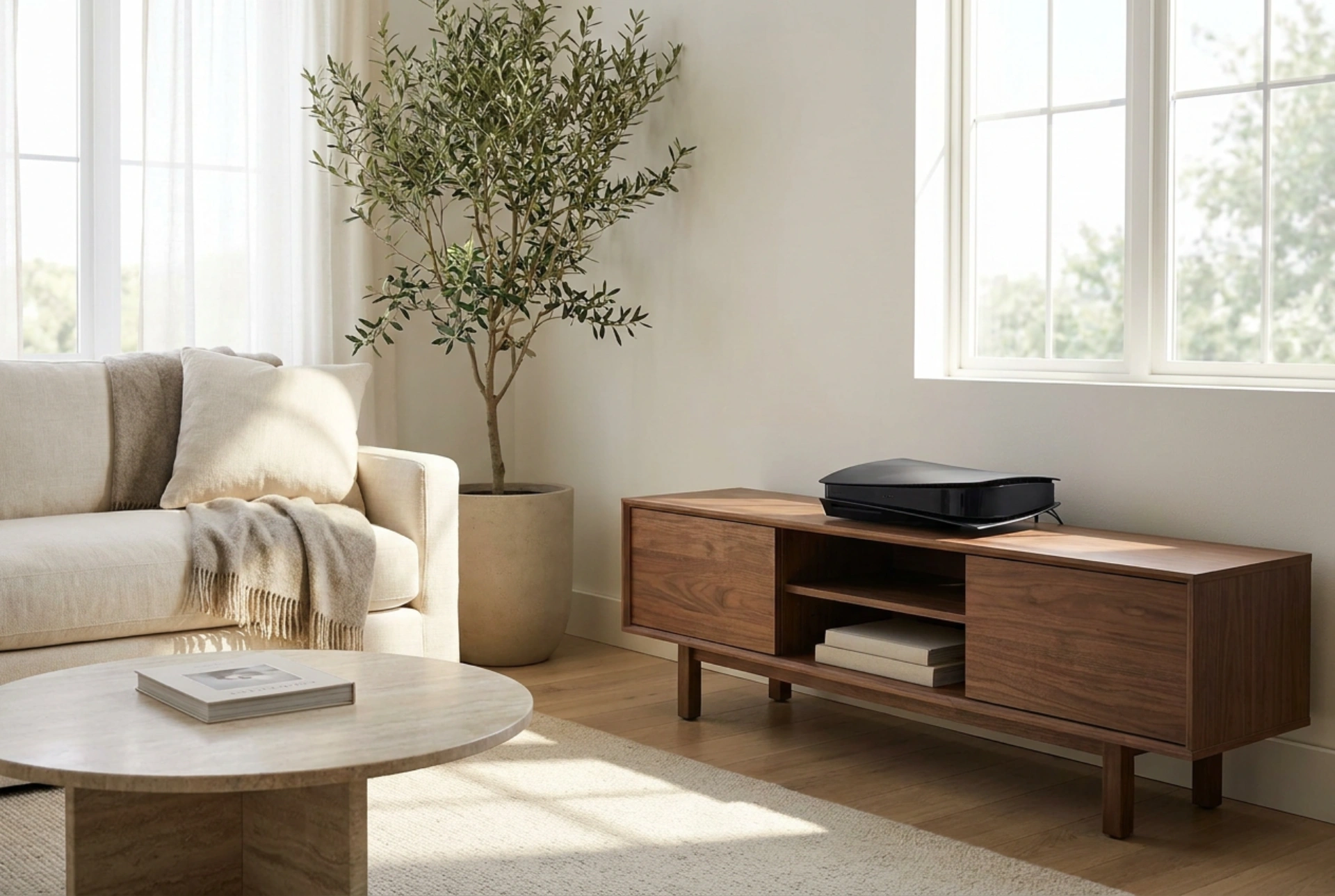


Setting up a new gaming console involves more than just plugging in cables and pressing a power button; optimising its physical environment and system configuration is critical to ensuring device longevity, thermal efficiency, and peak performance.
Thermodynamics of Console Placement
A gaming console is a high-performance computer housed in a compact chassis. Under peak computational loads, the central processing unit and graphics chip generate substantial thermal energy. To prevent thermal throttling—where the system automatically lowers clock speeds to prevent damage—proper airflow management is essential.
When positioning the console, follow these thermodynamic principles:
- Maintain Clear Boundary Layers: Ensure a minimum of 10 to 15 centimetres of open space around all intake and exhaust vents. Placing a console in a closed media cabinet traps hot air, creating a thermal feedback loop where the system continuously draws in heated exhaust air.
- Orient for Convection: Whether positioning the device horizontally or vertically, ensure the rubber feet or stand are properly deployed. These raise the chassis slightly to allow air to pass beneath, utilising natural convection to dissipate heat from the underside.
- Avoid Direct Heat Sources: Keep the unit away from radiators, direct sunlight, and other electronic heat sources (such as audio receivers). External heat increases the baseline temperature of the internal heatsink, forcing the cooling fan to operate at higher revolutions per minute (RPM), which accelerates bearing wear and increases noise.
Optimising Display Signals and Reducing Latency
The connection between your console and display is governed by electronic signal processing. Modern screens use intensive post-processing algorithms to improve static images, but these algorithms introduce input lag—the delay between pressing a button and seeing the action on screen.
To establish a clean, low-latency signal path, configure these video settings immediately:
Enable Game Mode on the Display
This setting bypasses the display’s internal image processing circuits, sending the raw video signal directly to the panel driver. This simple change can reduce input latency from over 100 milliseconds to under 15 milliseconds, which is critical for real-time responsiveness.
Calibrate High Dynamic Range (HDR) Tone Mapping
HDR expands the contrast ratio and colour spectrum of the video output. However, if the console’s output signal does not match the physical capabilities of your display's panel, you will experience clipped highlights (pure white patches with no detail) or crushed blacks (loss of detail in dark areas). Use the console's built-in system-level calibration utility to define the exact peak luminance (measured in nits) and black level thresholds of your screen.
Power Configurations and Component Preservation
Modern gaming systems offer various power states, usually categorised as an instant-on standby mode or a full energy-saving shutdown. Understanding the physical trade-offs of these states allows you to manage component degradation effectively.
Standby modes keep the system's power supply unit (PSU) and memory modules active under low voltage to allow background downloads. While convenient, this continuous state of operation maintains a low baseline temperature inside the chassis, which can accelerate the drying out of thermal paste over several years. If you do not frequently download software updates overnight, configuring the console to perform a complete shutdown is preferable. This eliminates phantom power draw, lowers your home energy footprint, and gives the internal capacitors a chance to fully discharge, extending their operational lifespan.
Audio Settings and Acoustic Alignment
To match your physical sound system, the console's audio output settings must be manually aligned with your hardware configuration. Sending an uncompressed multi-channel signal (such as raw PCM) to a display that only supports stereo sound results in missing audio channels, particularly dialogue. Conversely, outputting a highly compressed bitstream signal to a high-end receiver can introduce micro-delays in audio syncing. Check your audio receiver or soundbar specifications and match the console's output format to prevent phase cancellation or synchronization lag.





