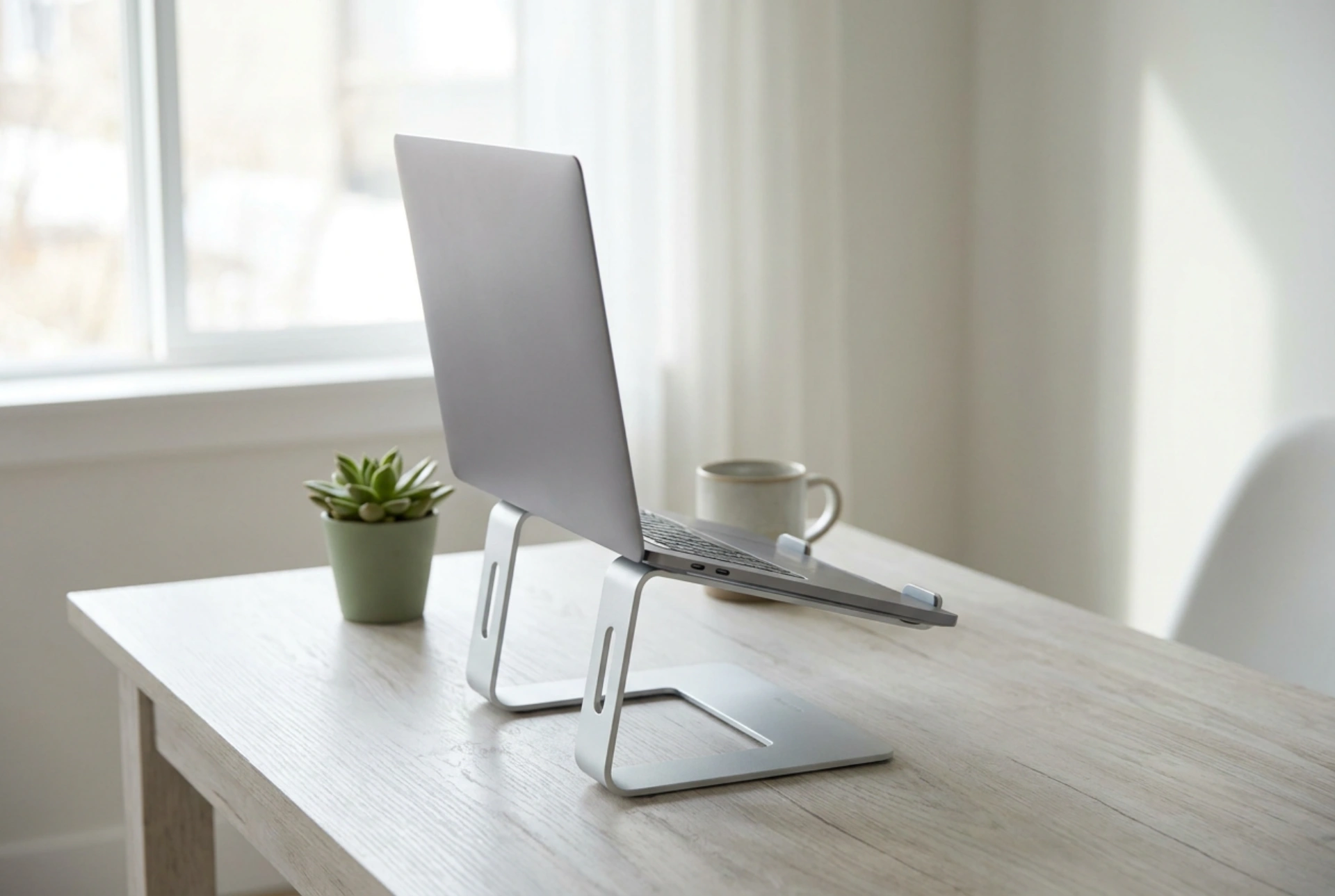


Setting up an adjustable laptop stand is not just about raising the screen; it requires precise alignment with your visual axis and physical proportions to prevent cervical strain and repetitive strain injuries.
The Biomechanics of Screen Height and Neck Strain
The human head weighs approximately five kilograms in a neutral vertical position. However, as the neck bends forward to look down at a low laptop screen, the effective load on the cervical spine increases dramatically. At a mere fifteen-degree forward tilt, the forces acting on the neck muscles and vertebrae double. At sixty degrees, the neck supports an effective load of nearly twenty-seven kilograms. This chronic load leads to muscular fatigue, tension headaches, and long-term spinal misalignment.
By utilizing an adjustable laptop stand, you alter the angle of your neck by elevating the screen. The primary goal is to maintain the cervical spine in its natural lordotic curve. This is achieved when your eyes look slightly downward—at an angle of approximately ten to fifteen degrees—without tilting your head forward. Elevating the display aligns the digital workspace with your natural resting line of sight, relieving the suboccipital muscles from continuous isometric contraction.
The human eye is also affected by incorrect screen placement. When a laptop is placed flat on a desk, the distance from your eyes to the top of the screen is shorter than the distance to the bottom of the screen. This variation requires the ciliary muscles in the eyes to constantly adjust focal length as your gaze moves across the display, leading to rapid visual fatigue. Elevating and tilting the laptop equalises this focal distance, allowing your eyes to maintain a consistent focus across the entire panel.
How to Calibrate Your Laptop Stand Step-by-Step
Proper calibration requires a systematic approach based on your body measurements. Follow this order of operations to optimize your setup:
- Establish your seated posture: Sit back in your chair with your pelvis touching the backrest, your feet flat on the floor, and your knees bent at a ninety-degree angle. Relax your shoulders and bend your elbows to ninety degrees.
- Determine the screen height: Adjust the height of the laptop stand so that the top edge of the laptop screen is exactly at, or slightly below, your horizontal eye level. This ensures that your gaze naturally falls on the upper third of the display where most active work occurs.
- Set the screen tilt: Tilt the screen backward by approximately ten to twenty degrees. The surface of the display should be perpendicular to your line of sight to prevent optical distortion and minimize reflections from overhead light sources.
- Check the viewing distance: Position the stand so the screen is between fifty and seventy centimetres away from your eyes—roughly an arm's length. This distance minimizes accommodative strain on the ciliary muscles inside your eyes.
The Necessity of Separating Input from Display
An adjustable laptop stand must never be used without an external keyboard and pointing device. Attempting to type on an elevated, tilted laptop keyboard forces the wrists into extreme extension and ulnar deviation. This posture increases pressure within the carpal tunnel, compressing the median nerve and leading to paresthesia and weakness in the hand.
With the laptop elevated, place an external keyboard and mouse directly on the desk surface. Your forearms should remain parallel to the floor, with your wrists in a neutral, straight position. This separation of input (keyboard) and output (screen) is the fundamental principle of ergonomic workstation design, mimicking the adjustability of traditional desktop computers.
Thermal Dynamics and Material Stability
When selecting and positioning your stand, material physics play a crucial role in both device longevity and visual comfort. Laptops generate significant heat during processor-intensive tasks. Elevating the device off the desk surface exposes the underside to ambient air, enhancing convective cooling. Metal stands, particularly those made from anodised aluminium, act as passive heat sinks, conducting thermal energy away from the laptop chassis more efficiently than plastic or wooden alternatives.
Furthermore, structural stability is vital. Even micro-vibrations from typing on the desk can transfer to a flimsy stand, causing the screen to wobble. This subtle motion forces your eyes to constantly adjust their focus, leading to rapid binocular fatigue. Choose a stand with non-slip silicone pads and a rigid joint mechanism to dampen mechanical vibrations and secure the device in place.





