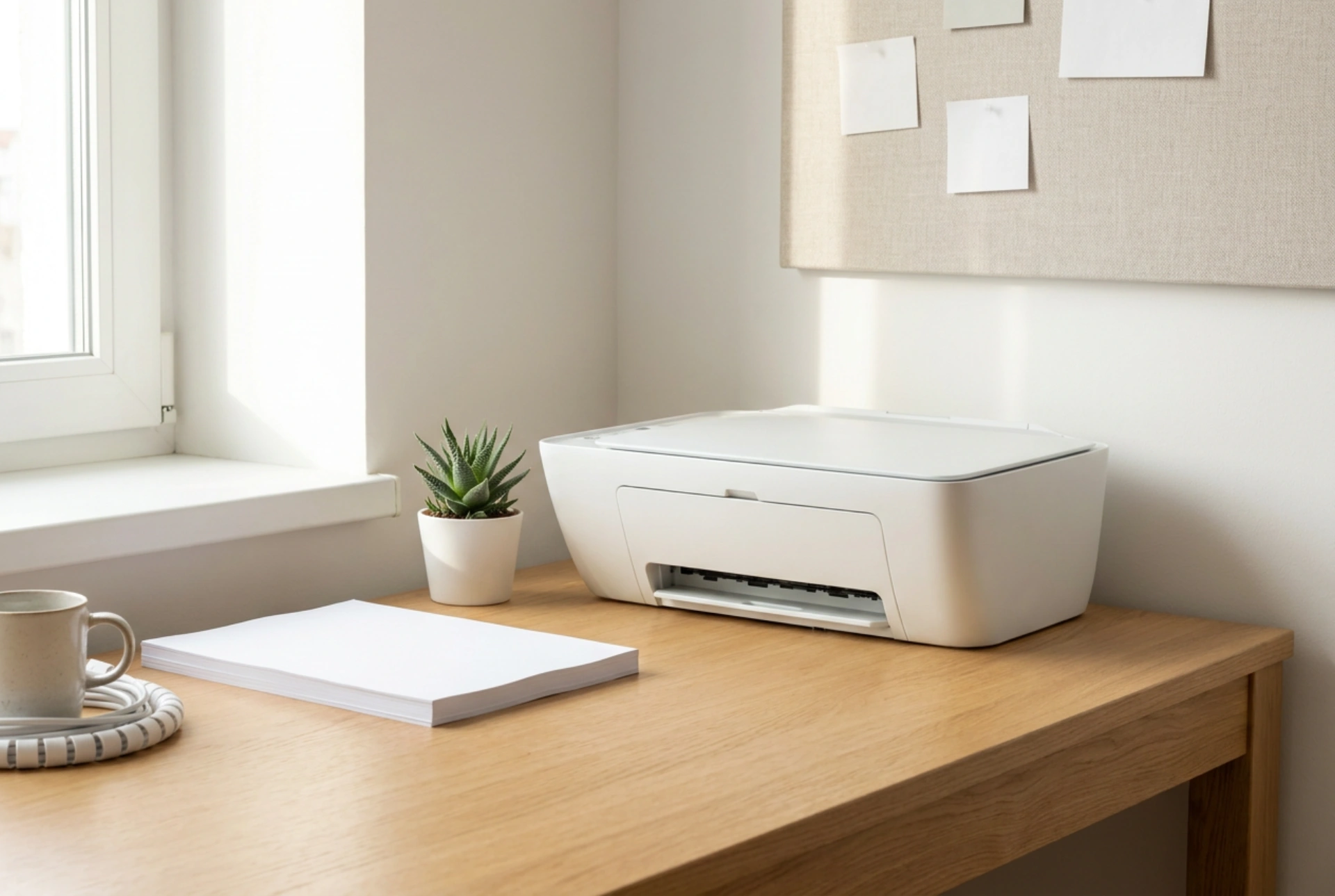


Integrating a printer and scanner into a domestic workspace requires a balance of ergonomics, structural stability, and physical science to prevent mechanical wear and maintain peak productivity.
Structural Stability and Vibration Dampening
The physical movement of a printer’s carriage creates significant kinetic energy. In inkjet models, the rapid back-and-forth motion of the printhead shifts the centre of gravity repeatedly. If the device rests on a flimsy desk, these oscillations transfer to the entire workstation, leading to monitor wobble, physical fatigue, and even microscopic alignment issues in the print quality. To mitigate this, place the printing unit on a high-mass surface, such as a solid wood desk or a dedicated heavy-duty shelf, directly over a structural leg where the load-bearing capacity is highest.
Scanners, conversely, rely on ultra-fine optical sensors that are highly sensitive to external vibrations. Running a scan while a printer is active on the same light surface can cause blurred images or digital artifacts due to the displacement of the optical array. If both units must share a single workspace, separate them using high-density rubber dampening pads under the printer feet. These pads absorb kinetic energy, converting vibrational motion into minor thermal energy and isolating the scanner from mechanical disruption.
Thermal Management and Airflow Optimization
Many home users tuck their printer into a closed cabinet to hide the aesthetic clutter. However, printers—especially laser models—generate substantial heat during operation. A laser printer uses a fuser assembly that reaches temperatures between 150°C and 200°C to melt toner polymer onto the paper fibres. Without adequate convective airflow, this heat accumulates rapidly inside a cabinet, accelerating the degradation of internal plastic gears, drying out lubricating greases, and causing premature sensor failure.
Maintain at least 10 centimetres of clearance on all sides of the printer, particularly near the exhaust fans. If you must use a cabinet, ensure the back panel is removed or install active ventilation grilles. For flatbed scanners, avoid positioning them directly above heat-producing components like external power bricks or PC exhaust vents, as heat can warp the plastic chassis and cause the scanner glass to expand unevenly, leading to focus deviations.
Cable Management and Electromagnetic Interference
A functional dual-device setup involves a high density of power and data cables. Running power cables parallel to unshielded data lines (such as older USB or Ethernet cables) can induce electromagnetic interference (EMI). This interference can degrade data transmission speeds, resulting in dropped print jobs or scanning errors. To prevent this, employ the following cabling techniques:
- Perpendicular Routing: If power and data cables must cross, route them at a 90-degree angle to minimise the area of electromagnetic coupling.
- Separation: Keep high-voltage power lines at least 5 to 10 centimetres away from signal lines.
- Securing with Hook-and-Loop Strips: Avoid tight plastic cable ties that can crimp the delicate internal shielding of data cables; use reusable hook-and-loop wraps instead.
Micro-Climate Control: Managing Dust and Humidity
Paper is highly hygroscopic, meaning it readily absorbs moisture from the surrounding air. When paper relative humidity rises, the fibres swell, leading to paper curls, misfeeds, and frustrating double-sheet grabs. Conversely, extremely dry air increases electrostatic charge, causing pages to stick together. Always store your paper stock in its original wrapper or a sealed container, only loading the tray with the volume required for immediate tasks.
Dust is another major enemy of both optical and mechanical components. Dust particles settle on scanner glass, refracting the light source and leaving white streaks on scanned documents. They also clog inkjet nozzles or adhere to the static-charged drums of laser printers. Position your equipment away from direct airflow currents, such as heating vents or open windows. Clean the scanner glass using a lint-free microfibre cloth lightly dampened with isopropyl alcohol, which dissolves oils without leaving a conductive residue.





