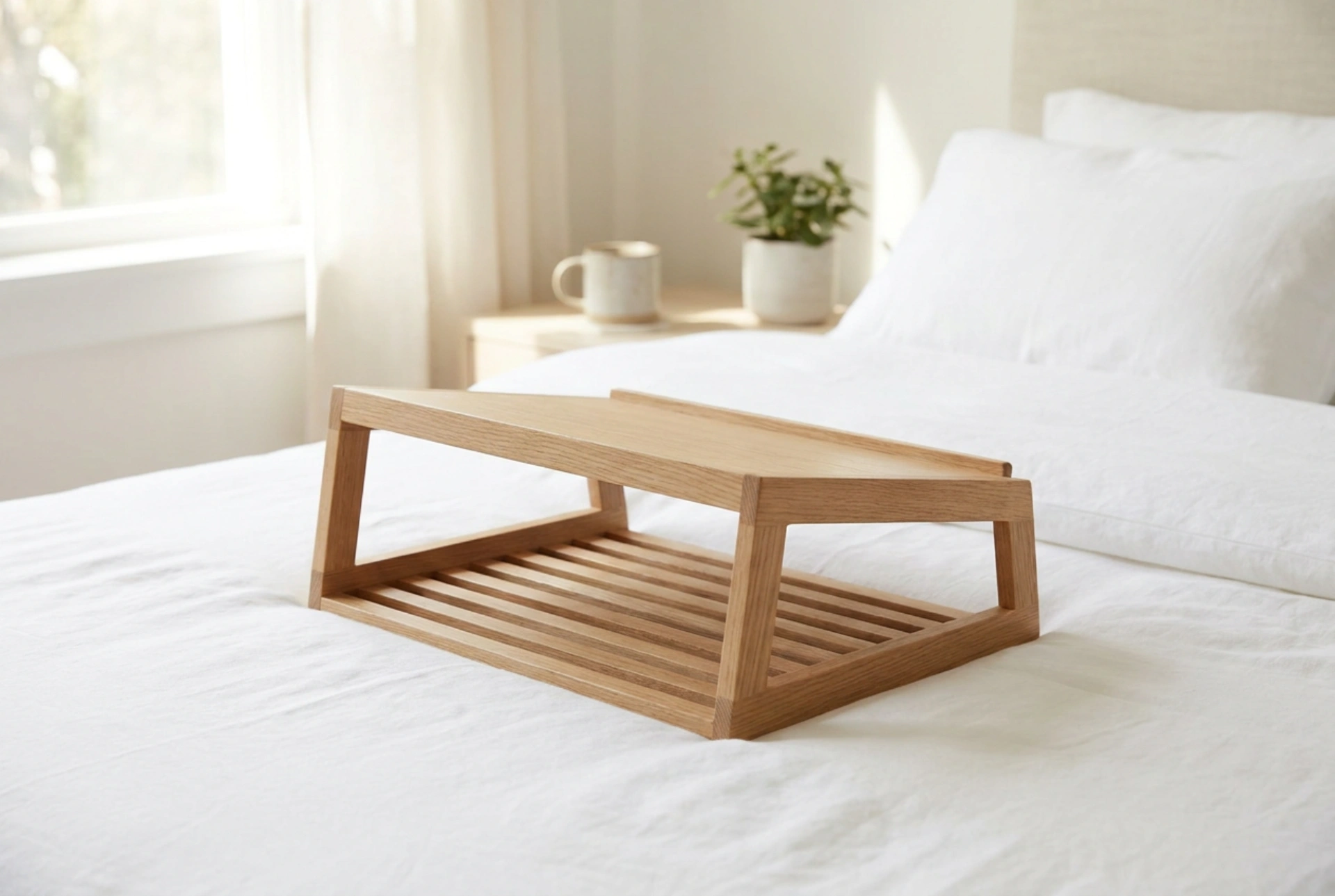


Placing a laptop directly on a soft mattress or heavy duvet suffocates its cooling system by sealing the bottom intake vents and trapping heat. To prevent thermal throttling and hardware degradation, you must choose a bed stand designed to maintain an unobstructed pathway for air circulation.
The Thermodynamics of Laptop Cooling on Soft Surfaces
Laptops rely on forced convection to keep internal components like the CPU and GPU within safe operating temperatures. Cool air is typically drawn in through vents on the bottom casing, passed over internal heat pipes, and expelled through exhaust ports at the rear or sides. When a laptop sits directly on a bed, the soft, compliant surface of the mattress or blanket conforms to the underside of the chassis. This eliminates the small clearance gap created by the laptop's rubber feet, completely sealing the intake vents.
Without adequate intake, the internal fans spin at maximum velocity but merely recirculate hot air within the chassis. This leads to a rapid spike in temperature, triggering thermal throttling—a protective mechanism where the processor automatically reduces its clock speed to prevent physical damage. Over time, prolonged exposure to elevated temperatures degrades the lithium-ion battery, shortens the lifespan of silicon chips, and dries out the thermal paste responsible for heat transfer.
Material Properties: Passive Heat Dissipation vs. Insulation
The material of your laptop stand plays a significant role in thermal management. Different materials possess varying levels of thermal conductivity, affecting how heat is absorbed and dissipated away from the device.
- Aluminium and Alloys: Aluminium has high thermal conductivity (approximately 205 W/m·K). An aluminium stand acts as an auxiliary passive heatsink, absorbing radiant heat from the laptop's lower chassis and dissipating it into the surrounding air. It is highly efficient but must be kept clean to maintain optimal thermal exchange.
- Wood and Bamboo: While wood is technically a thermal insulator with low conductivity, its structural rigidity makes it highly effective for bed stands. A wooden stand relies on physical cutouts, slats, or perforated patterns to allow natural convective airflow. It is sturdy enough to prevent sagging under weight, ensuring the laptop remains elevated above the soft bedding.
- Engineered Plastics: High-density plastics are lightweight but offer very poor thermal conductivity. If you opt for a plastic stand, it must feature aggressive ventilation geometry, as the material itself will do nothing to help dissipate heat passively.
Essential Design Geometries for Unobstructed Airflow
When selecting a stand specifically for use in bed, the physical design is more critical than any active cooling component. Look for stands that incorporate specific geometric features designed to fight the conforming nature of soft bedding.
1. Slatted or Perforated Platforms
Avoid solid, flat trays. A stand with wide, open slats or a mesh surface ensures that even if the stand itself settles slightly into a duvet, there is still an air chamber directly beneath the laptop's intake vents. The open area should ideally cover at least 50% of the platform's surface area to allow unrestricted airflow.
2. Elevated Legs with Wide Footprints
A lap desk with foldable legs is superior to a flat cushion tray. The legs elevate the platform several centimetres above the bedding, completely separating the laptop from the insulating blankets. The legs should have a wide, stable footprint to prevent the stand from tipping or sinking unevenly into the mattress, which could block side or rear exhaust ports.
3. Tilt Adjustment and Stopper Pins
Angling the laptop slightly forward increases the clearance at the rear, where hot exhaust vents are frequently located. Ensure the stand has a physical lip or adjustable stopper pins to prevent the laptop from sliding down. These stoppers should be low-profile so they do not block front-edge vents or interfere with your wrists during typing.
4. Active Fan Integration and Airflow Alignment
If you choose a stand with integrated USB-powered fans, pay close attention to the direction of airflow. The active fans must work in harmony with your laptop's internal ventilation. If your laptop draws air from the bottom, the stand's fans should blow air upward into those intakes. Forcing air in the opposite direction creates turbulence, reducing cooling efficiency and putting extra strain on the internal fans.
Operational Practices for Bedside Computing
Choosing the correct stand is only the first step; proper positioning and maintenance are vital to keeping your system cool. Position the stand on a flat, level section of the mattress. Avoid piling pillows or thick blankets around the sides of the stand, as these can block the exhaust path, forcing the laptop to re-ingest its own hot exhaust air.
Additionally, using a laptop in a soft environment increases the risk of dust, lint, and textile fibres being drawn into the cooling fans. Regularly inspect the intake vents of your laptop and the stand itself. Use a can of compressed air to blow out accumulated dust from the laptop's internal heatsinks at least once every three months to maintain optimal thermal performance.





