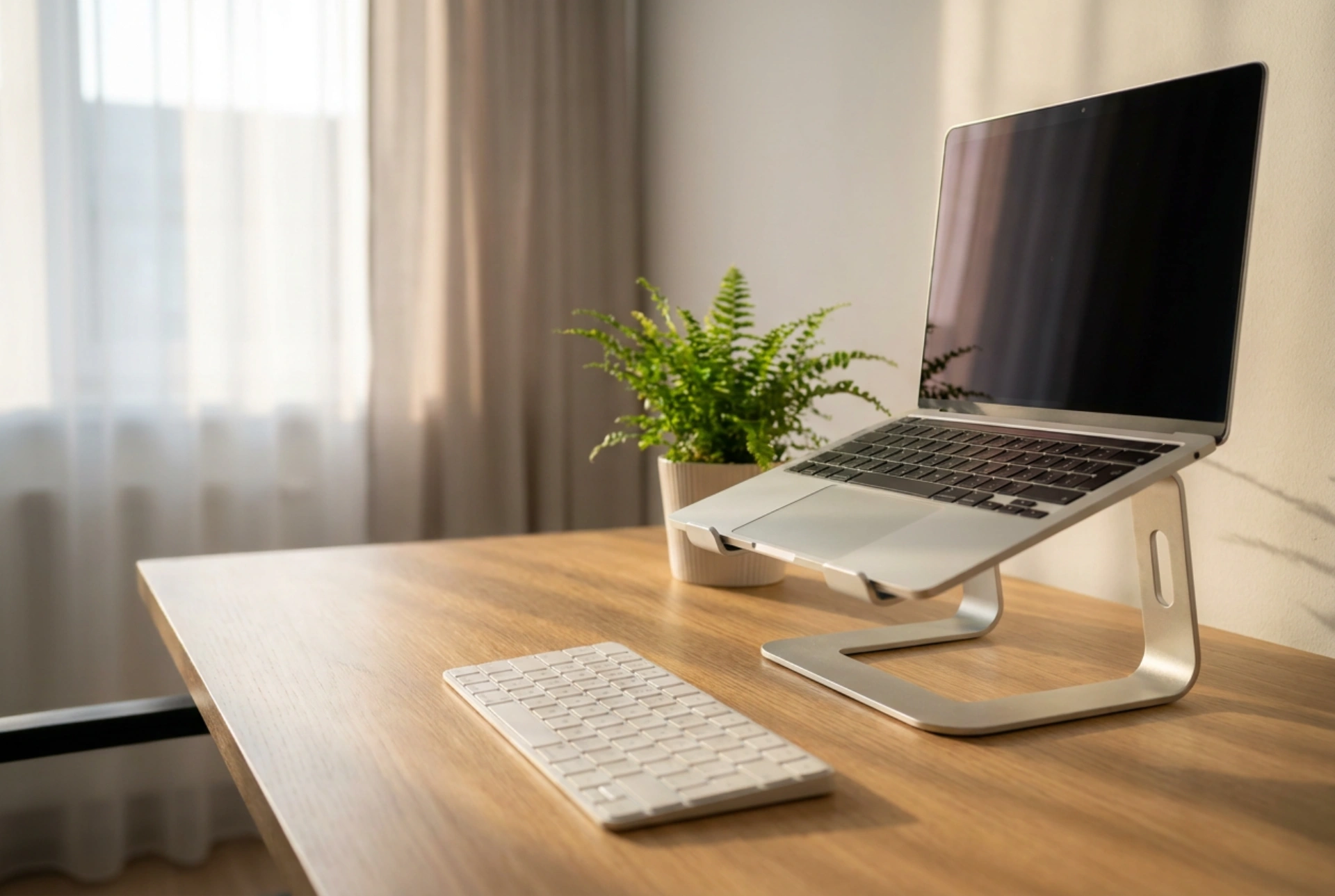


Correctly positioning a laptop stand is essential to prevent chronic neck strain and muscle fatigue caused by poor viewing angles. By applying simple ergonomic principles and adjusting your workspace geometry, you can align your screen with your natural line of sight and maintain a healthy posture throughout the day.
The Biomechanics of Neck Strain and Screen Height
The human head weighs approximately five kilograms when held in a neutral, upright position. However, when you tilt your head forward to look down at a low laptop screen, the cervical spine must support a significantly increased load due to leverage. At a sixty-degree tilt, the effective weight on your neck muscles and vertebrae can reach up to twenty-seven kilograms. This prolonged strain leads to muscular imbalances, tension headaches, and long-term postural issues. Elevating your laptop using a dedicated stand shifts the display into your natural visual plane, transferring the physical support of your head back to the skeletal structure of your spine rather than relying on fatigued neck muscles.
Calculating the Ideal Screen Height and Distance
To establish the perfect height for your laptop stand, sit upright in your chair with your shoulders relaxed. Look straight ahead; your natural line of sight should meet the top third of your laptop screen. This alignment ensures that you only need to cast your eyes slightly downward to read the middle and bottom of the display, rather than bending your neck. In terms of distance, the screen should be positioned roughly an arm's length away from your face, which is approximately fifty to seventy centimetres. This distance reduces ocular accommodation strain, preventing eye fatigue and headaches associated with near-work focus.
The Essential Separation of Screen and Keyboard
An elevated laptop screen introduces a secondary ergonomic challenge: the keyboard is raised to an angle that is highly detrimental to your wrists. Typing on an elevated laptop keyboard forces the wrists into hyperextension and causes ulnar deviation, which compresses the carpal tunnel and strains the tendons. Therefore, when utilising a laptop stand, it is imperative to use an external, flat keyboard and a separate mouse. Position these peripherals on the desk surface so that your elbows remain bent at a ninety-degree angle, with your forearms resting parallel to the floor. This layout keeps your upper body relaxed and prevents tension from building in your shoulders and upper back.
Optimising Screen Tilt and Angle for Visual Comfort
Once the height is established, the tilt of the screen must be adjusted to prevent glare and maintain optimal contrast. Tilt the screen slightly backward, roughly ten to twenty degrees, so that the display plane is perpendicular to your line of sight. This minimises the reflection of overhead light fixtures or natural light from windows, which can cause subtle squinting and subsequent eye strain. If your laptop stand features an adjustable angle, ensure the base is locked securely to prevent any micro-vibrations while typing on your desk, as visual instability forces the eyes to constantly refocus, leading to rapid fatigue.
Desk Surface Stability and Stand Material Selection
The physical stability of your workspace plays an underrated role in overall comfort. A laptop stand should sit on a completely flat, non-slip surface to prevent wobbling, which induces visual fatigue. Stands constructed from solid metals, such as aluminium, offer superior thermal conductivity, acting as a passive heat sink that draws warmth away from the laptop chassis. This thermal management prevents the internal cooling fans from running at maximum speed, reducing auditory distractions in your quiet working environment. Ensure that any contact points between the stand and your desk, as well as the stand and the laptop, are fitted with silicone or rubber pads to absorb vibrations and prevent accidental slipping.





