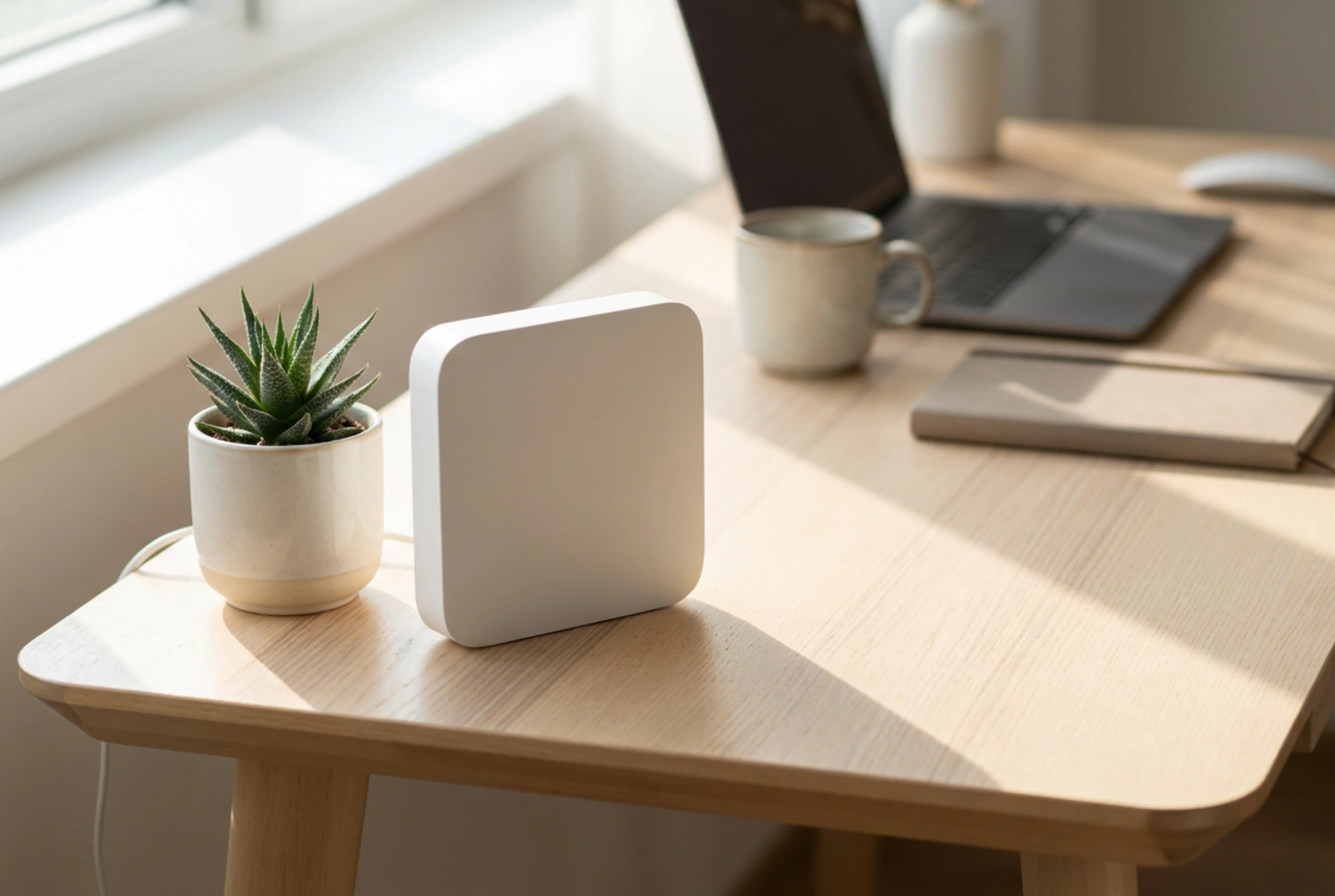


Configuring a cellular-enabled wireless router requires an understanding of both radio wave propagation and local network parameters to achieve a stable, high-speed internet connection. By optimizing the physical placement and fine-tuning the internal software settings, you can drastically reduce latency and prevent packet loss.
The Physics of Cellular Reception and Router Placement
Unlike traditional broadband, a SIM card router relies on cellular towers emitting high-frequency electromagnetic waves (typically between 800 MHz and 3.6 GHz). These waves are highly susceptible to attenuation—the loss of signal strength as it passes through physical mediums. Materials like reinforced concrete, solid brick, and low-emissivity (low-E) double-glazed windows containing microscopic metallic oxide layers pose significant barriers to these signals.
To maximize reception, place the router near a window that has a direct line of sight to the nearest cellular tower, elevating it to avoid ground-level obstacles. Keep the device away from household appliances that emit electromagnetic interference, such as microwave ovens operating on the 2.4 GHz spectrum, baby monitors, and large metal surfaces which reflect and scatter wireless signals.
Demystifying APN Settings and Band Selection
The Access Point Name (APN) acts as the gateway between your local cellular network and the public internet. While most modern routers auto-detect APN profiles from the SIM card, manual configuration is often necessary for static IP addresses or to bypass restrictive carrier firewalls. An incorrect APN can lead to strict NAT (Network Address Translation) types, which block incoming connections and disrupt online gaming or remote server access.
Inside the router's administrator panel, navigate to the network settings to manage band selection. By default, routers are set to "Auto-select," meaning they constantly scan and switch between different LTE or 5G bands based on theoretical signal strength. This constant switching causes brief but noticeable connection drops and latency spikes. Locking the router to a specific high-frequency band (such as 1800 MHz or 2600 MHz) can stabilize throughput, provided the signal-to-interference-plus-noise ratio (SINR) remains high.
Optimizing Local Wi-Fi Distribution: 2.4 GHz vs. 5 GHz
Once the cellular signal enters the router, it must be distributed efficiently throughout the home. This is managed via two primary frequency bands, each serving distinct purposes:
- 2.4 GHz Band: Offers longer wavelengths that penetrate walls and solid objects easily, but operates at lower speeds and is highly congested due to neighboring networks and household electronics.
- 5 GHz Band: Provides significantly higher data transfer rates and lower congestion, but has shorter wavelengths that struggle to pass through solid structures, limiting its effective range.
To optimize performance, configure the router to use non-overlapping channels. On the 2.4 GHz band, manually select channels 1, 6, or 11 to avoid co-channel interference. For the 5 GHz band, utilize a channel width of 80 MHz for maximum speed in close proximity, or drop down to 40 MHz to increase signal stability over longer distances.
Crucial Security Configurations and Maintenance
Securing the router is vital to protect your data and maintain bandwidth integrity. Immediately change the default administrator username and password, as factory credentials are publicly documented and easily exploited. Enable WPA3 encryption, or WPA2-AES if you have legacy devices, to encrypt all local wireless traffic.
Disable Wi-Fi Protected Setup (WPS). While WPS offers a convenient one-button connection method, its PIN-based authentication protocol is highly vulnerable to brute-force attacks. Additionally, schedule a weekly automatic reboot within the router's system settings. This flushes the device's volatile memory (RAM), clears accumulated routing tables, and forces a fresh connection to the cellular tower, preventing gradual performance degradation.





