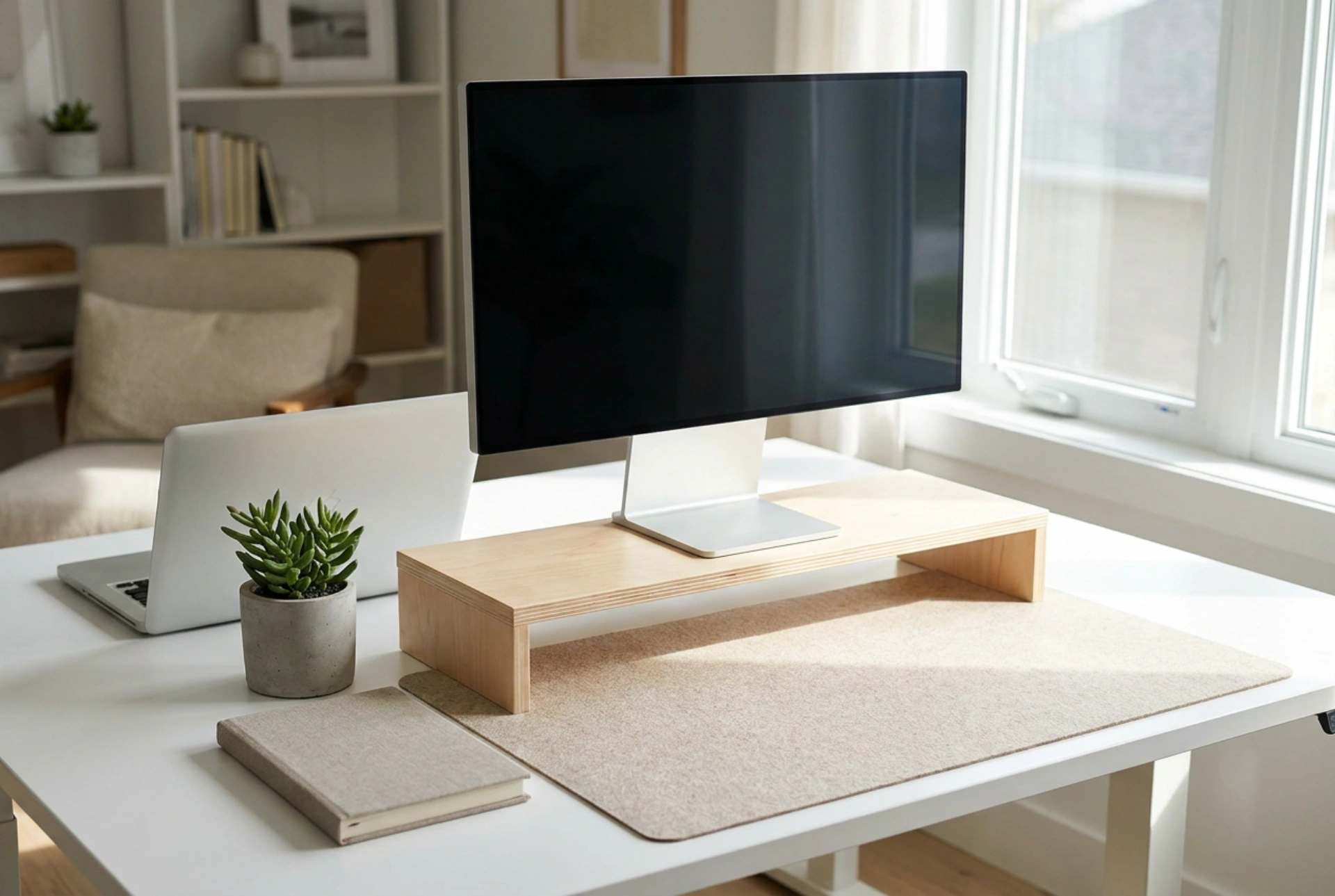


Optimising your desk layout with a monitor stand is not just about aesthetics; it is a precise exercise in ergonomics, physics, and spatial efficiency. By understanding how to position and utilise this simple platform, you can eliminate chronic physical strain and unlock valuable desktop surface area.
The Physics of Ergonomics: Height and Angle Alignment
The primary function of a monitor stand is to align the screen with your natural physiological posture. To determine the correct height, sit comfortably with your spine neutral and shoulders relaxed. Your eyes should naturally align with a point approximately five to eight centimetres below the top edge of the screen monitor. When looking at the middle of the screen, your line of sight should form a downward angle of about 15 to 20 degrees.
Achieving this specific angle reduces the mechanical workload on the cervical spine and the trapezius muscles. If the monitor is too low, the head tilts forward, significantly increasing the effective weight of the skull on your neck muscles due to leverage forces. Conversely, a stand that is too high forces your neck to hyperextend, dry-eye syndrome can also worsen because the eyelids must open wider to look upwards. Position the stand so that the monitor is at an arm’s length away (approximately 50 to 70 centimetres) to minimise ocular accommodation fatigue.
Weight Distribution and Material Stability
Before placing any equipment, consider the physical forces at play. A monitor stand must bear a constant static load while absorbing kinetic energy from typing or desk movements. Solid hardwood and powder-coated steel stands offer the highest mechanical stability and dampening capacity, preventing screen wobble.
Ensure the feet of the stand are equipped with high-friction silicone or rubber pads. These pads serve two vital purposes: they prevent the stand from sliding across smooth wooden or laminate desks, and they act as shock absorbers that decouple the monitor from vibrations generated by mechanical keyboards or nearby movement. Place the monitor precisely over the central support columns or the strongest load-bearing point of the stand to prevent sagging, especially if using timber models.
Maximising Spatial Efficiency Under the Stand
A raised monitor instantly creates a secondary plane of storage. To maintain a clutter-free desk, this newly acquired space should be organised based on the frequency of use and the physical dimensions of your peripherals.
- Low-profile keyboard parking: Slide your keyboard completely beneath the stand when not in use to open up the central workspace for handwriting, sketching, or reading physical documents.
- Cable integration zone: Route connectivity cables and power cords directly behind the stand legs. Keep cables grouped using textile hook-and-loop wraps rather than plastic ties, allowing for easy adjustments without structural stress on the input ports.
- Micro-storage layout: Use shallow, modular wooden or felt trays under the stand to house small items like USB drives, writing instruments, and external solid-state drives (SSDs). Keeping these items out of direct sight reduces visual clutter, which directly lowers cognitive load and enhances focus.
Managing Cable Routing and Cable Tension
An organised desk requires careful management of the physical cables connected to your display. A common mistake is pulling cables too tight, which can damage internal copper strands or strain the monitor's input ports. Always leave a gentle 'drip loop'—a slight slack in the cable—before routing it along the back of the monitor stand. Run power and data cables down the rear legs of the stand, securing them out of view. By keeping the path of the cables hidden behind the vertical planes of the stand, you maintain clean sightlines across your entire workspace.





