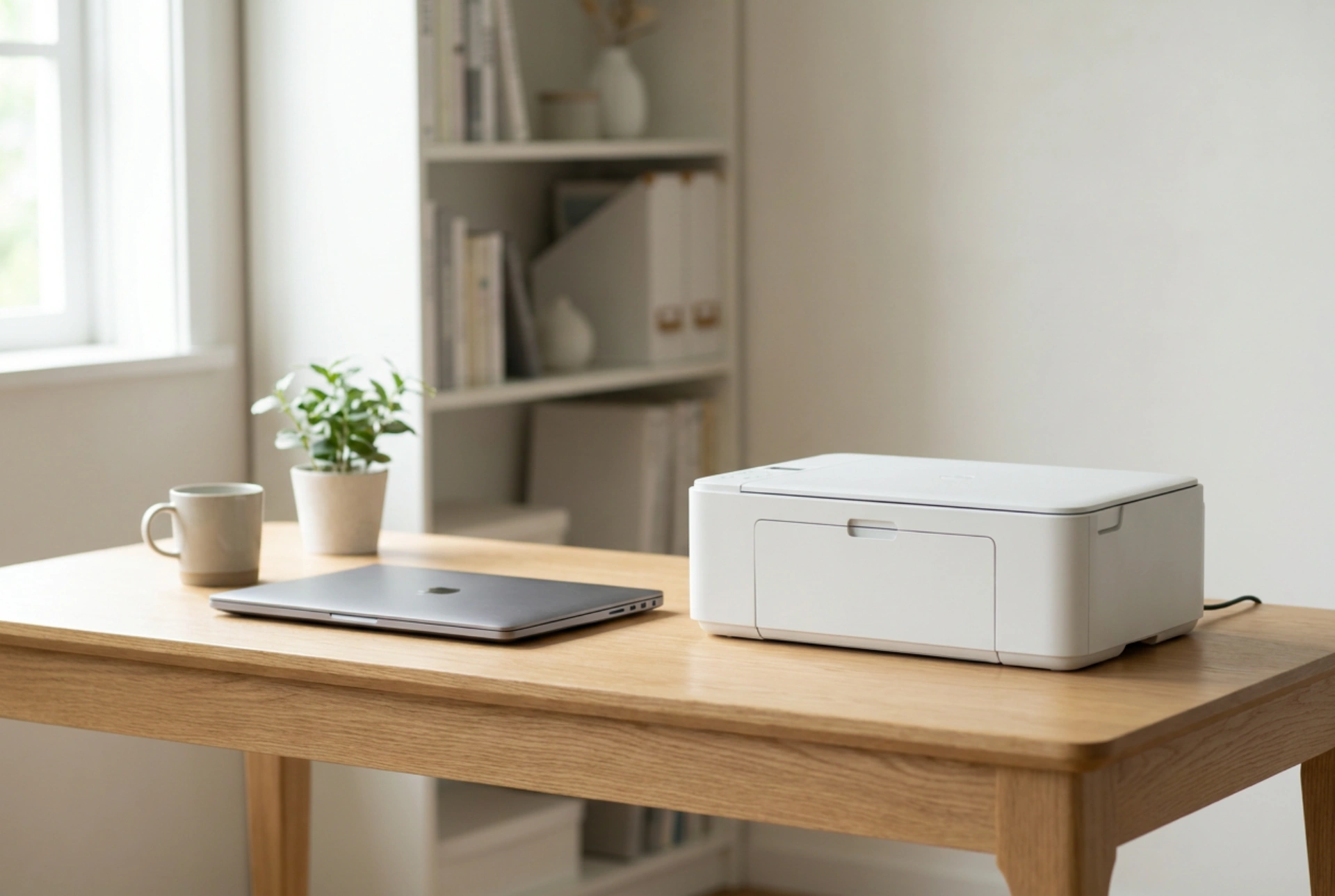


Establishing a clutter-free connection between a compact laser printer and your laptop relies on choosing the right communication protocols and physical routing techniques to eliminate visual noise. Understanding how wireless signals propagate and how to efficiently manage power delivery allows you to maintain a clean, productive workspace without sacrificing printer responsiveness.
The Physics of Wireless Connectivity: Router vs. Peer-to-Peer
To eliminate the physical USB link completely, you must choose between infrastructure wireless mode and direct peer-to-peer communication. Most small laser printers operate on the 2.4 GHz wireless frequency band. While the 5 GHz band offers faster data transfer rates, the 2.4 GHz band features longer electromagnetic wavelengths that propagate more effectively through solid obstacles like desks and drywall. This makes it ideal for a printer placed in a corner or on a shelf below your desk.
If your local network is congested, Wi-Fi Direct provides an excellent alternative. This protocol creates an isolated, secure ad-hoc network directly between the laptop and the printer, bypassing the central router. By establishing a direct peer-to-peer connection, you reduce latency and eliminate the risk of IP address conflicts that often occur when multiple household devices join and leave a shared router network.
Establishing the Connection: Handshakes and IP Reservation
Connecting your device wirelessly typically begins with a temporary connection handshake. This can be achieved through two primary methods:
- Wi-Fi Protected Setup (WPS): By pressing the WPS button on your router and then on your printer within a two-minute window, the devices exchange cryptographic keys automatically, integrating the printer into your local network securely.
- Direct Software Configuration: Connecting the printer temporarily via a physical cable allows your laptop to write the network SSID and WPA2 security key directly to the printer's non-volatile flash memory. Once written, the cable can be permanently removed.
To prevent connection drops in the future, access your router's administrative panel via your web browser and assign a static IP address to the printer's MAC address. This ensures the router always reserves the same local address for your printer, preventing your laptop from losing track of the device during routine DHCP renewals.
Managing Physical Cables: Routing and Interference Prevention
Even with a wireless data link, a laser printer still requires a physical power source. Managing this single cable properly prevents electromagnetic interference (EMI) and mechanical wear. Laser printers draw a significant amount of electrical current during the heating phase, as the fuser unit must reach temperatures up to 200 degrees Celsius within seconds to melt the toner powder onto the paper fibers. Consequently, the power cable should run directly to a wall socket or a high-quality surge protector, rather than daisy-chained extension leads.
To run this cable invisibly along your desk, utilize fabric hook-and-loop fasteners rather than tight plastic zip ties. Hook-and-loop fasteners apply uniform, gentle pressure, protecting the copper strands inside the insulation from kinking or breaking under tension. If you must run a USB data cable alongside the power cable, ensure they cross at a 90-degree angle rather than running parallel. Parallel cables can suffer from crosstalk, where the high-current spikes from the power cord induce electrical noise into the low-voltage data line, corrupting print jobs.
Strategic Placement for Thermal and Signal Optimization
The physical location of your compact printer affects both its wireless performance and its operational lifespan. Avoid enclosing the printer inside tight, unventilated drawers or metal cabinets. Metal acts as a Faraday cage, reflecting radio waves and severely degrading wireless signal quality. Furthermore, because the laser printing process relies on thermal fusion, adequate airflow is essential to dissipate the heat generated by the internal heating elements. Keep at least ten centimeters of open space around the printer's exhaust vents to prevent heat buildup, which can warp plastic internal gears and dry out roller components prematurely.





