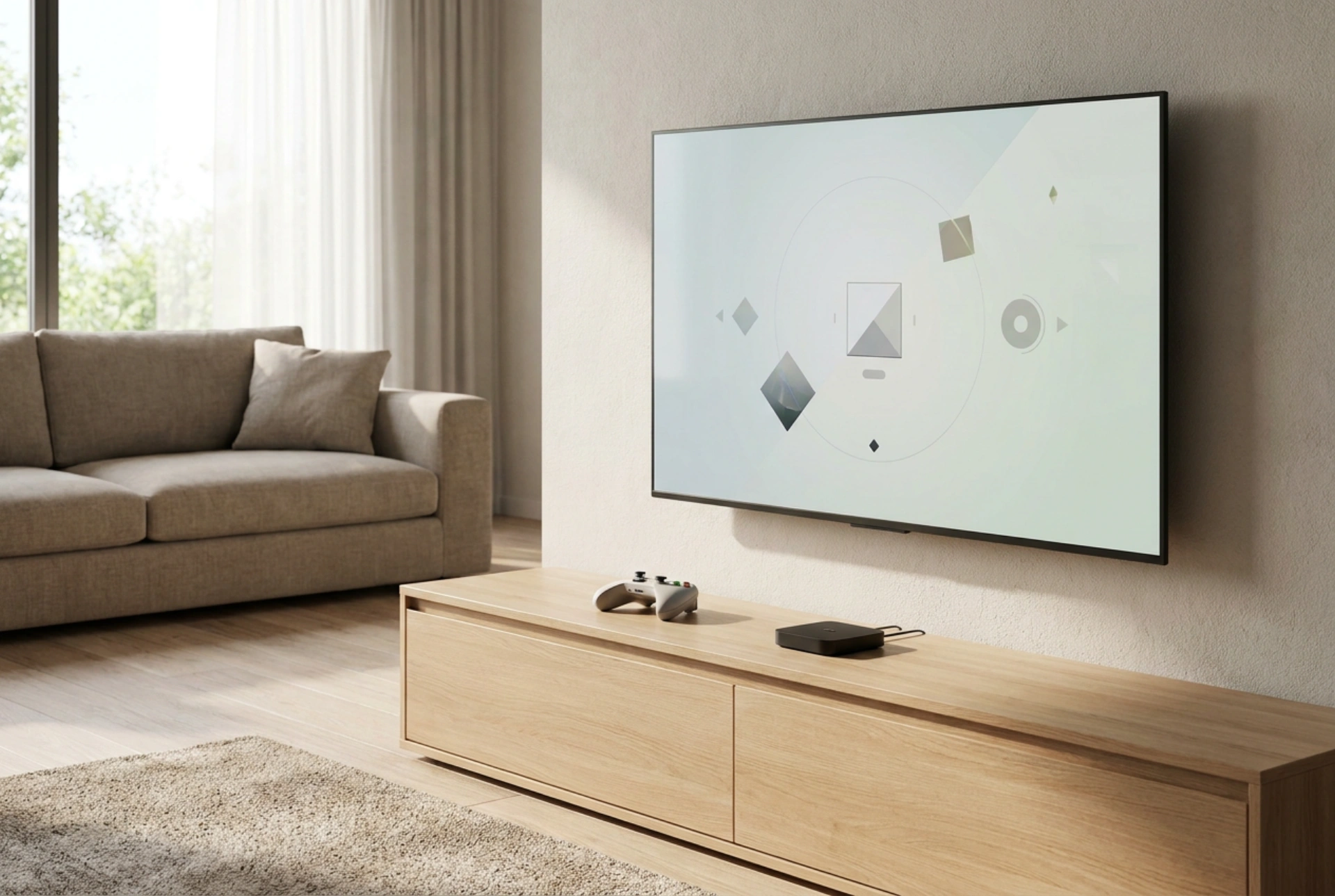


Modern Smart TVs and streaming devices have evolved into capable hardware hubs, allowing you to stream high-definition video games directly to your screen without a traditional physical console. By leveraging cloud rendering and local network configurations, you can achieve low-latency gaming using only your television, a stable internet connection, and a wireless game controller.
The Physics of Cloud Gaming and Video Decoding
Unlike traditional gaming where a physical console sits beneath your television to render graphics locally, cloud gaming shifts the computational workload to remote data centres. High-performance servers execute the game logic and render the three-dimensional environments, encoding the final output into a continuous video stream (typically utilizing H.264 or H.265 video codecs). This stream is sent over the internet to your television, which functions as a real-time decoder.
The primary challenge in this system is minimizing latency—the delay between pressing a button on your controller and seeing the corresponding action on the screen. This cycle involves input transmission, remote server processing, video encoding, network travel, video decoding on the TV hardware, and pixel response time. Understanding these individual components allows you to optimize each step to achieve a smooth, console-like experience.
Optimizing Your Local Network for Zero-Lag Streaming
Because cloud gaming relies on a continuous exchange of high-bandwidth data, your local network setup is the single most critical factor determining performance. A dropped packet or momentary drop in speed results in visible screen tearing, pixelation, or input delay.
- Physical Ethernet Connections: Whenever possible, bypass wireless connections entirely. A Cat6 or Cat6a copper Ethernet cable directly linking your TV to the router eliminates the signal attenuation and packet collisions inherent in wireless transmission.
- Frequency Band Selection: If a physical cable is impractical, configure your television to connect exclusively to the 5 GHz or 6 GHz wireless band. The older 2.4 GHz band operates on crowded frequencies shared with baby monitors, microwave ovens, and neighbouring networks, causing severe packet loss and high jitter.
- Quality of Service (QoS) Rules: Access your router’s administrative interface via your web browser. Enable Quality of Service settings and assign high-priority status to your television or streaming device. This ensures that background downloads on other home devices do not interrupt your gaming stream.
Controller Synchronization and Bluetooth Interference
To interact with the game, a wireless controller must be paired with either the television or the streaming dongle. Most modern controllers use standard Bluetooth protocols operating on the 2.4 GHz spectrum. Managing this wireless link is essential for maintaining responsive input.
First, ensure a clear physical line of sight between the controller and the television’s receiver. Physical obstacles like heavy wooden media units, glass cabinet doors, or metal frames can degrade the signal strength. Furthermore, reduce local electromagnetic noise by keeping other active Bluetooth transmitters—such as wireless headphones, smartwatches, or smartphones—away from the immediate vicinity of the television during play. This prevents packet collisions on the receiver, maintaining a high polling rate for your controller.
Activating TV Game Mode for Raw Signal Processing
By default, modern televisions employ sophisticated digital signal processors (DSPs) to enhance image quality. These algorithms perform tasks like motion smoothing (frame interpolation), noise reduction, and contrast enhancement. While beneficial for watching films, these processes introduce up to 100 milliseconds of display lag because the TV must buffer multiple frames before projecting them.
To eliminate this delay, you must manually activate the television's "Game Mode" or "PC Mode" within the display settings. This setting bypasses the DSP entirely, routing the decoded video stream directly to the panel driver. This simple change reduces internal television latency from a sluggish 80–120 milliseconds down to a highly responsive 5–15 milliseconds, which is critical for real-time interactive applications.
Step-by-Step Configuration Checklist
To establish a highly functional, console-free gaming setup, follow this systematic order of operations:
- Step 1: Connect the television or streaming stick to the router using a wired Ethernet connection.
- Step 2: Open the television's system settings, locate the display configuration, and enable "Game Mode" for the active input source or application.
- Step 3: Access the TV's Bluetooth settings, put your wireless controller into pairing mode, and establish the connection.
- Step 4: Launch the cloud gaming platform application native to your Smart TV operating system.
- Step 5: Run a network diagnostic test within the application interface to verify that packet loss is at 0% and ping latency is below 30 milliseconds.





