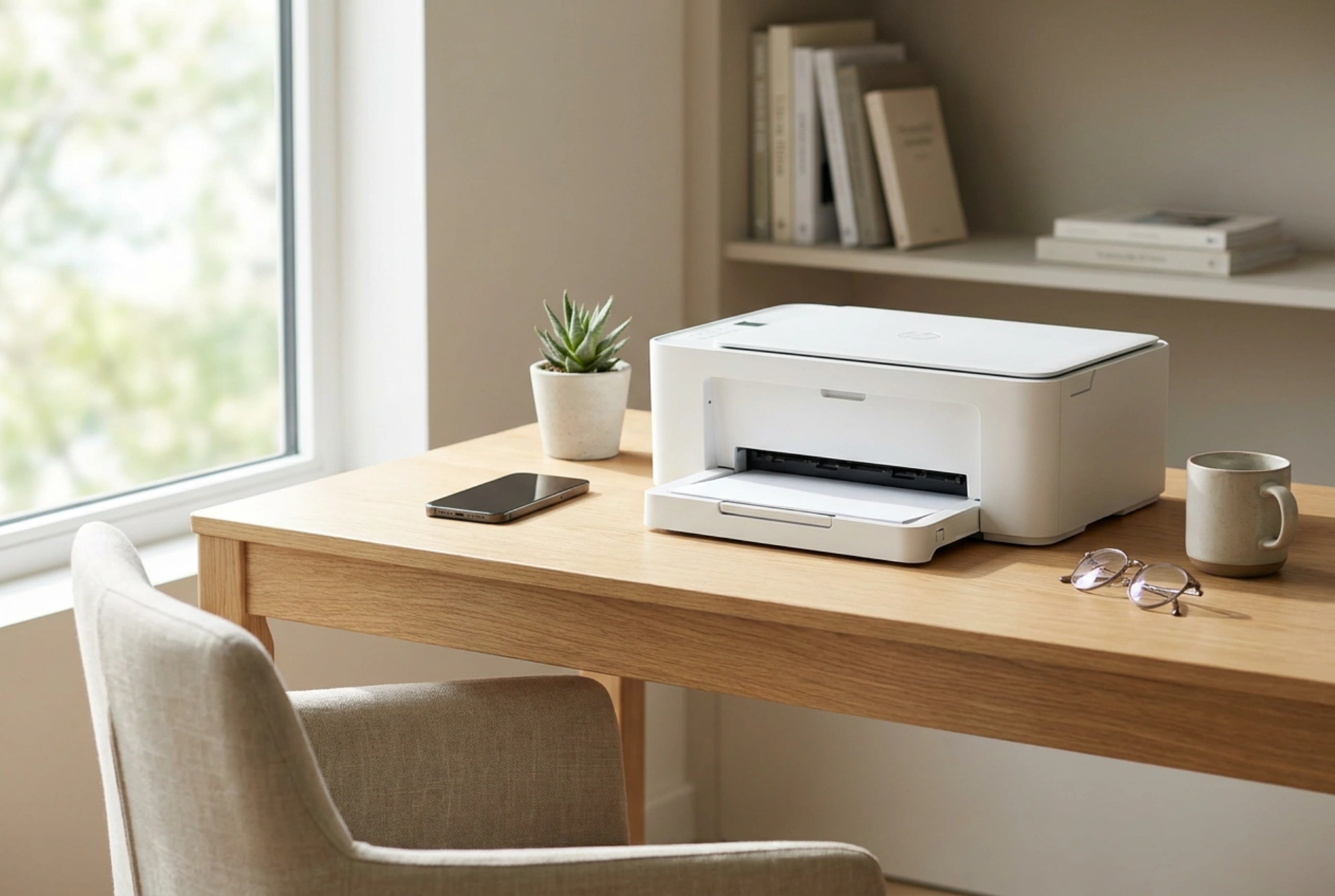


Maintaining a stable wireless connection between a mobile device and a compact printer requires a basic understanding of network protocols, radio frequency interference, and device power states. When mobile printing fails mid-job, the culprit is rarely the hardware itself, but rather a disruption in the communication stream between the phone's operating system and the printer's network interface.
Understanding the Protocols: Wi-Fi Direct vs. Local Area Network
Mobile printing relies primarily on three wireless protocols: Wi-Fi Direct, Local Area Network (LAN) routing, and Bluetooth. Choosing the right channel dictates connection stability.
- Wi-Fi Direct: This protocol establishes a peer-to-peer connection between the phone and the printer, bypassing the home router. While highly convenient, it forces the phone to disconnect from the local internet connection, which can cause background tasks to fail or prompt the phone to switch back to mobile data, terminating the print job mid-way.
- Local Area Network (LAN): Both devices connect to the same wireless router. This allows the phone to maintain internet access while printing, but makes the connection vulnerable to router-managed IP address changes and local network congestion.
- Bluetooth: Often used for initial pairing or small, low-resolution thermal printing. Its range is limited, and bandwidth is low, making it highly susceptible to physical obstacles and electromagnetic interference.
Managing Radio Frequency Interference and Signal Attenuation
Wireless signals are electromagnetic waves subject to attenuation (weakening over distance) and interference. Compact printers, often tucked into shelves or desk corners, can suffer from poor signal propagation.
Most modern routers broadcast on two bands: 2.4 GHz and 5 GHz. The 2.4 GHz band operates at a longer wavelength, allowing it to penetrate walls and solid furniture more effectively than the 5 GHz band. However, the 2.4 GHz spectrum is highly crowded, shared by microwave ovens, baby monitors, and neighbouring networks. If your compact printer supports dual-band Wi-Fi, binding both the smartphone and the printer to the 5 GHz band reduces interference, provided they are in the same room. If the printer is located further away, use the 2.4 GHz band but configure your router to use a non-overlapping channel (typically 1, 6, or 11) to avoid packet collisions that abort print jobs.
The Static IP Solution: Preventing Communication Loss
The most common cause of a phone suddenly "losing" a printer is dynamic IP allocation. By default, routers use DHCP (Dynamic Host Configuration Protocol) to assign temporary IP addresses to devices. When a compact printer enters a low-power state, it may release its IP address. Upon waking, the router might assign it a new address, leaving the phone searching for a destination that no longer exists at the old network coordinates.
To resolve this, assign a static IP address to your printer. This can be done via the router’s administration panel by reserving a specific IP address for the printer’s MAC (Media Access Control) address, or by accessing the printer’s embedded web server (EWS) via a web browser and changing the network settings from DHCP to Manual/Static. Once fixed, the smartphone will always find the printer at the exact same network location, eliminating wake-up search failures.
Optimizing Power-Saving States and Sleep Modes
Small, compact printers are engineered to minimize power consumption, often entering aggressive sleep or deep-sleep modes after just a few minutes of inactivity. During these states, the printer may shut down its wireless card to conserve energy.
To ensure consistent availability, adjust the printer's energy settings through its internal configuration page. Increasing the idle time required to enter sleep mode from 5 minutes to 30 or 60 minutes keeps the network card active during your working hours. Additionally, enable "Keep-Alive" packets or "Wake on LAN" (WoL) settings if available, which allow a network request from your smartphone to instantly wake the printer from its low-power state before the print command times out.
A Reliable Order of Operations for Mobile Printing
To guarantee a successful, uninterrupted print job every time, follow this systematic procedure:
- Verify the Network Band: Ensure your smartphone is connected to the exact same Wi-Fi SSID (and band frequency) as the printer. Mobile devices often hop between 2.4 GHz and 5 GHz networks automatically, which can break local device discovery.
- Wake the Printer First: Press the physical power or wake button on the printer to activate its wireless receiver before initiating the print command from your mobile app.
- Clear the Spooler Cache: If a job freezes, clear the print queue on both the mobile operating system and the printer (by power-cycling the printer) to prevent corrupted data packets from blocking subsequent transmissions.





