

A liquid spill on a laptop keyboard requires immediate, systematic action to prevent permanent electrical damage and corrosion. Understanding the physical and chemical behavior of liquids inside electronic devices is key to saving your hardware.
The Physics of a Spill: Why Liquid Ruins Electronics
The primary threat of a liquid spill is not the liquid itself, but its electrical conductivity. Pure water is a poor conductor, but tap water, coffee, tea, and sugary drinks contain dissolved minerals, salts, and acids that create free ions. When these ions bridge the gap between conductive pathways on a live circuit board, they cause a short circuit, potentially destroying delicate microprocessors permanently.
Furthermore, liquids move through tiny gaps via capillary action—the ability of a liquid to flow in narrow spaces without the assistance of, and even in opposition to, external forces like gravity. This means a spill on the spacebar can quickly migrate to the motherboard. If the liquid contains sugars or acids, it leaves behind a sticky, corrosive residue after the water evaporates. Acidic liquids, like fruit juice or coffee, chemically attack copper traces on the circuit board, leading to rapid galvanic corrosion that degrades the electrical connections over time.
Step 1: Immediate Power Isolation
The first ten seconds are critical. You must interrupt the electrical path immediately to stop the flow of current before short circuits can occur.
- Cut the power source: Instantly pull out the charging cable from the laptop.
- Force a hard shutdown: Press and hold the power button for at least five to ten seconds until the screen and status lights go completely dark. Do not waste time saving files or closing programs through the operating system.
- Disconnect peripherals: Unplug any USB drives, mice, or external monitors, as these can carry secondary electrical charges.
Step 2: Leveraging Gravity to Counter Capillary Action
Once the power is off, you must prevent the liquid from penetrating deeper into the laptop's internal layers.
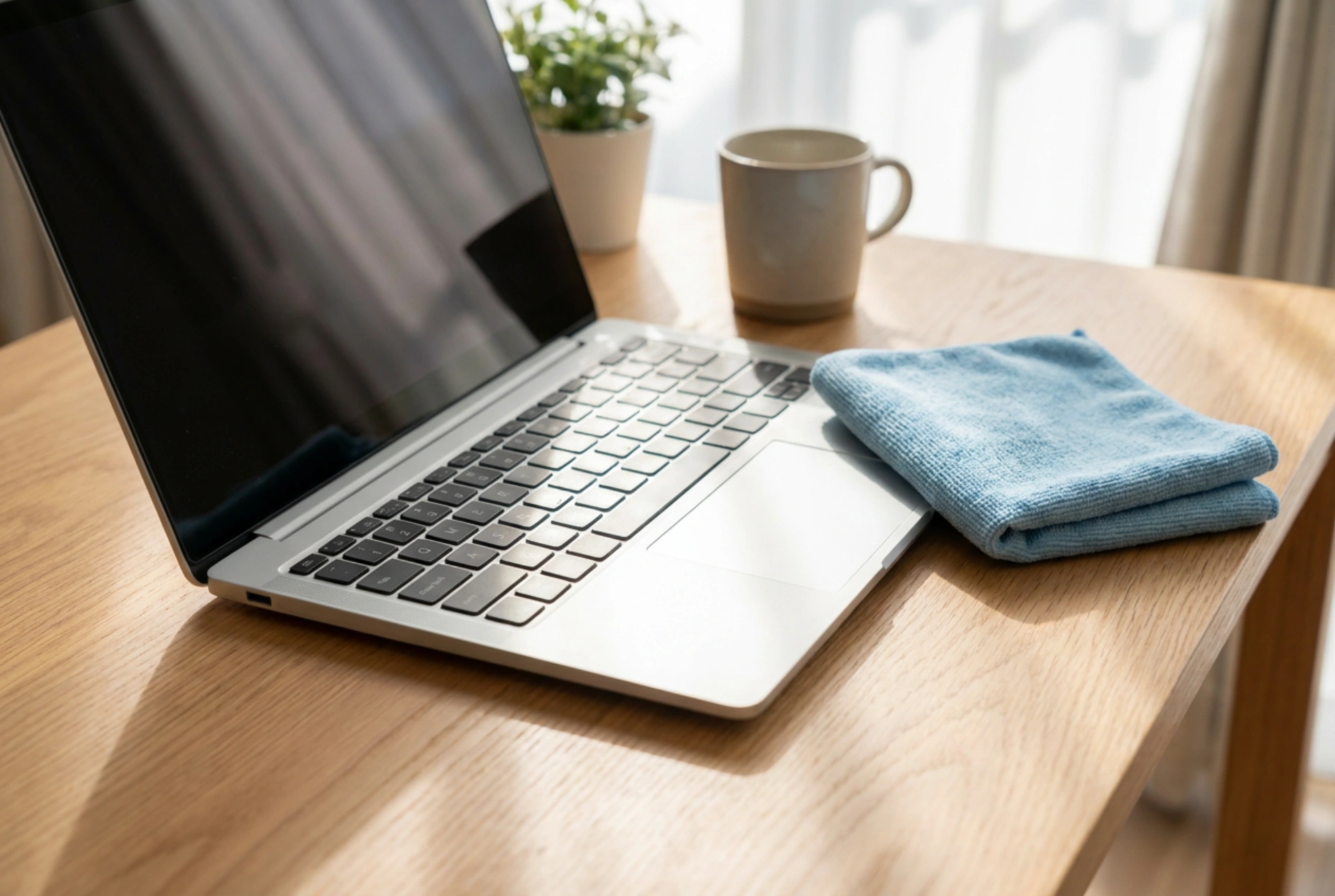
Open the laptop screen as wide as possible, ideally to a 180-degree angle if the hinge allows. Turn the device upside down so the keyboard faces the table. Place it on a clean, absorbent microfiber cloth. This position uses gravity to pull the liquid out of the keyboard mechanism and away from the delicate motherboard located directly underneath.
Keep the laptop in this "tent" or face-down position. Do not shake the device. Shaking does not remove the liquid; instead, it spreads the droplets across the internal surface area, introducing moisture to previously dry components.
Step 3: The Myth of Rice and the Reality of Drying
A common misconception is that placing a wet device in a bowl of raw rice will dry it out. In reality, rice is an ineffective desiccant for enclosed electronics. The starch and fine dust from the rice can enter the keyboard switches and ports, mixing with the residual moisture to create a thick paste that clogs mechanical parts and traps moisture inside. Additionally, rice does not address the chemical residue left by non-water liquids.
Instead, allow the laptop to dry in a warm room with active air circulation. A simple room fan blowing air across the upside-down laptop from a safe distance is highly effective. Never use a hair dryer, as the intense heat can warp plastic keycaps, and the forced high-pressure air stream will push water droplets deeper into the chassis.
Step 4: Managing Sticky Residues with Isopropyl Alcohol
If the spilled liquid was sugary or acidic (such as soda, juice, or sweetened coffee), simple drying is insufficient because the evaporated water will leave behind a conductive, sticky residue. To dissolve this residue without damaging the circuitry, you must use a high-purity solvent.
Use 99% isopropyl alcohol (isopropanol). It is highly volatile, displaces water, dissolves organic residues, and evaporates rapidly without leaving any mineral deposits. Dampen a lint-free microfiber cloth or a cotton swab with the alcohol—never pour it directly onto the keys—and gently clean the sticky areas. If you are comfortable removing keycaps (depending on your laptop model's mechanism), you can clean the scissor switches underneath individually. Allow the alcohol to evaporate completely for at least 24 to 48 hours before attempting to power the laptop back on.





