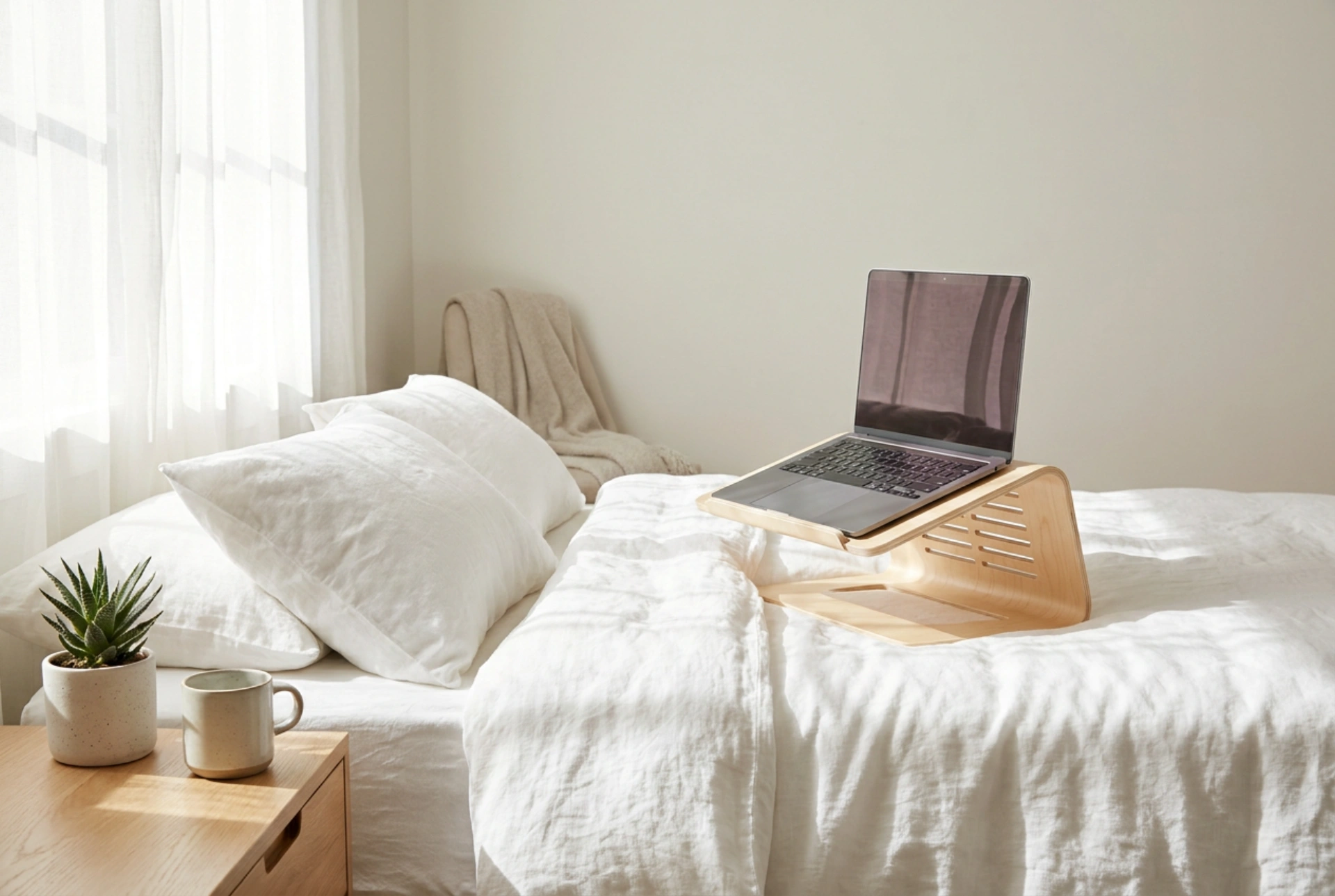


Using a laptop in bed often leads to silent thermal throttling and hardware degradation because soft blankets block essential airflow paths. By understanding the physics of heat dissipation and choosing the right support structure, you can maintain optimal operating temperatures even on the softest mattress.
The Physics of Laptop Heat Dissipation <\/h2>
Laptops rely on a combination of conduction, convection, and radiation to keep their internal components cool. The central processing unit and graphics processor generate significant thermal energy, which is transferred via copper heat pipes to cooling fins. Internal fans then pull cool air from the outside through intake vents, force it over these fins, and expel the hot air through exhaust vents. This process is highly dependent on unrestricted airflow and a low ambient temperature directly beneath the chassis. <\/p>
When you place a laptop directly on a bed, duvet, or blanket, the soft fabric deforms under the weight of the device. This creates a seal around the intake vents, typically located on the bottom of the casing, and sometimes even blocks the exhaust vents at the hinge. Furthermore, fabrics like cotton, wool, or polyester are excellent thermal insulators; they trap the heat radiated by the laptop's lower chassis, creating a localized greenhouse effect that rapidly raises the internal temperature of the components. <\/p>
Why Materials Matter: Aluminum vs. Wood and Plastic <\/h2>
A laptop stand acts as a thermal barrier and a heat sink, but its efficiency depends heavily on material science. Aluminum is an exceptional thermal conductor with a high heat transfer coefficient. An aluminum stand absorbs excess heat from the laptop chassis through conduction and dissipates it into the surrounding air. Additionally, metal stands are typically thinner, allowing for a larger volume of moving air beneath the device. <\/p>
Wooden or bamboo stands, while aesthetically pleasing, are natural thermal insulators. They do not actively help conduct heat away from the laptop. If you use a wooden stand in bed, it must feature generous ventilation slots or built-in active fans to facilitate air movement. Plastic stands fall somewhere in between; they do not conduct heat well, meaning they rely entirely on convection. Regardless of the material, the stand must provide a rigid, flat surface that prevents the laptop feet from sinking, maintaining the engineered clearance gap between the bottom of the device and the support surface. <\/p>
Strategies for Preventing Airflow Blockage in Bed <\/h2>
Simply placing a stand on a soft mattress is not always enough, as the stand itself can sink into thick bedding, blocking its own lower ventilation pathways. To counteract this, employ the following techniques: <\/p>
- Create a stable foundation: <\/strong>Place a rigid board or a tray underneath the laptop stand legs to distribute the weight evenly and prevent it from sinking into the mattress. <\/li>
- Utilize passive elevation: <\/strong>Ensure your stand elevates the back of the laptop by at least 2 to 3 inches. This angle not only improves ergonomics but also utilizes natural convection, as hot air rises and draws cooler air into the underside vents. <\/li>
- Clean the air path: <\/strong>Soft bedding is a major source of lint and microscopic fibers. When active fans pull air from a dusty environment, these fibers clog the internal heatsink. Ensure your bedding is clean, and use a stand with integrated fine-mesh dust filters if available. <\/li><\/ul>
Optimizing Device Settings for Bedside Use <\/h2>
Physical modifications should be paired with software-side heat management. Since the thermal environment in bed is naturally more challenging than a hard desk, reducing the thermal load at the source is highly effective. Adjust your operating system's power plan to an energy-saving or balanced profile, which lowers the maximum clock speed of the processor and reduces voltage, significantly decreasing heat generation with minimal impact on basic tasks. Furthermore, keep the laptop's active cooling vents clean by using compressed air periodically to blow out accumulated dust from the exhaust ports, ensuring the internal fans do not have to work twice as hard to expel hot air. <\/p>
- Utilize passive elevation: <\/strong>Ensure your stand elevates the back of the laptop by at least 2 to 3 inches. This angle not only improves ergonomics but also utilizes natural convection, as hot air rises and draws cooler air into the underside vents. <\/li>





