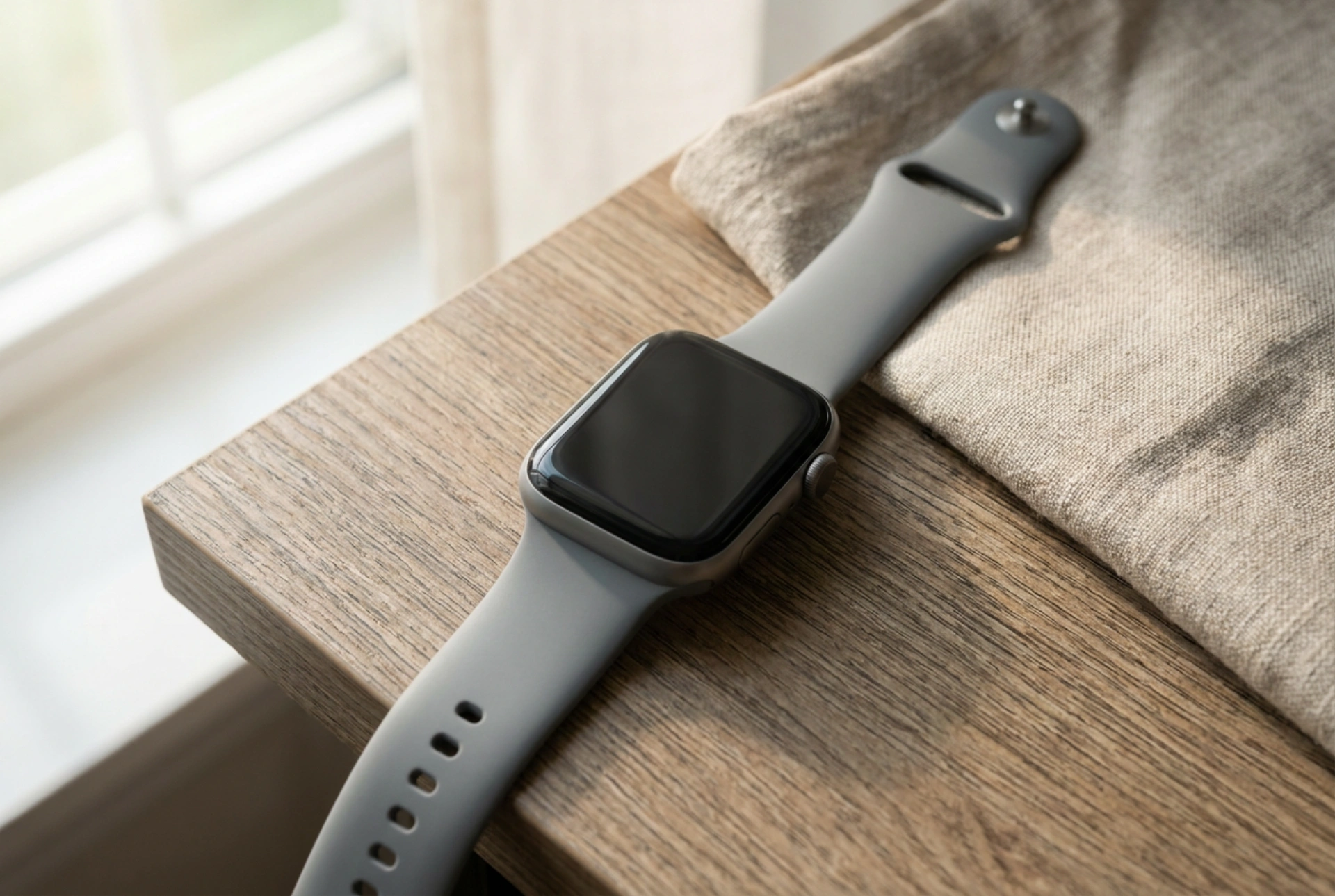


Configuring a child’s GPS smartwatch involves a careful balance between establishing robust safety perimeters and mitigating the cognitive load caused by constant digital alerts. By systematically adjusting positioning intervals, defining precise geofences, and establishing strict notification filters, you can transform a potentially distracting gadget into a reliable, quiet security tool.
Optimising GPS Precision and Battery Consumption
Smartwatches determine location using three distinct technologies: Global Positioning System (GPS), Wi-Fi triangulation, and Location-Based Services (LBS) via cellular towers. Understanding how these systems interact is key to extending battery life while maintaining accuracy.
GPS offers the highest accuracy (within 5 to 10 metres) but requires a direct line of sight to satellites, which consumes significant battery power. Inside buildings, the watch transitions to Wi-Fi triangulation (scanning for local MAC addresses) or LBS (triangulating between cell towers, which can have an error margin of up to several kilometres). To optimise this setup:
- Adjust the tracking interval: Set the location update frequency to 'normal mode' (typically every 10 to 60 minutes) rather than 'real-time mode' (every minute). Continuous pinging depletes the lithium-ion battery within a few hours and accelerates thermal degradation of the cell.
- Force manual updates: Teach your child that they do not need to constantly check their location. Use the parent application to request manual on-demand location updates only when necessary.
- Disable LBS when indoors: If the parent application allows, disable LBS positioning. This prevents the watch from falsely reporting that the child is kilometres away when the GPS signal drops indoors and the watch connects to a distant cell tower.
Setting Up Precise Geofences and Alert Parameters
A geofence is a virtual geographic boundary defined by GPS coordinates. When the device crosses this boundary, the companion app on the parent's phone receives an automated alert. For geofences to function reliably without generating false alarms, they must be calibrated correctly.
Defining Boundaries with Latency in Mind
Because GPS signals can drift due to atmospheric interference or physical obstructions (such as tall concrete buildings), setting a geofence radius too small (under 100 metres) will trigger frequent false alerts. Set safe zones—such as school, home, or a sports club—with a minimum radius of 150 to 200 metres. This buffer accommodates standard signal drift and prevents unnecessary anxiety.
Scheduling Geofence Activation
Rather than keeping all geofences active 24/7, configure them based on your child's weekly schedule. Activating the 'school zone' geofence only between 08:00 and 15:00 reduces background data processing on both the watch and your smartphone, preserving battery and bandwidth.
Restricting Notifications and Establishing School Mode
Unrestricted notifications can disrupt a child's concentration and academic performance. Restricting incoming alerts to essential safety communication is vital for digital hygiene.
Implementing Whitelists for Incoming Calls
To shield your child from spam calls and unauthorised contact, configure the 'whitelist' or 'trusted contacts' feature in the parental control application. When active, the watch's SIM card will automatically reject any incoming call or message from a number not pre-registered in the phonebook. This block happens at the device level, preventing the watch screen from even lighting up or vibrating.
Activating School Mode (Do Not Disturb)
Most modern children's smartwatches feature a scheduled 'Do Not Disturb' or 'School Mode'. When enabled, this feature completely silences the device and locks the screen during lesson hours. The only active function during these windows is the physical SOS button. To set this up:
- Define exact school hour blocks (e.g., Monday to Friday, 08:30–12:00 and 12:30–15:00).
- Ensure the watch face remains dark during these periods to eliminate the temptation of tactile play.
- Verify that the SOS bypass is active, allowing an emergency signal to be sent if the physical button is held down for more than three seconds.
Securing Data and SIM Settings
Because GPS smartwatches transmit sensitive location data over cellular networks, securing the transmission pathway is as important as configuring the physical device.
Always set a PIN code for the watch’s SIM card using a spare mobile phone before inserting it into the smartwatch. This prevents unauthorised users from removing the SIM card and using it in another device. Additionally, ensure the companion app uses encrypted servers (look for GDPR compliance in the application’s privacy policy) to prevent third parties from intercepting the raw coordinate stream.





