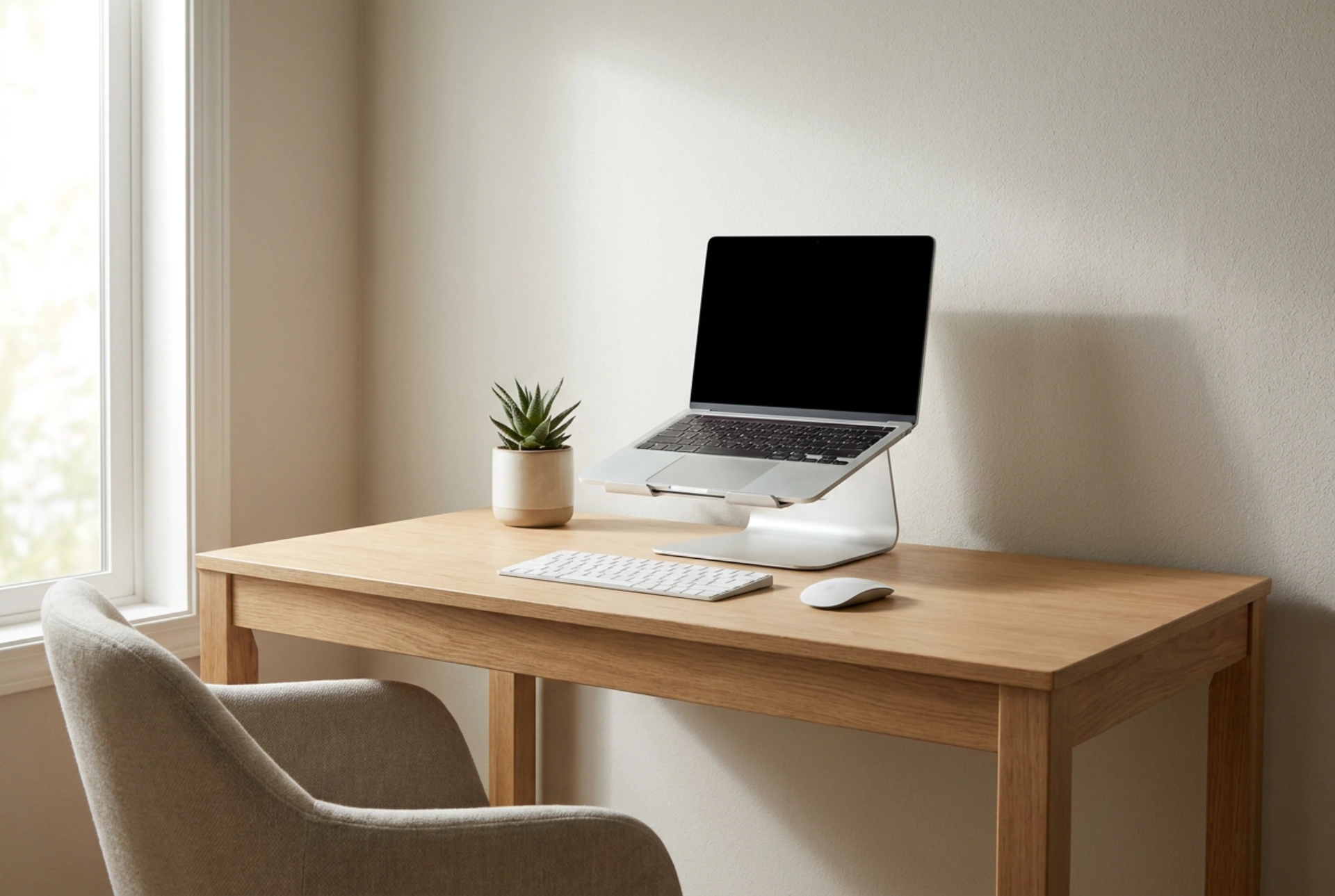


Setting up your laptop stand at the correct height and angle is essential to prevent chronic neck strain, shoulder tension, and eye fatigue during long working hours. By applying basic biomechanical and physical principles, you can transform a standard laptop into an ergonomic tool that supports your body’s natural alignment.
The Physics of Neck Strain: Why Height Matters
The human head weighs approximately 4.5 to 5.5 kilograms in a neutral upright position. However, due to gravity and the lever principle of the neck, tilting your head forward by just 15 degrees effectively doubles the load on your cervical spine. When you look down at a laptop placed flat on a desk, your neck is often bent at a 45-degree angle, forcing your spine to support a load equivalent to nearly 22 kilograms. This constant muscular tension leads to chronic pain and tension headaches.
To eliminate this load, your adjustable laptop stand must bring the top of the screen level with your horizontal line of sight. When sitting upright, your eyes should naturally align with a point about 2 to 5 centimetres below the top edge of the display. This allows you to view the middle of the screen with a downward gaze of roughly 15 to 20 degrees, which is the most natural and least taxing angle for the extraocular muscles responsible for eye movement.
Determining Distance and Angle to Prevent Eye Fatigue
Eye strain is often caused by incorrect focal distance and screen glare. To set the perfect distance, sit back in your chair and extend your arm. Your fingertips should just touch the screen. This positions the display approximately 50 to 70 centimetres away from your eyes, which aligns with the natural resting point of ocular accommodation. At this distance, the ciliary muscles inside your eyes do not have to contract excessively to maintain focus.
Additionally, adjust the angle of the laptop screen itself relative to your face. The screen should be tilted back slightly, between 10 and 20 degrees. This angle ensures that your gaze is perpendicular to the screen surface, maximizing contrast and reducing the distortion of text. It also helps redirect light from overhead fixtures away from your eyes, preventing the high-contrast glare that triggers fatigue and headaches.
The Essential Mechanics of Peripheral Setup
Raising your laptop on an adjustable stand solves the screen height issue, but it introduces a secondary ergonomic challenge: the keyboard and trackpad. Attempting to type on a laptop keyboard that is elevated on a stand is highly detrimental. It forces the wrists into severe extension and elevates the shoulders, restricting blood flow and compressing the median nerve.
To prevent these issues, always pair your laptop stand with an external keyboard and mouse. Place these peripherals flat on the desk surface so that your elbows can maintain an angle of 90 to 100 degrees. Your shoulders should remain relaxed, with your upper arms hanging naturally close to your torso. This mechanical division of tasks—separating the display from the input surface—is the only way to achieve true ergonomic balance.
Adapting the Stand for Sitting and Standing Transitions
If you use an adjustable sit-stand desk, your laptop stand must be recalibrated whenever you change positions. When sitting, your pelvis stabilizes your spine, and your elbow height remains relatively constant. However, when standing, your body tends to sway, and the distance between your elbows and eye level can change as your posture shifts. Every time you transition to standing, re-verify that the top of the monitor remains at eye level and that you are not hunching your shoulders to reach your keyboard. The stand should be adjusted to compensate for any slight height difference in your standing posture, ensuring the screen does not drift too far below your horizon.
Optimizing the Workplace Environment
Your physical setup does not exist in a vacuum; ambient lighting plays a critical role in how your eyes interact with the screen. Position your laptop stand perpendicular to any windows. Having a window directly behind the screen causes glare, while having a window directly in front of you creates high contrast that overworks your pupils. If you cannot change your desk orientation, use the adjustable stand to tilt the screen slightly downward to deflect reflections while keeping the primary viewing area within your natural sightline.





