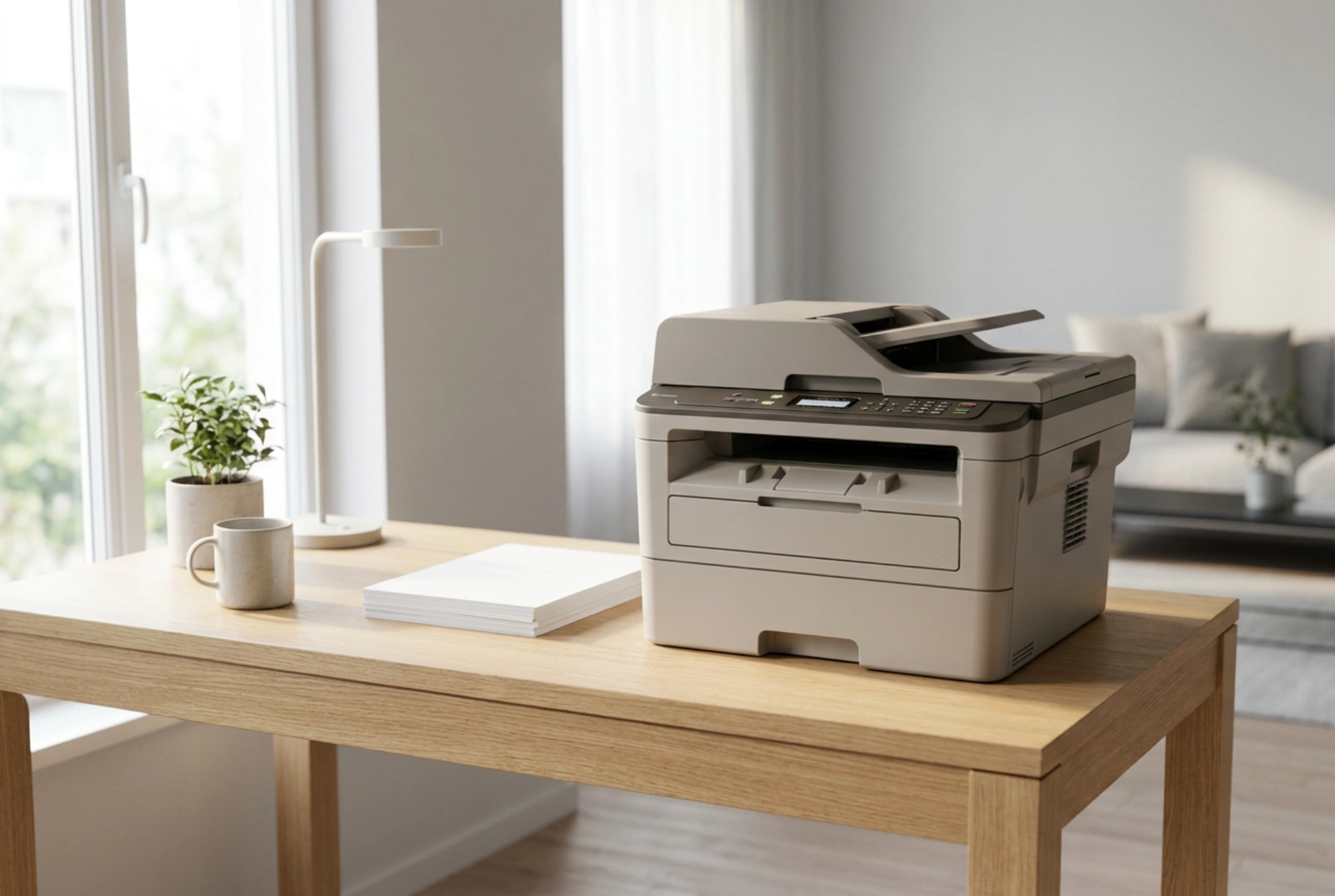


Properly positioning and configuring a colour laser multifunction printer is essential for maintaining print quality, preventing mechanical wear, and ensuring safe operation. By understanding the thermodynamic and mechanical requirements of these sophisticated devices, you can optimise their performance and extend their lifespan.
Thermal Management and Airflow Requirements
Unlike inkjet devices, laser printers rely on high temperatures to bond toner to paper. The internal fuser unit must reach temperatures between 150°C and 200°C to melt the plastic resins in the toner powder. This process generates substantial heat that must be dissipated to protect internal electronics and plastic gears.
When positioning your printer, ensure there is at least 15 centimetres of clear space around all ventilation grilles, particularly the exhaust fan outlet. Avoid placing the device inside tight cabinets, near heating radiators, or in direct sunlight. Excessive ambient heat can cause the toner powder inside the cartridges to clump, leading to uneven distribution, blockages, and poor print quality. Adequate airflow also prevents the accumulation of fine particles and ozone, which are natural byproducts of the high-voltage electrostatic process.
Mechanical Stability and Vibration Control
A colour laser multifunction printer is a heavy, dynamic machine. It contains a high-speed rotating polygonal mirror, shifting paper trays, and a moving optical scanner carriage. If the printer is placed on an unstable or uneven surface, these moving parts generate micro-vibrations that can degrade performance.
- Chassis Alignment: An uneven surface can warp the plastic chassis slightly over time, leading to paper path misalignment and frequent paper jams.
- Image Registration: Colour laser printing requires the precise overlay of four toner colours (cyan, magenta, yellow, and black). Vibrations can cause micro-shifts during the paper pass, resulting in blurry text or misaligned colours.
- Scanner Accuracy: During high-resolution scanning, any physical movement of the desk will register as waves or distortions in the digital file. Place the device on a solid wood or heavy metal frame desk to isolate these forces.
Electrical Load and Circuit Safety
The heating cycle of a laser fuser requires a sudden, high draw of electrical current, often spiking to 1000 watts or more for several seconds. To prevent electrical issues in your home office, pay attention to how the device is powered.
Connect the printer directly to a grounded wall outlet if possible. If you must use a power strip, ensure it is rated for heavy appliances and features surge protection. Avoid sharing the same outlet circuit with highly sensitive electronics, like high-end audio equipment or desktop computers without an uninterruptible power supply (UPS), as the sudden voltage drop during print initiation can cause electrical interference or unexpected reboots.
Optimising the Optical Scanner and Paper Path
The scanning bed and paper intake mechanisms are highly sensitive to particulate contamination. Standard household dust is highly abrasive and can easily damage the delicate glass or optical sensors.
Keep the flatbed scanner glass pristine by wiping it with a dry, lint-free microfibre cloth. For stubborn grease or fingerprints, use a minimal amount of isopropyl alcohol applied directly to the cloth, never sprayed onto the glass itself, as liquid can seep under the bezel and short-circuit the sensor array. Additionally, ensure the paper storage area is kept clean. Dusty paper transfers debris onto the pickup rollers, reducing friction and causing multi-sheet feeding or misfeeds.
Humidity Control and Media Storage
Paper is organic and highly hygroscopic, meaning it constantly exchanges moisture with the surrounding air. Changes in relative humidity directly affect how paper behaves inside a laser printer.
In high-humidity environments, paper fibres expand and become limp, leading to curling as they pass through the intense heat of the fuser. In very dry conditions, paper accumulates static electricity, causing sheets to cling together and feed simultaneously. Store your printing paper in its original, moisture-resistant packaging inside a closed cabinet, and only load the tray with what you expect to use within a few days to maintain optimal mechanical feeding.





