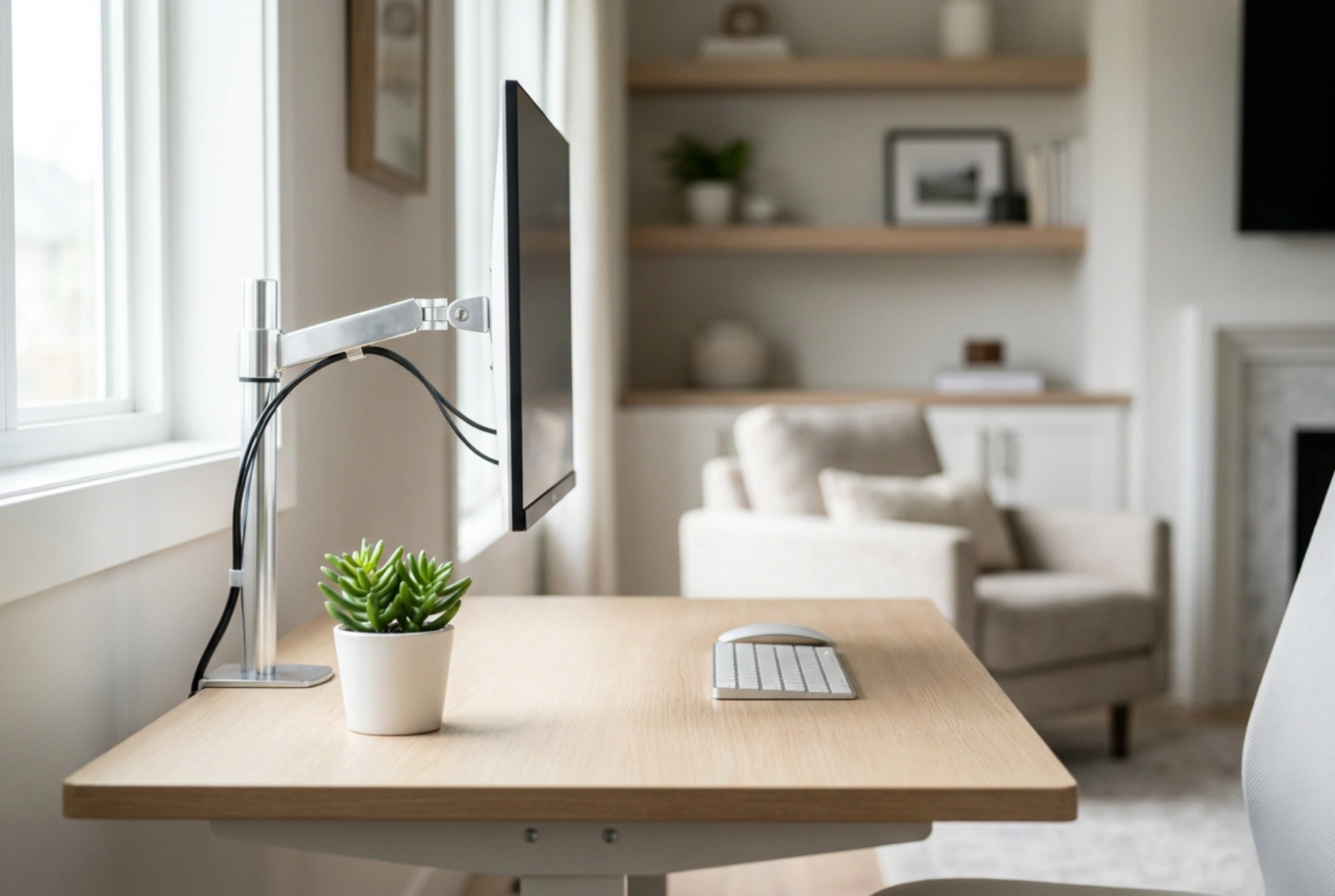


Proper monitor arm adjustment is crucial to eliminate cervical spine strain and muscle fatigue during long working hours. Aligning your screen according to biomechanical principles ensures a neutral body posture and prevents chronic musculoskeletal issues.
The Biomechanics of Neck Pain and Screen Alignment
The human head weighs approximately 5 kilograms in a neutral upright position. However, as the neck bends forward, the mechanical leverage exerted on the cervical spine increases dramatically. At a mere 15-degree forward tilt, the effective weight on the spine doubles to about 12 kilograms, and at a 60-degree tilt, it reaches nearly 27 kilograms. This sustained load strains the trapezius and levator scapulae muscles, leading to micro-tears, spasms, and tension headaches.
By utilizing a desk-mounted monitor arm, you gain control over the three spatial axes (height, depth, and tilt) required to keep your head in a biomechanically neutral position. A neutral position means your ears align directly over your shoulders, minimizing the torque exerted on your cervical vertebrae.
Finding the Optical Sweet Spot: Height and Angle
The primary adjustment error is positioning the monitor too low, which forces the head to tilt downward. To set the correct height, sit comfortably in your chair with your shoulders relaxed and your spine supported. Close your eyes, take a deep breath, open them, and look straight ahead. Your natural line of sight should land on the top third of the monitor screen.
This specific height accounts for the natural resting gaze of the human eye, which sits at a slightly downward angle of 15 to 20 degrees. Placing the primary active workspace of your monitor within this zone prevents you from constantly raising or lowering your chin. Additionally, tilt the monitor backward by 10 to 20 degrees. This slight upward tilt ensures that your line of vision remains perpendicular to the screen surface across its entire height, maximizing readability and preventing the need to lean forward to resolve small text.
Calculating the Ideal Viewing Distance
Viewing distance directly affects both optical health and physical posture. If the screen is positioned too close, the ciliary muscles inside the eyes must contract continuously to maintain focus, leading to asthenopia (eye strain). To compensate for visual fatigue, you will unconsciously drift your head forward, breaking your neutral spinal alignment.
The optimal distance between your eyes and the screen should be roughly 50 to 70 centimeters, which is approximately one arm's length. If you have a larger monitor (27 inches or more), increase this distance slightly to ensure the entire screen fits within your peripheral vision without requiring excessive horizontal head rotation. If you find yourself squinting or leaning forward at this distance, increase the system font scaling rather than pulling the monitor closer or moving your head forward.
Calibrating the Tension of Your Monitor Arm
A monitor arm relies on internal counterbalancing mechanisms—typically a gas spring or a mechanical coil spring—to offset the gravitational pull on your display. If the tension is improperly calibrated, the monitor will either sink under its own weight or spring upward violently, making micro-adjustments impossible.
- Locate the tension adjustment screw: This is usually positioned at the main joints of the arm.
- Adjust for weight: Use a hex key to turn the screw toward the plus (+) sign if the monitor is drooping, or toward the minus (-) sign if the arm rises on its own.
- Test the equilibrium: The monitor should remain completely stationary at any point in its vertical range of motion, requiring only a gentle push to reposition.
Proper tension calibration ensures that you can effortlessly shift the screen throughout the day to match slight variations in your sitting posture, keeping physical strain to an absolute minimum.
A Quick Checklist for Daily Monitor Ergonomics
To maintain a pain-free workspace, perform this rapid alignment check at the start of every working session:
- Eye Level: Is the top margin of the screen bezel at or slightly below your direct horizon line?
- Distance: Can you touch the screen with the tips of your fingers when sitting fully back in your chair?
- Tilt: Is the screen tilted slightly upward to match your downward gaze?
- Centering: Is the monitor centered directly in front of your keyboard to prevent neck rotation?
By systematically applying these physical adjustments, you redirect the mechanical loads away from your neck muscles and onto the structural support of your chair and spine, ensuring long-term comfort and productivity.





