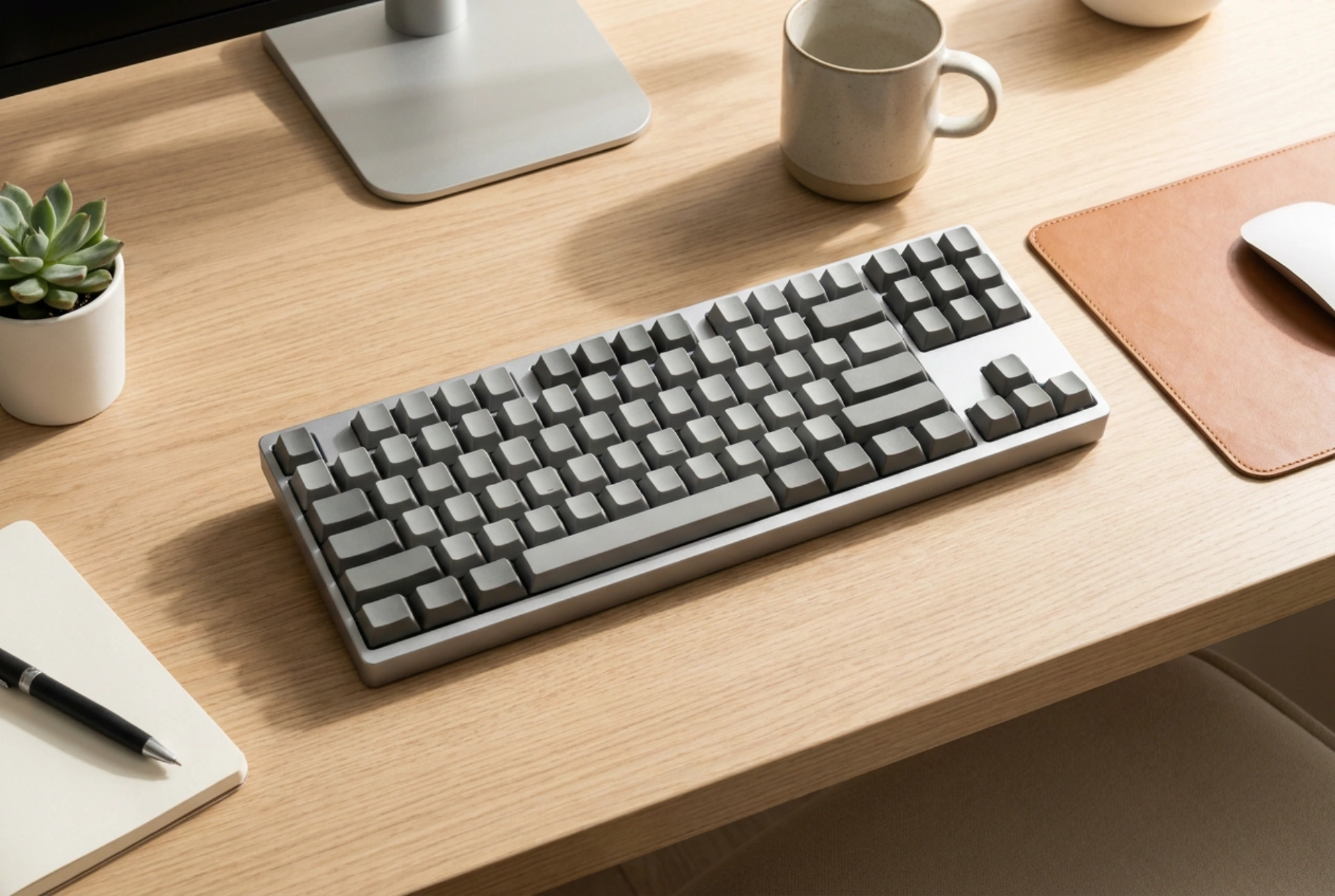


Accidentally pressing a combination of keys can instantly scramble your keyboard layout, turning familiar letters into unexpected symbols or swapping key positions like 'Z' and 'Y'. Restoring the correct layout requires understanding how operating systems manage input languages and using specific hotkeys or system settings to reset them.
Understanding Why Keyboard Layouts Suddenly Change
Modern operating systems are designed to support multiple languages and regional input methods. In many desktop environments, a default keyboard shortcut is pre-configured to toggle between these installed languages. When you type rapidly, it is easy to accidentally trigger these hotkeys—typically Ctrl + Shift or Alt + Shift in Windows, or Option + Space in macOS.
This action switches the active keyboard layout. For instance, switching from a standard QWERTY layout (such as United States or United Kingdom English) to a German QWERTZ or French AZERTY layout instantly reassigns the values mapped to your physical keys. Another common issue is the accidental activation of the keyboard's numerical lock (NumLock) on compact laptops, which maps a grid of letters (like U, I, O, P) to act as a numeric keypad.
Instant Fixes: Shortcuts to Restore Your Layout
If your keyboard layout changed mid-typing, you can usually revert it immediately without opening any settings menus. The exact combination depends on your operating system and configuration:
- The Shift + Ctrl Combination: In many Windows environments, pressing the left Shift and left Ctrl keys simultaneously cycles through installed keyboard layouts. Press this combination once, then test your keys. If the layout is still incorrect, press it again to cycle to the next language profile.
- The Alt + Shift Combination: This is another standard shortcut used to switch between different input languages. Pressing these two keys together will shift the system focus to the next language pack in your active list.
- Windows Key + Spacebar: Modern Windows systems display a visual overlay when you hold down the Windows Key and press the Spacebar. This allows you to cycle through your active layouts while viewing the current selection on the right side of the screen.
- Option + Spacebar (macOS): On Apple systems with multiple input sources, pressing Option + Spacebar or Control + Spacebar toggles between the last used input methods.
Preventing Accidental Switches in System Settings
To ensure this issue does not recur, you can disable the shortcuts or remove unused keyboard layouts entirely. This streamlines your input system and eliminates the root cause of accidental switching.
Managing Input Methods in Windows
Open the system settings by pressing the Windows Key + I. Navigate to 'Time & Language' and select 'Language & Region' (or 'Language' in older versions). Here, you will see a list of preferred languages. If you only type in one language, click on the three dots next to any secondary languages and select 'Remove'. Having only one language and one keyboard layout (such as 'English QWERTY') permanently disables the layout-switching shortcut because there are no other profiles to switch to.
If you must keep multiple languages, you can disable the hotkeys. Go to 'Advanced keyboard settings', click on 'Input language hot keys', select the shortcut actions (like 'Between input languages'), and change them to 'Not Assigned'.
Configuring Keyboard Sources in macOS
Open 'System Settings' (or 'System Preferences') from the Apple menu and select 'Keyboard'. Go to the 'Input Sources' tab. Here, you will see a list of active keyboards. Select any unwanted layouts and click the minus (-) button to remove them. You can also uncheck the option to 'Use the Caps Lock key to switch to and from' a specific layout to prevent unexpected toggling during standard typing.
Addressing Hardware-Level Layout Anomalies
Sometimes, scrambled input is caused by mechanical failures or physical key states rather than software settings. If a modifier key like Alt, Ctrl, or Shift becomes physically stuck or experiences electrical bridging due to debris, the operating system registers every subsequent keystroke as a shortcut combination. Gently tapping each modifier key a few times can release a stuck mechanism. Cleaning the switches with compressed air and a small amount of isopropyl alcohol (ensuring the device is powered off first) removes physical obstructions that cause keys to remain active.





