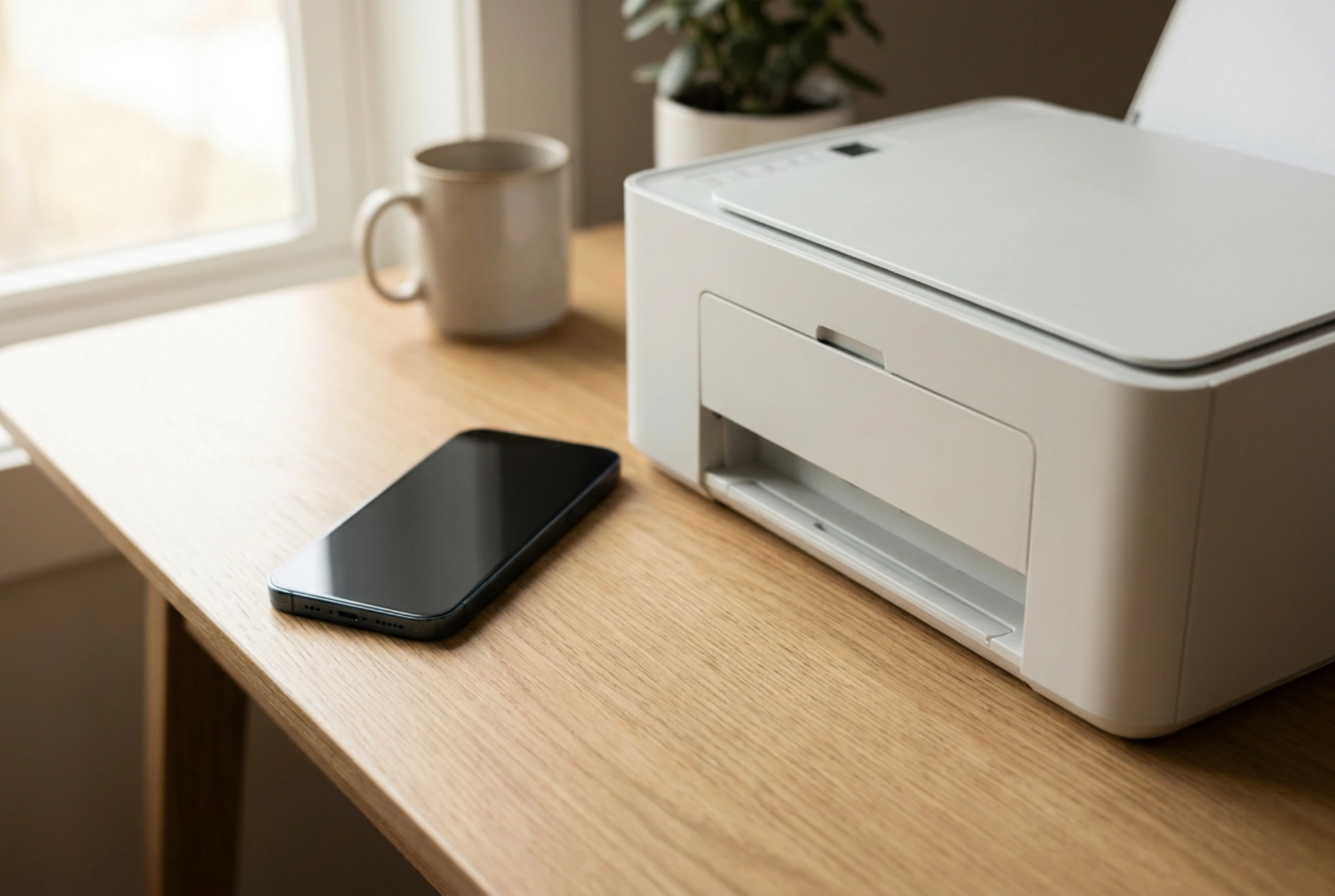


Establishing a stable wireless link between a mobile device and a thermal or inkjet printer relies on precise signal management and correct protocol pairing.
The Physics of Bluetooth Pairing and Protocol Synchronization
Bluetooth communication operates within the 2.4 GHz ISM radio band, utilizing adaptive frequency hopping to avoid interference. When a smartphone connects to a portable or home printer, it establishes a Master-Slave relationship. To initiate this, the printer must be in discovery mode, which temporarily broadens its advertising interval, sending out packets containing its Media Access Control (MAC) address and supported profiles, such as the Basic Printing Profile (BPP) or Object Push Profile (OPP).
During the initial handshake, security keys are exchanged via Secure Simple Pairing (SSP). If this cryptographic key exchange is interrupted or if the signal-to-noise ratio is too low, the connection will fail. Ensuring both devices are within a clear line of sight during the initial pairing minimizes multipath propagation issues, where radio waves bounce off physical obstacles and arrive at the receiver with slight phase shifts, causing data packet loss.
How to Connect Your Printer in Four Steps
- Step 1: Activate Pairing Mode on the Printer: Press and hold the Bluetooth or power button until the indicator light flashes rapidly. This signals that the device is actively broadcasting its MAC address.
- Step 2: Scan for Devices on the Smartphone: Open the Bluetooth settings on your phone and initiate a manual scan. Wait for the correct printer model name or MAC address to appear in the list of available devices.
- Step 3: Authenticate the Pairing: Select the printer from the list. If prompted, enter the default PIN (commonly 0000 or 1234) to finalize the secure cryptographic link.
- Step 4: Configure the Printing Service: Open the document or the dedicated generic printing application, select the paired Bluetooth printer as the active output destination, and set the appropriate page parameters.
Preventing Signal Interference and Print Droplets
Print jobs often fail mid-way due to buffer underruns, which occur when the printer’s memory runs out of data because the transmission rate drops. To maintain a constant data stream, minimize electromagnetic interference in the immediate vicinity. Common household appliances such as microwave ovens, baby monitors, and older 2.4 GHz Wi-Fi routers operate on the same frequency spectrum and can degrade the Bluetooth throughput.
Physical barriers also play a significant role in signal attenuation. Concrete walls, metal desks, and even human bodies absorb RF signals at 2.4 GHz. Position the smartphone within two meters of the printer with an unobstructed path. Additionally, disable aggressive battery-saving modes on your phone. These power management systems often throttle the CPU and limit the power supplied to the internal Bluetooth transceiver, causing the connection to enter a low-power state and drop packets during large print jobs.
Managing the Print Spooler and Device Cache
When a print job stalls, the system's print spooler becomes clogged with unrendered data packets. To resolve this, you must clear the queue rather than repeatedly sending the print command. Toggle the phone's Bluetooth transceiver off and on to reset the hardware controller stack. Power cycling the printer flushes its internal Random Access Memory (RAM), clearing any corrupted buffer states and preparing the hardware to establish a clean, synchronized connection cycle.





